



Microsoft recently announced that after March 31st, 2024 the software that is referred to is Classic Teams will be phased out and users will have to start using the latest version of Teams aka New Teams.
If you already have New Teams installed no further action is required. One can differentiate the two versions of team simply by looking at the icon for the application. If the Teams application on your computer looks like the following then you already have New Teams installed.

If your Teams icon does not look like the image above, you have Classic Teams installed.
If this is the case users should be able to ahead and switch to New Teams by clicking the slider button in the top left-hand corner of their Teams Desktop Application:
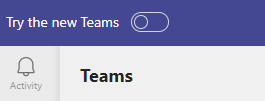
If the above option doesn't exist or if prompted to install a New Teams via download, then users will need to contact IT to have Classic Teams uninstalled and New Teams installed.
To do so, go to Download Microsoft Teams Desktop and Mobile Apps | Microsoft Teams
Click on Download the New Teams App under the Teams for Work or School section on the left-hand side and then select Download for Windows (64 Bit):
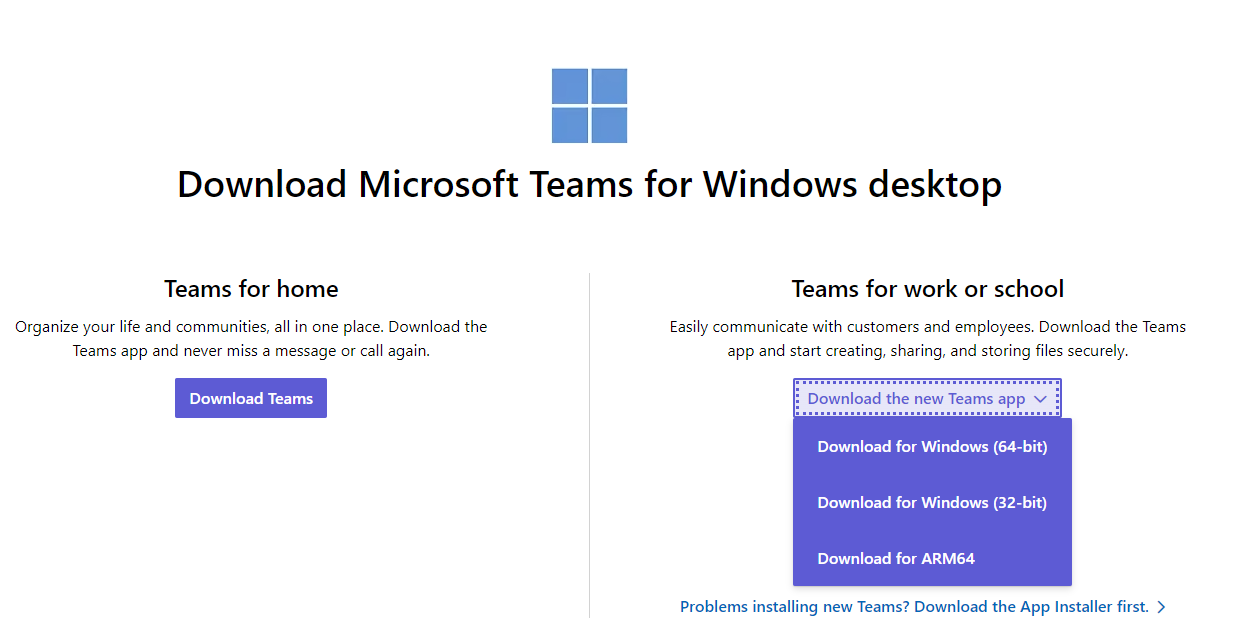
As it's downloading, please submit a help desk ticket via [email protected] or call 859-810-8050 to have IT remote in to remove Classic teams and Install New Teams.

