




Mobile App
Features User Guide
Installation
The Nextiva Mobile app can be downloaded from the App Store on your cell phone.
Apple App Store: 
Google Play Store: 
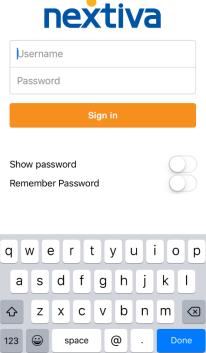
To Sign in:
-
When you click Sign In, it will open a new window where you will log into Nextiva.
-
Enter your Nextiva username and password.
-
Click Sign In.
App Icons

These are the icons that will appear either at the top of your app screen or the bottom, depending on if you’re using Apple or android.
Icons (from left to right):
-
Contacts
-
Chat Messages
-
Dialer
-
Call History
-
Voicemails
Contacts
A list of all your save contacts will appear here. If you do not have any contacts, please follow the steps below to add.
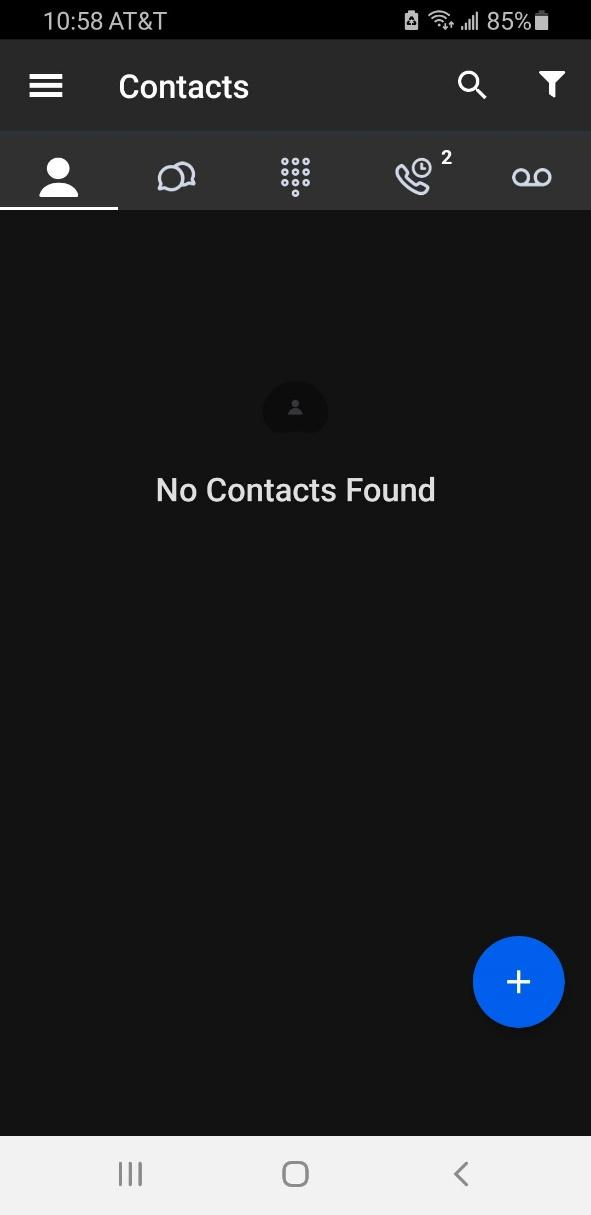
To add a contact:
-
Click on the + button.
-
Click Add Contact.
-
This will bring up the screen to enter all the details for that contact.
-
When finished, click Save.
*If you’re adding a user that also has the Nextiva app, it will send that user a request that you are trying to add them as a contact.
Calls
From your Nextiva app, you can make and receive calls as if you were using your desk phone.
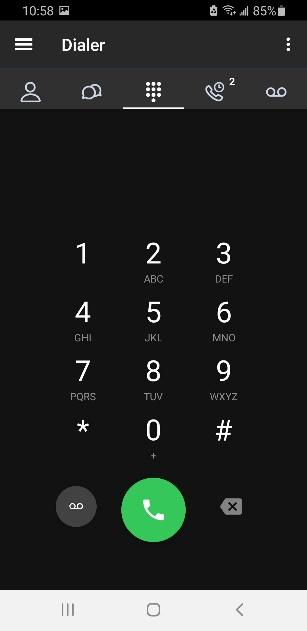
Making an Outbound Call:
-
Click the Dialer icon.
-
This will bring you to the dial pad screen.
-
Enter the phone number you are calling.
-
Then tap the call button.
Answering an Inbound Call:
-
When receiving an inbound call, you will get a notification on your phone that you are receiving the call.
-
From that notification, you can choose to answer the call or decline the call.
Accessing Voicemail box from Dial Pad:
-
To check voicemail from the dial pad, press and hold the 1 key.
-
You can also dial *86.
Call History
Clicking the call history icon will bring up a list of all your calls, including missed, received, and dialed.
You can also click on the Missed tab to just view your missed calls.
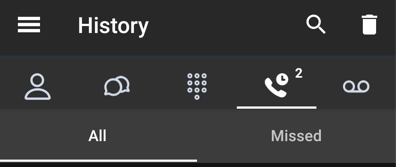
To make a call from your call history list, click the phone icon next to the corresponding call.
If you click on a missed call, it will bring up all the information regarding that call. From there you can:
-
Call
-
See what time the call was missed or received
-
See the phone number associated with that call
-
Add the number to your contacts
Voicemails
Clicking the Voicemail tab will bring up a list of voicemails on the device.
From this list, you will be able to listen to, save, and delete your voicemails.
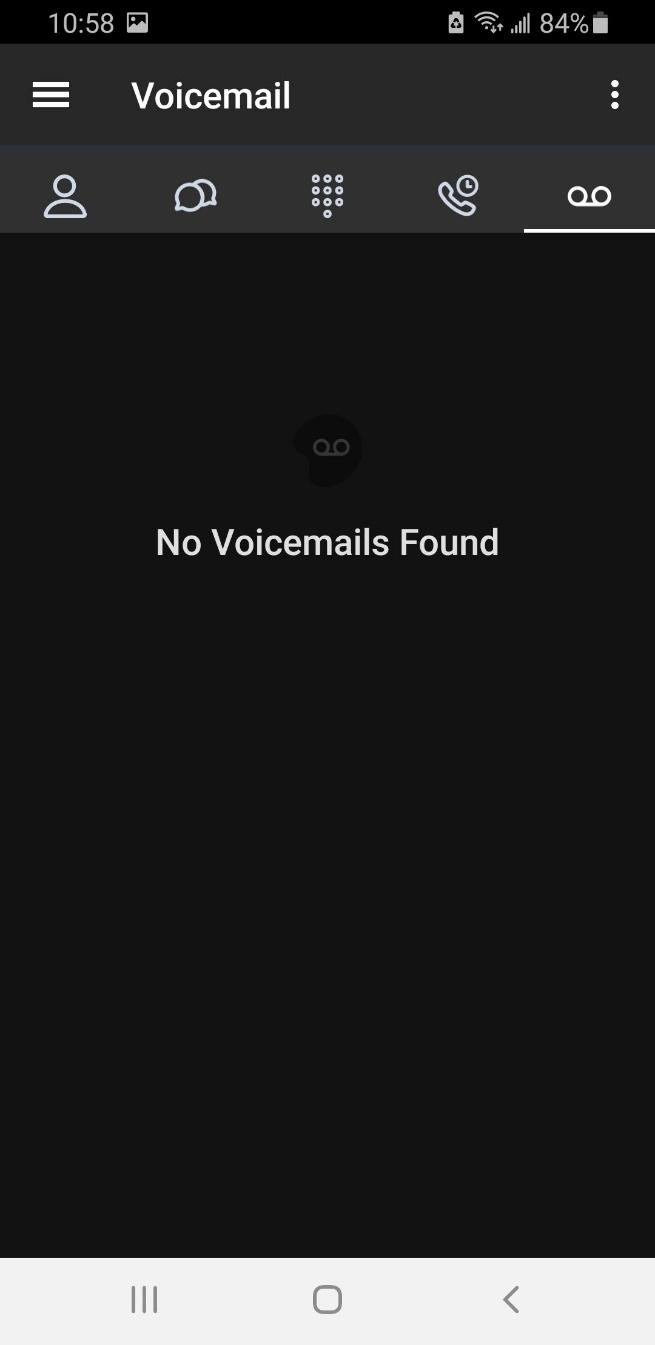
*You can also access your voicemail box from the dial pad, by hold down 1 or dialing *86.


