Desktop App
Features User Guide
Link to Download:
Click the link below or copy into your browser.
https://www.nextiva.com/support/articles/nextiva-app-overview-installation-and-setup.html
To Sign in:
-
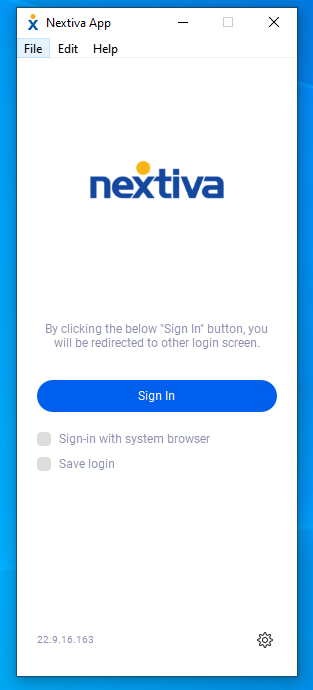
When you click Sign In, it will open a new window where you will log into Nextiva.
-
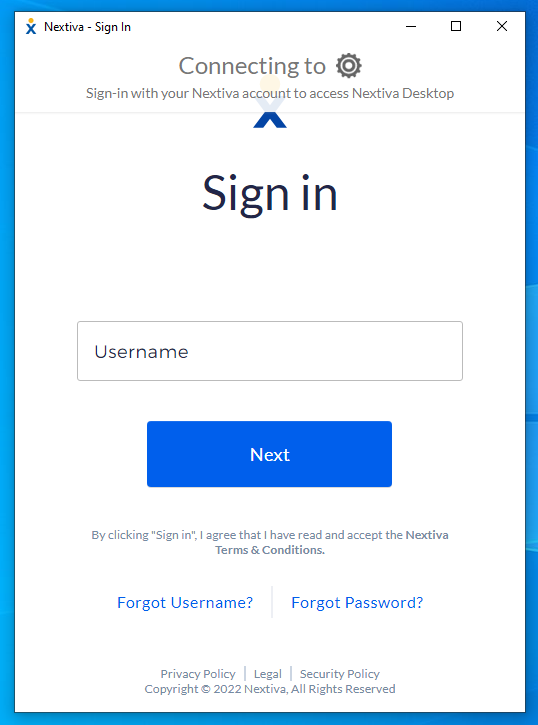
Enter your Nextiva username and password.
-
Click Sign In.
Main Window
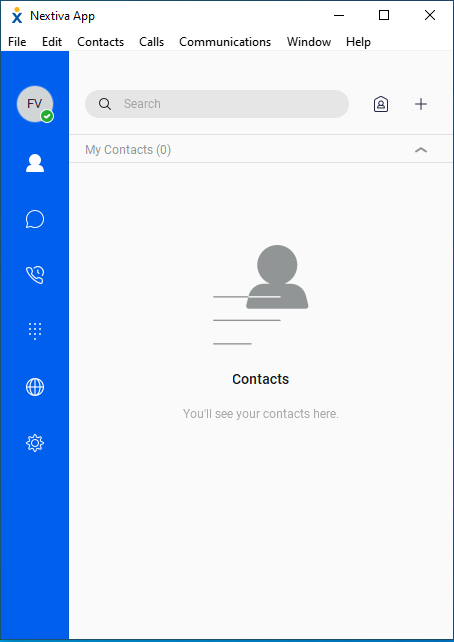
Once you are signed in, this is what the app will look like. It will open to your contact list.
To add contacts:
-
Use the search bar to search for names to add to your contact list.
-
Once a name and number pop up that you would like to add, right click on that name and select ADD TO CONTACTS.
-
When you are finished searching, click the cancel button to take you back to your main contact page.
Calls
You can make and receive calls from your desktop app, if you have an audio device connected or on your computer. These devices include:
-
Headset with microphone
-
Stand-alone microphone
-
Webcam
To make a call:
-
Click on the dial pad icon.


-
This will bring up the dial pad screen. It will look like this:
-
Enter the number that you are calling.
-
Click the call button (middle, round button with phone icon) to initiate the call.
-
If you are making a video call, you will click the button that has the video camera on it.
Receive calls:
When you receive a call, you will see a pop-up notification on your desktop screen. You can choose to answer or reject the call from the pop-up.
Accessing Voicemail box from Dial Pad:
-
To check voicemail from the dial pad, press and hold the 1 key.
-
You can also dial *86.
Call History and Voicemails:

Checking call history
By clicking the call history icon, you will be able to view you dialed, received, and missed calls. 
Voicemails
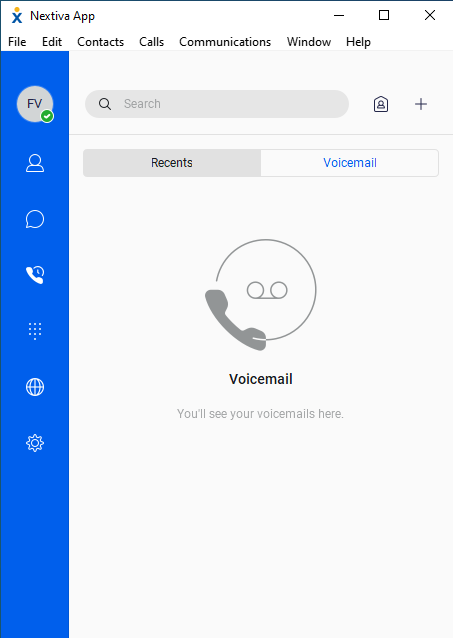
If you click from RECENT to VOICEMAIL, you will see a list of voicemails on this device.
From this list, you will be able to listen to, save, and deleted your voicemails.