Out of Office Email

May 22, 2024
Click on the Settings icon on the top right corner of Outlook.

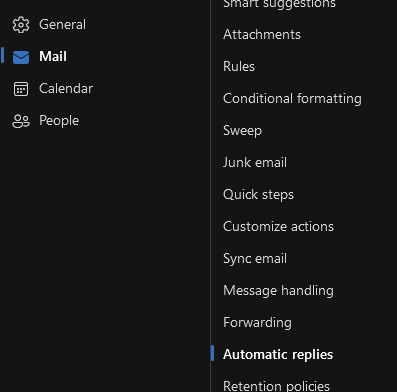
Click on mail, then automatic replies.
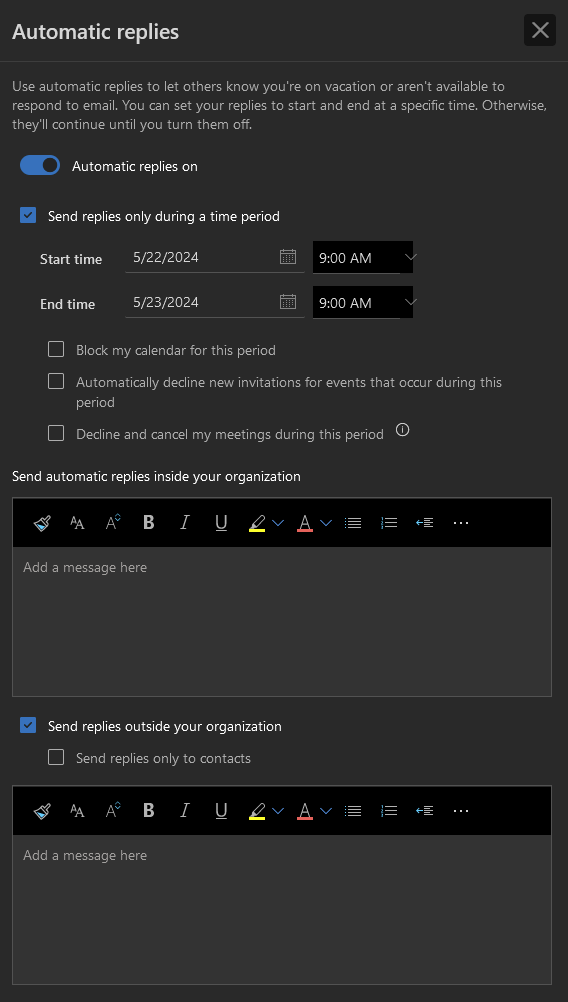
Click the slider to turn on automatic replies.
You can set the dates you will be out of the office. And you can set both a message for internal PepperPointe emails and for emails outside the organization in the respective boxes.