





Nextiva Admin Portal: Password & PIN Resets
For any questions regarding Nextiva, please contact PepperPointe IT
Nextiva Admin Portal Link
This guide will walk you through resetting users passwords and voicemail PINs in Nextiva.
For other Nextiva-related issues, please refer to the Nextiva overview guide.
*NOTE* If you do not have a Nextiva Admin account, or forgot your password, you must contact PepperPointe IT.
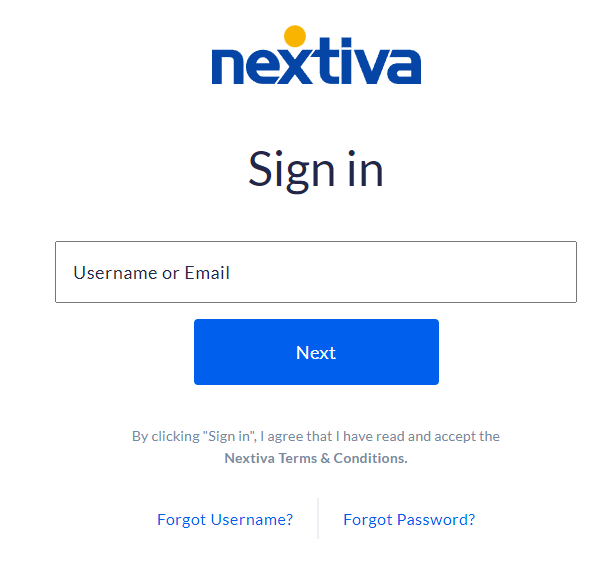
1. Navigate to the Nextiva Admin Portal and login
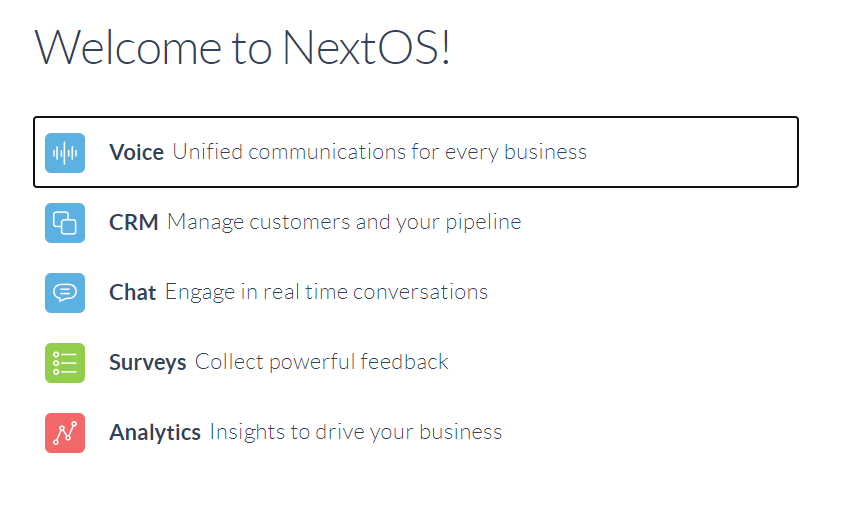
2. Once logged in, select "Voice"
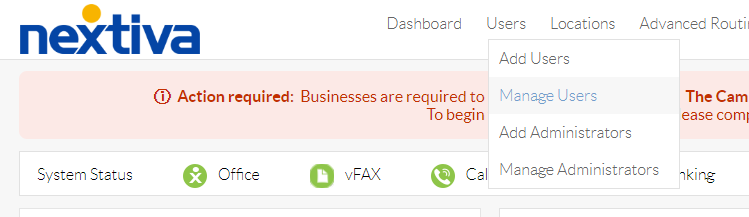
3. On the top bar, select Users > Manage Users
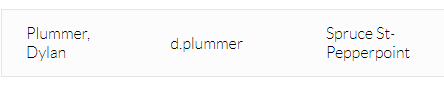
4. Select the user you'd like to reset the password for
5. Under the "Security Information" drop down, select "Reset Password"
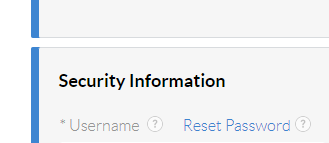
This will send a password reset email to the user so they can log in to Nextiva via browser or app.
1. Navigate to the Nextiva Admin Portal and login
2. Once logged in, select "Voice"
3. On the top bar, select Users > Manage Users
4. Select the user you'd like to reset the PIN for
5. Under "Security Information" select "Change Voicemail PIN" and enter in a temporary PIN.

6. Once saved, you can now access via the temporary PIN you set for the user.

