




Cordless Phone
Features Guide
Questions? Contact: Pepperpointe IT ex: 9000 or [email protected]
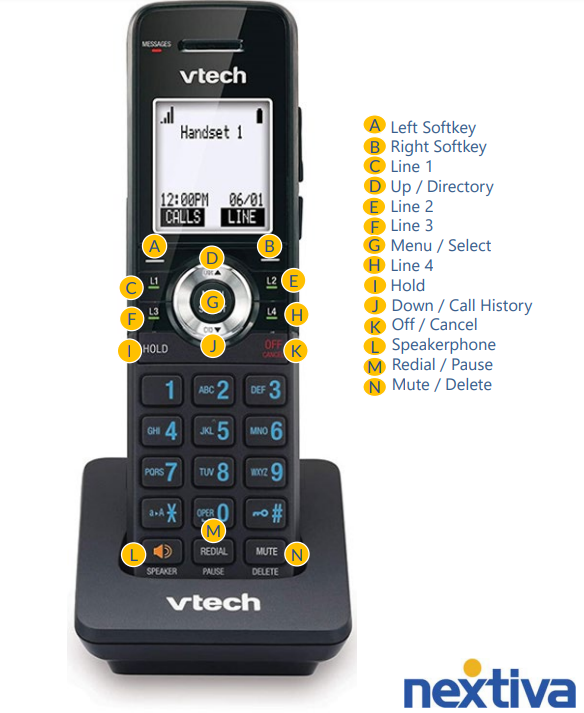
Table of Contents
Main Features
Base Station 4
Call Groups 5
Dialing Out 5
Placing Calls On Hold 5
Transferring Calls 6
Voicemail 6
Call History 7
Menu Options 7
Base Station
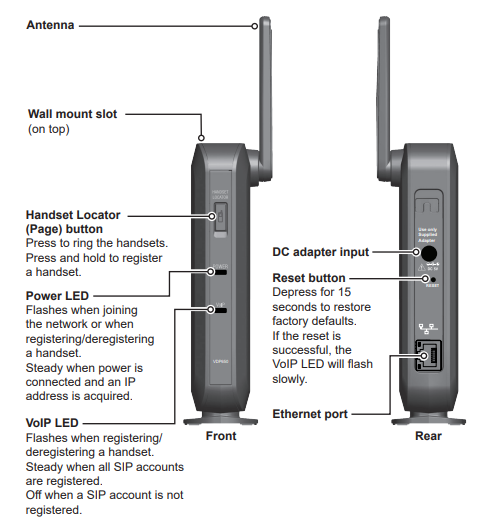
The base station is what connects the handsets to the network.
Call Groups
Call groups route incoming calls to a specified group of users.
These calls can be set up to ring in simultaneously or circularly.
Call groups allow for call waiting and if no user is available to answer an incoming call, the calls can be routed to voicemail after a set number of seconds.
**The office will determine which users will be added to the call groups for each location.
To Dial Out
-
Press either the L key or LINE to dial out.
-
It will then prompt that it is connecting.
-
Once connected, you will hear a dial tone and can now call out.
-
After entering the number, press the … button under DIAL to begin the call.
Placing Calls on Hold
-
While on a call, press the HOLD button.
-
To answer the on-hold call, press the CALLS button and select the call that you would like to answer.
-
You will then be connected to that call.
Transferring Calls
Warm Transferring Calls
A warm transfer involves speaking to the person you are transferring the call to before the transfer is made.
-
While on a call, press the MENU button to place a warm transfer.
-
Press down to scroll to TRANSFER and press SELECT.
-
With A CALL(ANNC.) highlighted, press SELECT.
-
Dial the phone number or extension of the receiving party.
-
Greet the party, then press TRANS to perform a warm transfer.
Blind Transferring Calls
A blind transfer involves transferring the call to another number without speaking to the receiving party, regardless of whether they answer.
-
While on a call, press the MENU button.
-
Press down to scroll to TRANSFER and press SELECT.
-
With A CALL(BLIND) highlighted, press SELECT.
-
Dial the phone number or extension of the receiving party.
-
Press TRANS to perform a blind transfer.
Voicemail
-
To access the voicemail box, you will select MENU and then MESSAGES.
-
Click on the extension of the voicemail box you are accessing.
-
It will then prompt you to enter a PIN number. Your default PIN is 0000.
-
Once entered, you will need to change it. You can change it to any 4 digits that you would like.
Call History
To access your phone’s call history:
-
Press MENU and scroll down to CALL HISTORY.
-
You will then see options to view your MISSED CALLS, RECEIVED CALLS, and DIALED CALLS.
Menu Options for each Handset
Menu options for each Handset:
Messages – access the voice messages.
Directory – view and dial directory entries.
Call history – view missed calls, received calls, and dialed calls.
Intercom – call other handsets.
Paging – page another handset.
Speed Dial – program numbers you would like quick access to call.
Features – set DND, call forward settings and other calling features.
Status – view the handset and base station network status, account registration status, and product information.
User settings – allows the user to set the language for the display, configure the appearance of the display, set the date and time, and customize the audio settings.


