



Throughout 2024 an additional computer sign-in method will be added to all computers. With this there will be two methods that one can use to sign-in to a computer: Local Accounts and Microsoft Accounts
-
A local account is stored locally on the computer. Accounts like check-in, check-out, Op1, etc.
-
A Microsoft account is signed into with your Microsoft email address and email password.
Both accounts can be accessed from the login screen. Depending on which account was last logged in to, that account will be listed in the center of the screen on the lock screen.
Signing in with a Local Account
Local accounts are currently what most users are using. These accounts are stored locally on the computer, and usually have names like Op, Hygiene, or Chair.
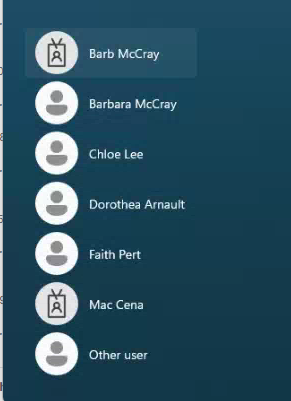
Most computers will have a list of recently used accounts when signing in. One can select the appropriate account from that list and sign in as usual. Please see the example below:
Users may be prompted to update the password. If the old password fails and a link from IT with a replacement password hasn’t been received, please contact the help desk at either [email protected] or 859-810-8050.
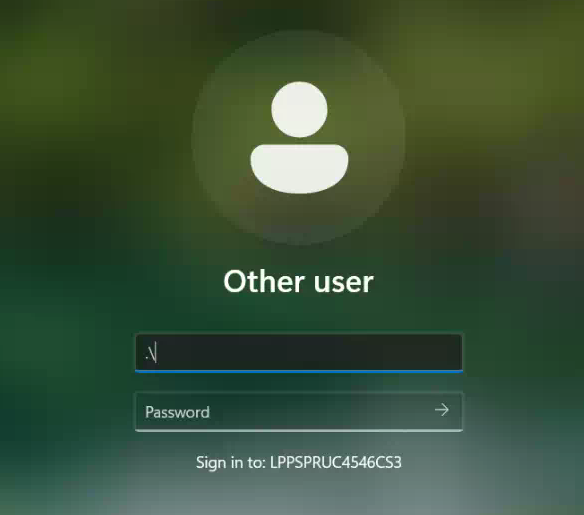
If the local account used in the past is not listed on the left, follow the steps below.
-
Click on Other User.
-
Type the following in the email/username field: .\ (see example above).
-
Enter the name of the local account.
-
Contact the help desk if you need help finding the name of the local account.
-
Enter the password for the local account.
Signing in with a Microsoft Account
This method is available to anyone with an email address provided by PepperPointe. Several new computers set up in the past few months are already signing in with this method.
Go to other user in the bottom lefthand corner, then type in your email address and email password.
When signing into a local account or a Microsoft account, both accounts will have their own desktop, documents, downloads, bookmarks, etc. If anything needs to move over and hasn't, let us know.

