



In the event that a computer experiences a failure or glitch, IT advises that OneDrive backup be setup in order to keep files from a computer in OneDrive.
This feature also allows users to bring files from computer to computer without much effort. To get started with this, please follow the steps below.
Windows
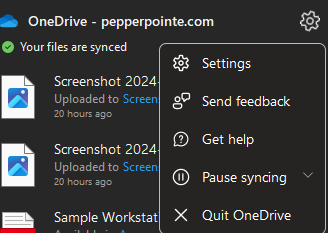
1. Open OneDrive settings (select the OneDrive cloud icon in your notification area, and then select the OneDrive Help and Settings icon then Settings.)
1.1 If you find that OneDrive isn't running, please search for it on your computer and sign in.
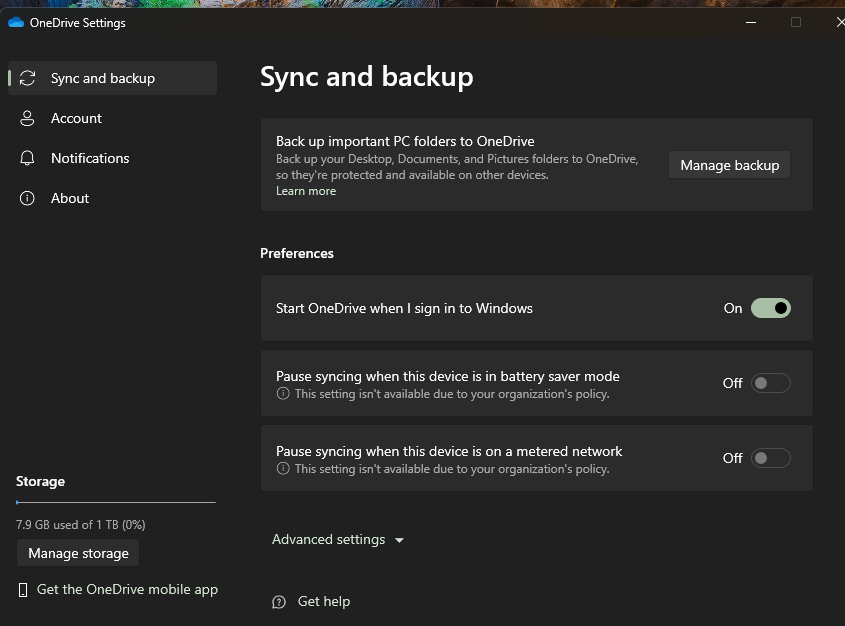
2. Go to the Sync and back up tab.
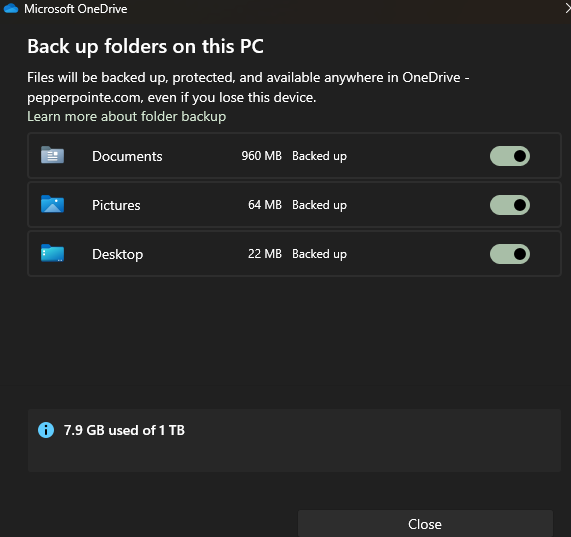
3. Select Manage Back up.
Mac
-
Click the OneDrive cloud icon up in your Menu bar, click the three dots to open the menu, and select Preferences.
-
Go to the Backup tab.
-
Select Manage Back up.

