Web Browser
In a web browser, sign in to Outlook Web App.
On the nav bar, choose Settings 

Under Mail, choose Compose and reply.
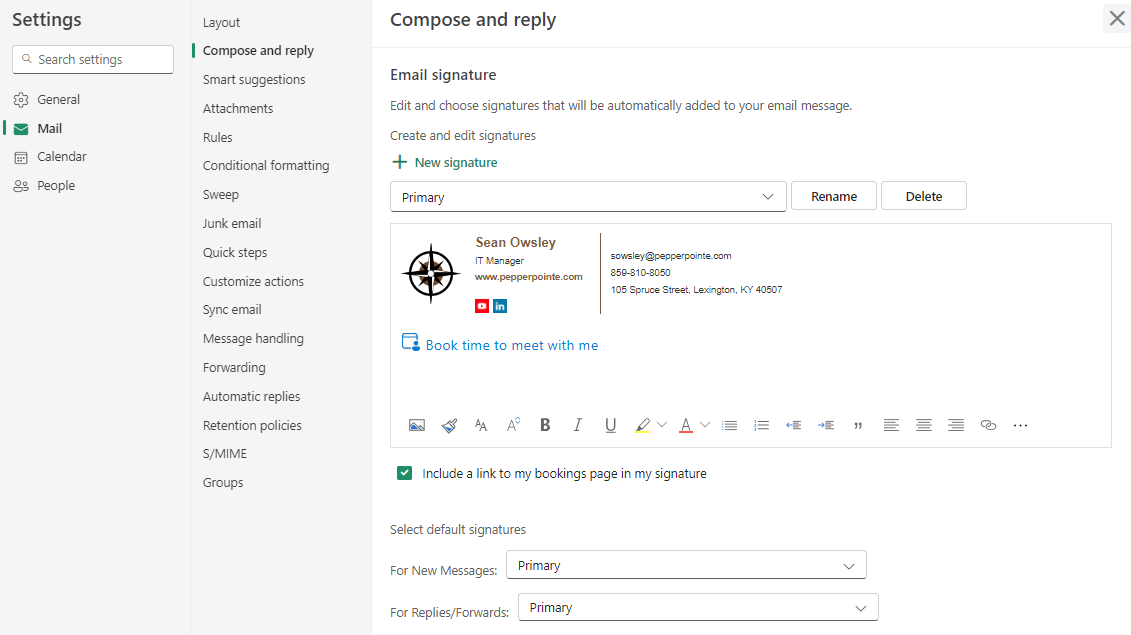
Under Email signature, in the text box, type the signature you want to use. Use the formatting mini toolbar to change the appearance of the signature.
If you want your signature to display at the bottom of all outgoing items, including replies and forwards, select drop down menu beside For New Messages and For Replies/Forwards. If you don’t select this option, you can manually add your signature to any message.
Choose Save in the bottom right-hand corner and close the window.
New Outlook Desktop App
In a web browser, sign in to Outlook Web App using the URL provided by the person who manages email for your organization. Enter your user name and password, and then select Sign in.
On the nav bar, choose Settings
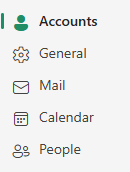
Select Accounts.
Under Signatures, in the text box, type the signature you want to use. Use the formatting mini toolbar to change the appearance of the signature.
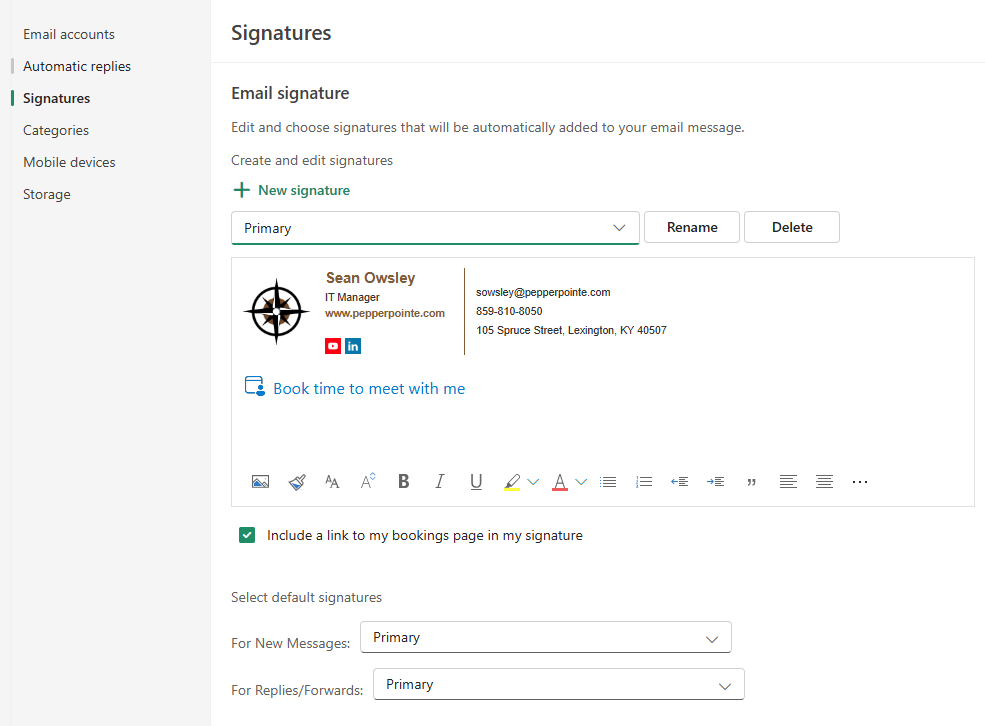
If you want your signature to display at the bottom of all outgoing items, including replies and forwards, select drop down menu beside For New Messages and For Replies/Forwards. If you don’t select this option, you can manually add your signature to any message.
Choose Save in the bottom right-hand corner and close the window when you're done.
Classic Outlook Desktop Application
-
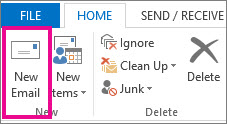
On the Home tab, select New Email.
-
Select the Message tab.
-
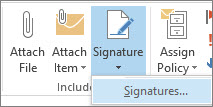
In the Include group, select Signature, and then choose Signatures.
-
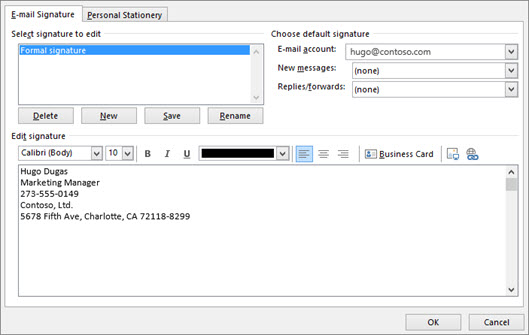
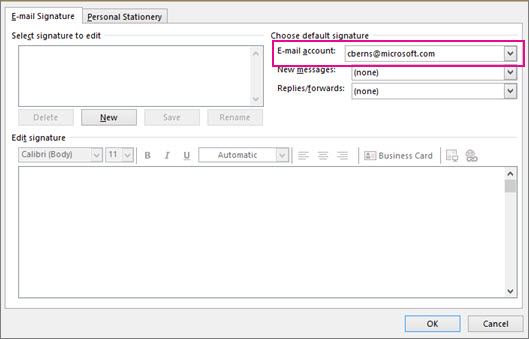
Under Choose default signature, in the E-mail account list, select an email account to associate with the signature.
-
Under Select signature to edit, select New and type a name for the signature.
-
Under Edit signature, type the signature that you want to use and select OK.