




NinjaOne End-User Guide
For any questions regarding Ninja, please contact PepperPointe IT
PepperPointe NinjaRMM Link
Ninja is the remote tool we use to monitor and manage your devices.
In certain cases, you may have to use NinjaOne to remote into one of your own devices.
Please follow the guide below for setting up your Ninja account and preparing your computer for the remote software.
*NOTE* If you do not have a NinjaOne account, you must contact PepperPointe IT to request an account.
Account Setup
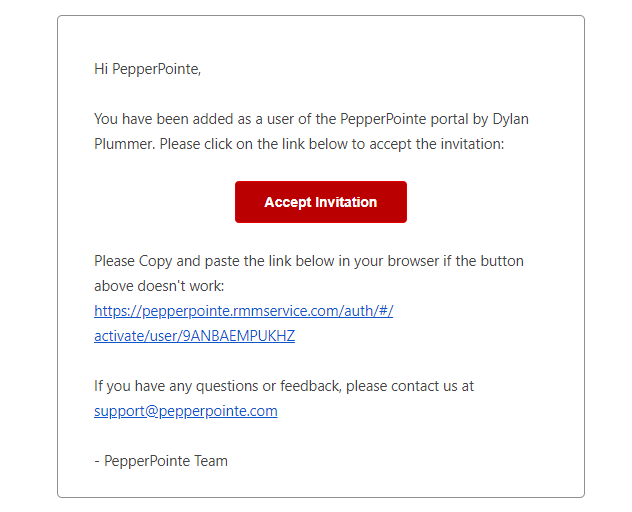
1. Check the inbox of the email you requested for an email from "PepperPointe User Invitation"

2. Click the red "Accept Invitation" button, or alternatively click the link below.
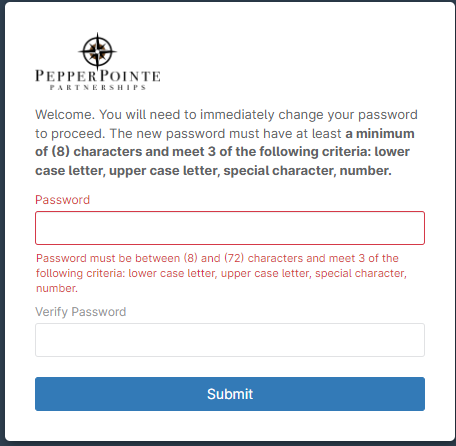
3. Create a password meeting the following criteria:
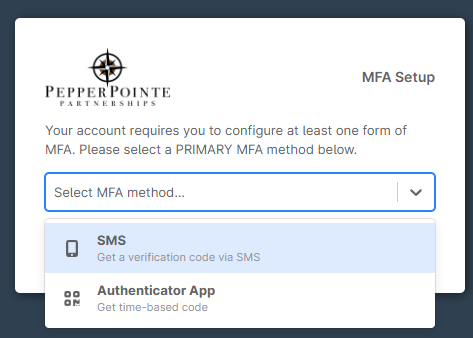
4. Select a 2FA Authentication Method: Authenticator App (Microsoft Authenticator, Google Authenticator), SMS text
*This is required for compliance*
Introduction to Dashboard
In the Dashboard you will notice the devices you requested listed under the "Devices" tab. This may be one, or several devices depending on your request. If you would like a new device added, please contact PepperPointe IT
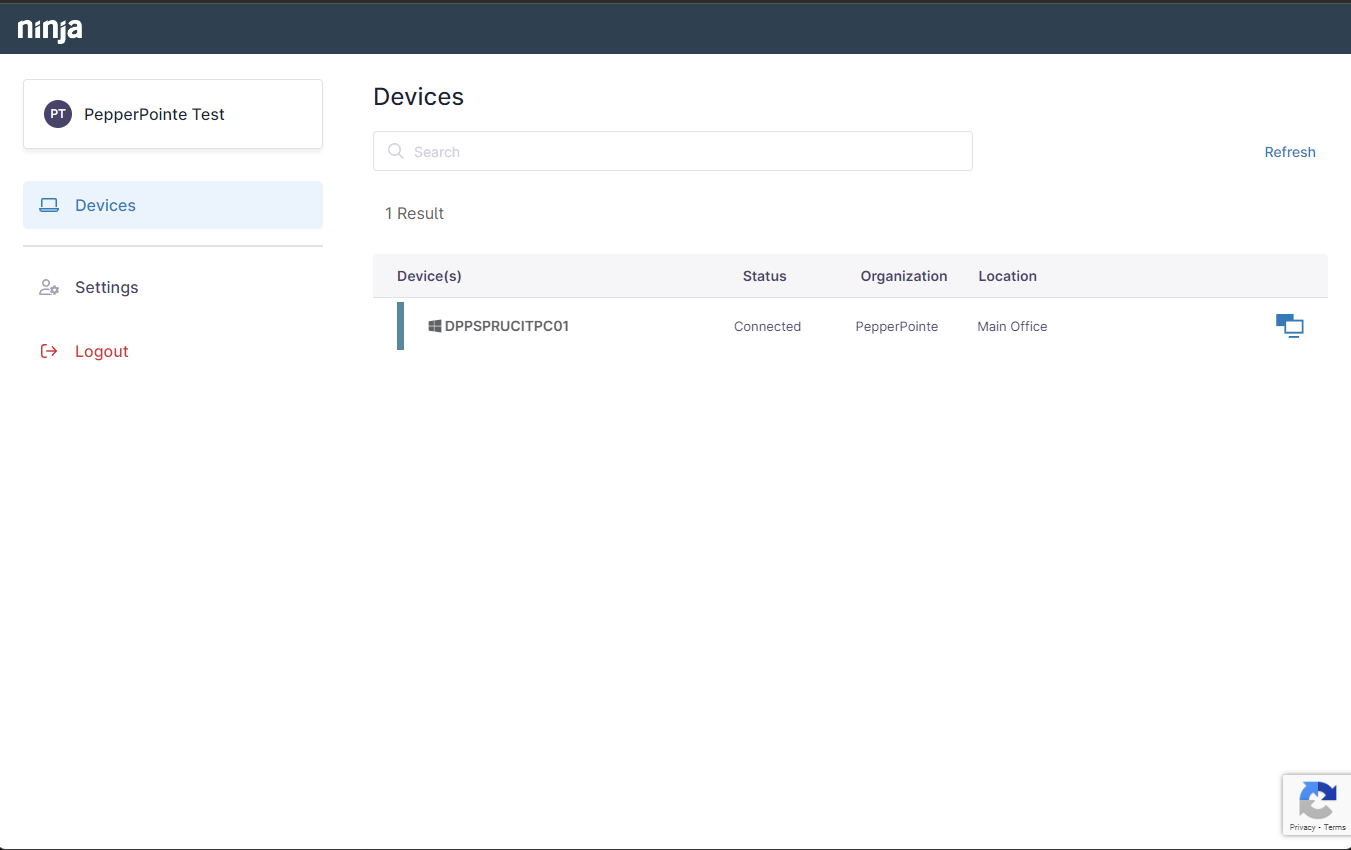
To connect to a device, click the blue monitor icon to the right of the device information.

Your computer will attempt to connect to the remote computer.
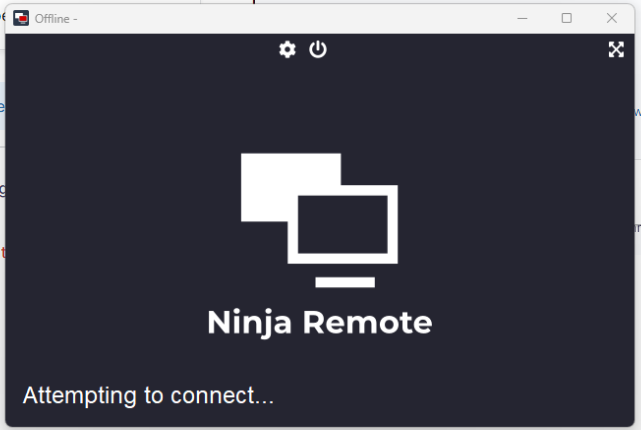
*NOTE* If this is your first time using Ninja, you will need to install Ninja Remote.
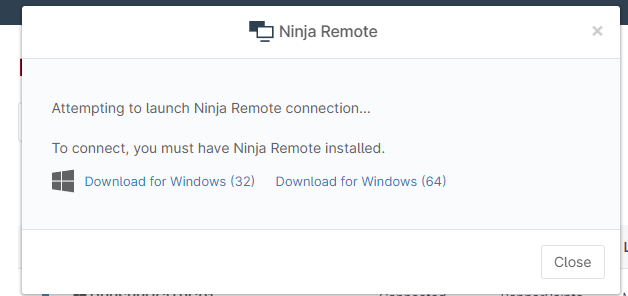
1. Download the Ninja Remote client that corresponds with your computer (9.5/10 it will be 64bit)
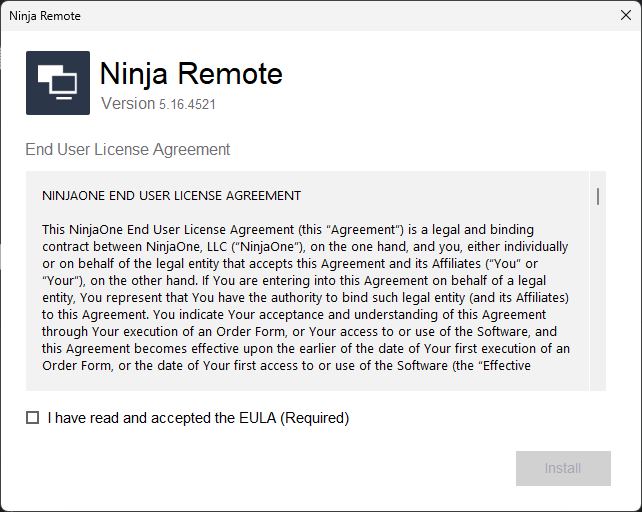
2. Open the "ncinstaller-x64.exe" or "ncinstaller-x32.exe" file and accept the EULA.
3. Click Install and Done
4. Reattempt to connect to the computer in the browser.

