




Ninja Remote Guide
For any questions regarding Ninja Remote, please contact PepperPointe IT
PepperPointe NinjaRMM Link
*NOTE* If you do not have a NinjaOne account, you must contact PepperPointe IT to request an account.
Introduction
Ninja Remote is software that allows you to connect to your devices remotely.
There are shortcuts within Ninja Remote that are very helpful and will save you a lot of time navigating around the remote desktop environment.
Ninja Viewer is a standalone application for remote connections only and can only be opened by attempting to remote into a device within the NinjaOne user interface.
Please do not pin this application to your taskbar or attempt to open this application in an unintended manner.
For assistance with the installation of Ninja Remote, please refer to the NinjaOne: Setting up Account & Software Guide
Remoting In
As mentioned above, the only way to remote into a device is through the NinjaOne dashboard, which can be accessed by clicking here.
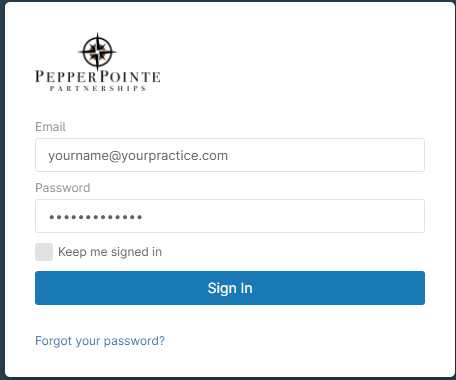
1. Open a compatible web browser (preferably Google Chrome) and navigate to pepperpointe.rmmservice.com

2. Sign in with the login credentials created during your NinjaOne account setup.
You should notice a list of your devices. If you believe you are missing one of these devices, please contact PepperPointe IT
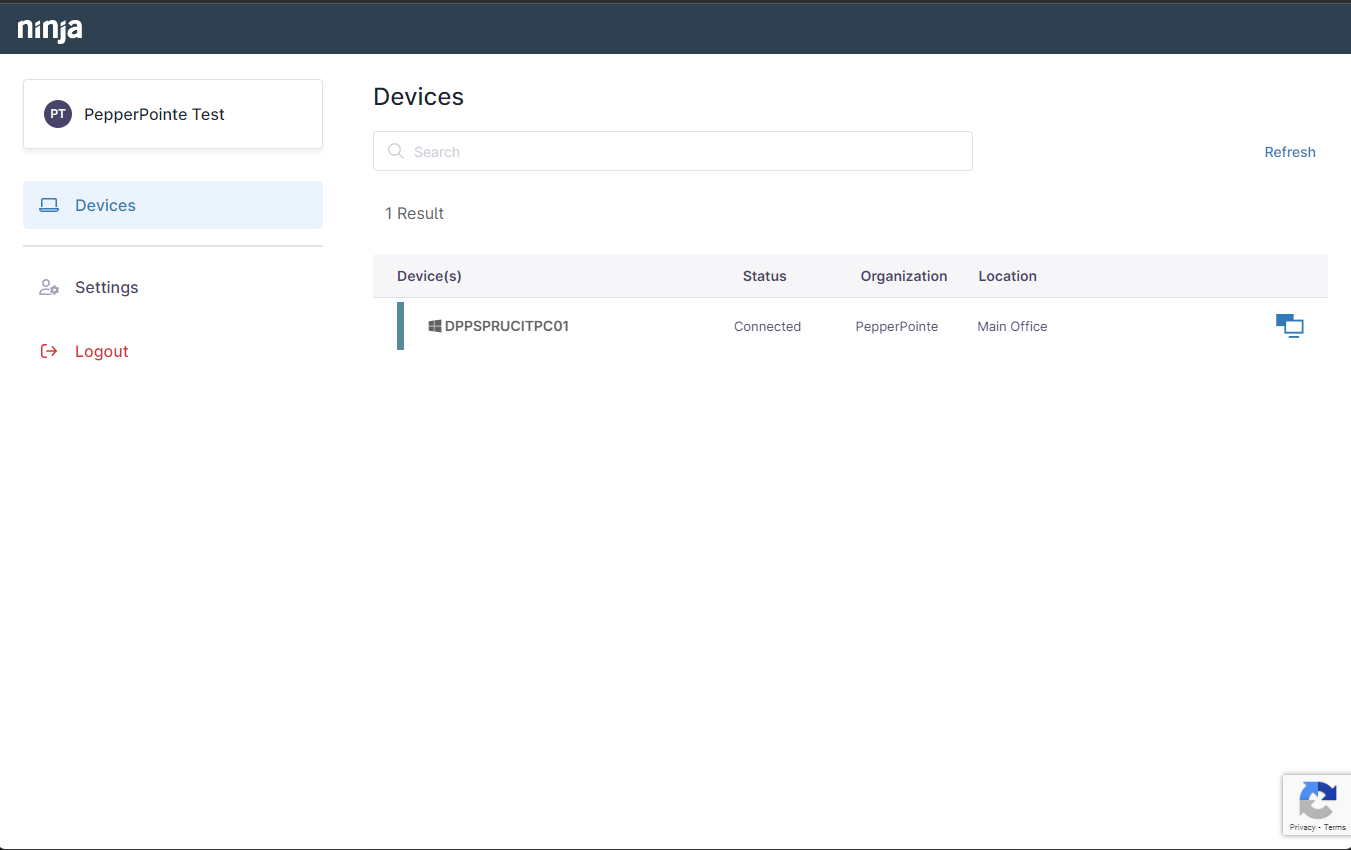
3. Click the blue monitor icon to the right of the device information to open Ninja Remote

Ninja Remote will begin connecting to the computer. This may take around 15-20 seconds.
If it takes longer than 2 minute to connect, please contact PepperPointe IT
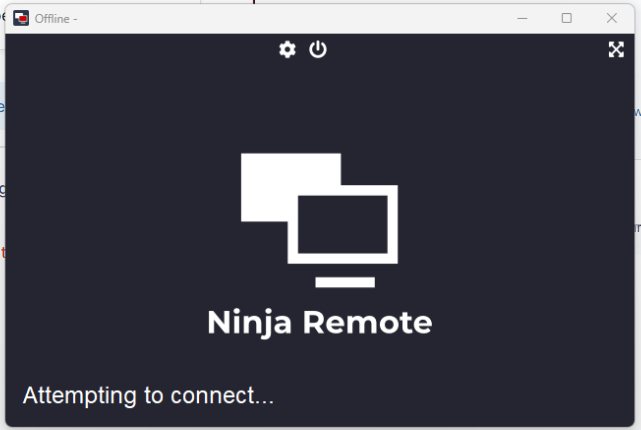
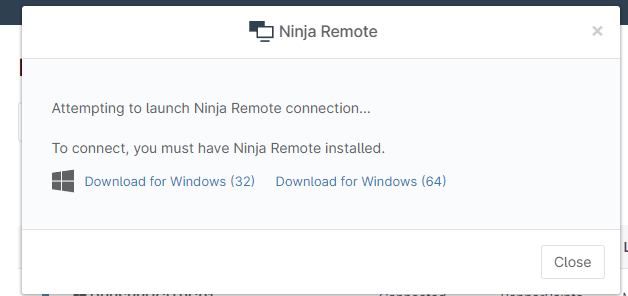
*NOTE* If this is your first time using Ninja, you will need to install Ninja Remote.
Please refer to the NinjaOne: Setting up Account & Software Guide for installation
Once the connection is established, you will be connected to the computer.
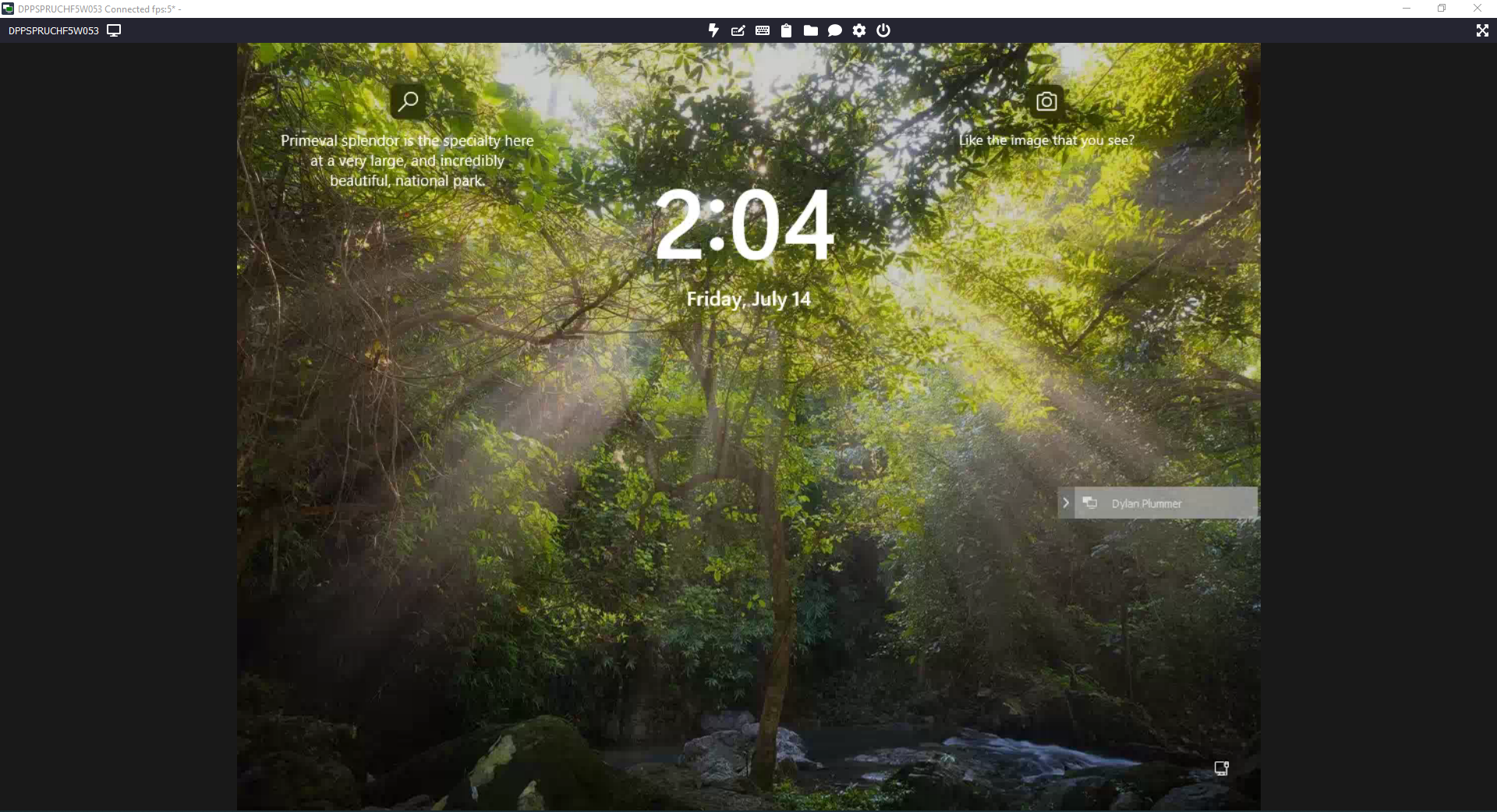
Shortcut Bar
Ninja Viewer has a number of options along the top of the status bar.

Switch Monitor

Ctrl+Alt+Delete

Paste as keystrokes

Keyboard Shortcuts (dropdown menu)

Clipboard (dropdown menu)

File Transfer

Chat

Session Settings

Power Options (dropdown menu)

Fullscreen
File Transfer
Ninja Viewer gives you the ability to transfer files/folders to and from your devices. To access file transfer, click the File Transfer shortcut.
The file system on the left will ALWAYS be the device you're currently on. The file system to the right will ALWAYS be the device you're connected to.
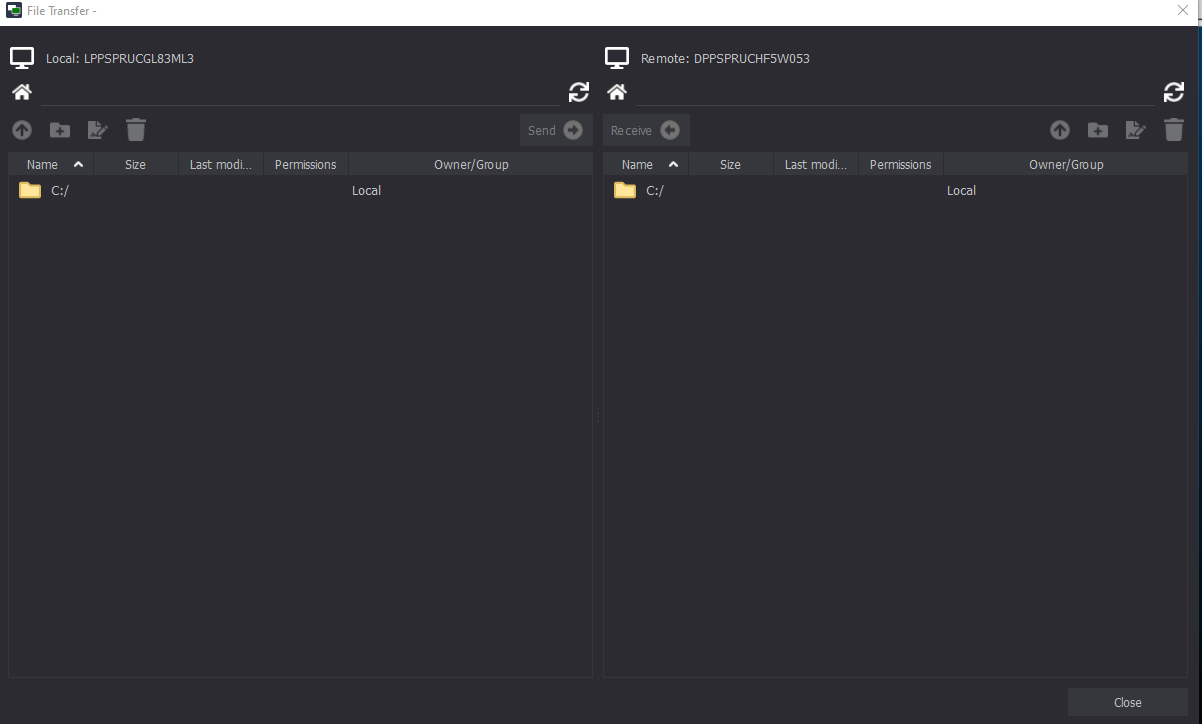
To transfer a file to the remote computer:
1. On your computer's filing system, navigate and find the file you would like to download.
For example, if I'm wanting to transfer a PDF from my Downloads folder, I would navigate to
"C:\Users\MyName\Downloads"
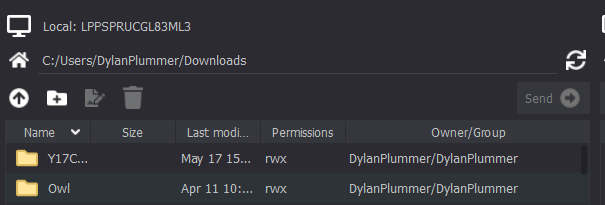
2. On the remote computer's filing system, navigate to where you would like to save the file you're transferring from your computer.
For example, I will save it in the "C:\PepperPointeDoNotDelete"
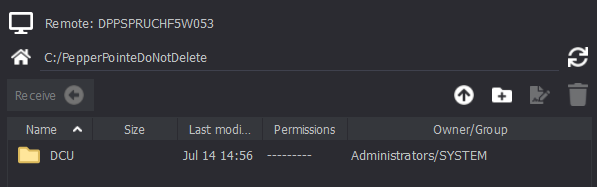
3. On your computer's filing system, select the "Send" button to send the selected folder/file selected.

To transfer a file from the remote computer:
1. On the remote computer's filing system, navigate and find the file you would like to download.
For example, if I'm wanting to download a PDF from the Downloads folder, I would navigate to
"C:\Users\UsernameHere\Downloads"
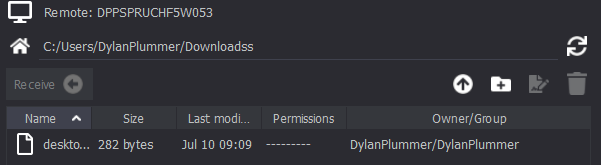
2. On your computer's filing system, navigate to where you would like to save the file you're downloading to your computer.
For example, I will save it in the "C:\PepperPointeDoNotDelete"
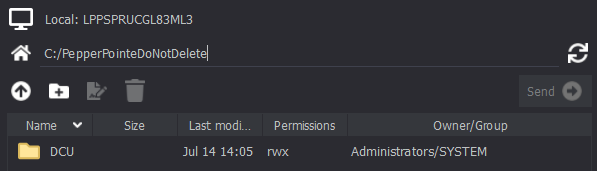
3. On the remote computer's filing system, select the "Recieve" button to download the selected files/folders.

Last Revised by: Dylan Plummer
7/14/2023

