




Changing Audio and Video Devices on Google Meets and Zoom
In the Fishbowl conference room, we have two microphones (one of which is the built-in microphone on the webcam, and the other is a high quality noise cancelling mic) and two cameras (the webcam mounted on the TV, and the camera that can be swiveled to face anyone in the room.)
Google Meets
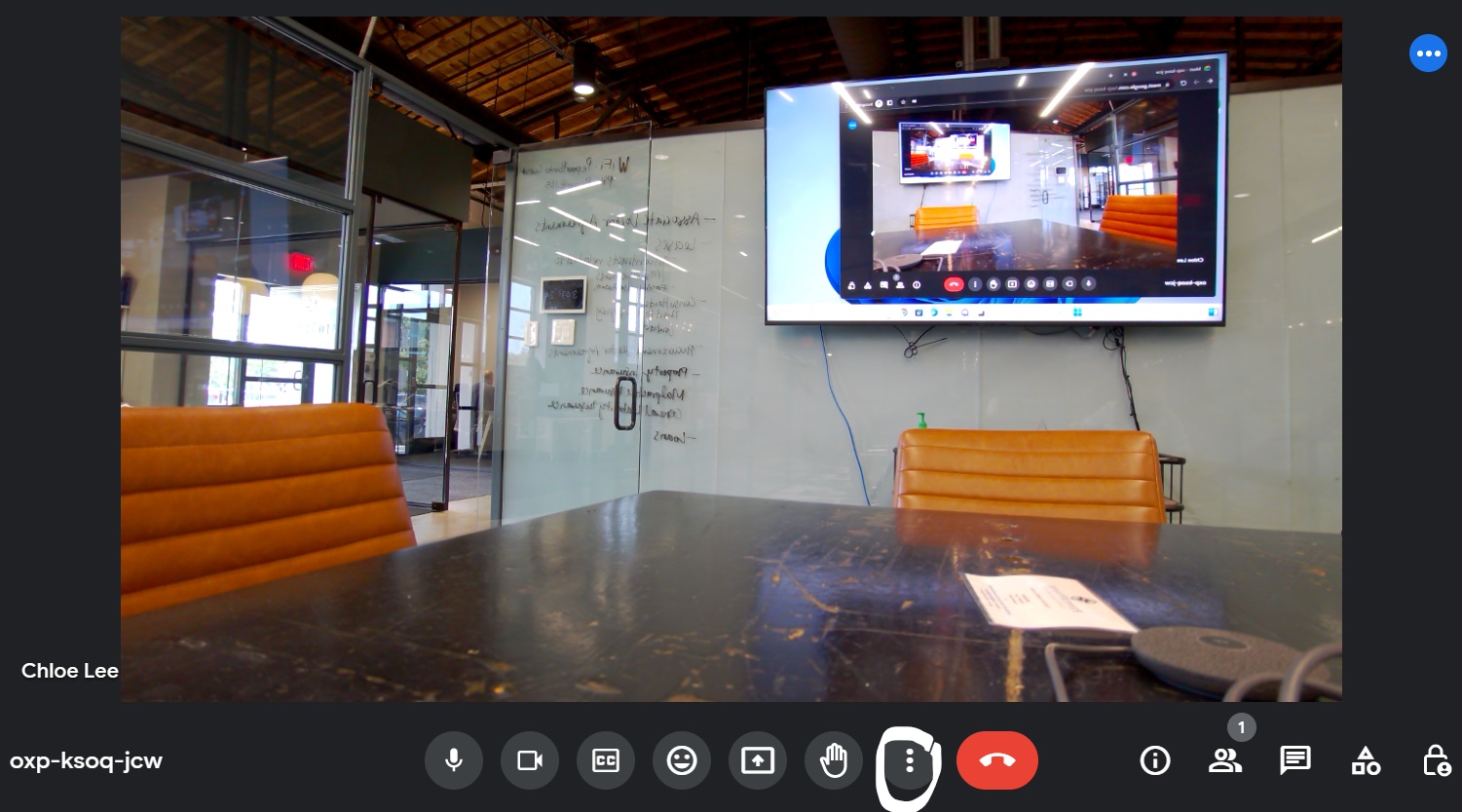
1. When in a Google Meet, click the three dots on the bottom of the screen.
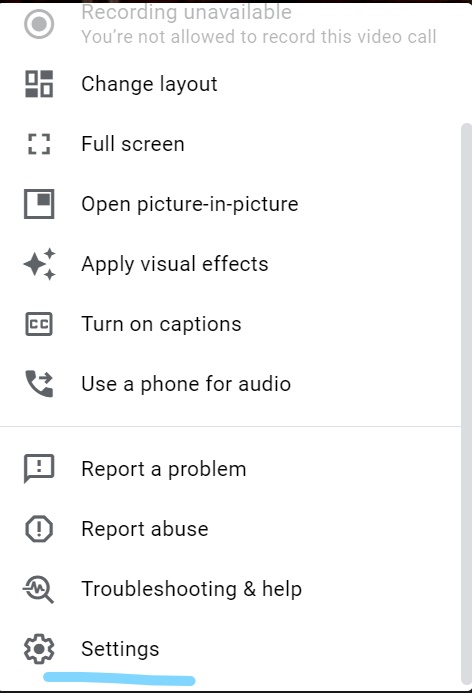
2. From the menu that appears, scroll to the bottom, and select Settings.
3. On the menu that appears, under the drop down for Microphone, select the Rally.
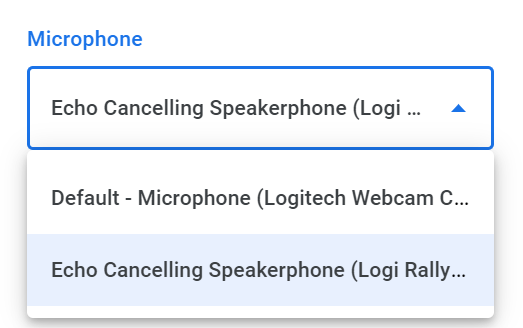
To change the camera, you can click on the video tab, and change the camera from the drop down menu. Logi Rally Camera is the swiveling camera situated on the table, the Logitech Webcam is the camera mounted on the TV.

Zoom Rooms
Changing Devices before joining a room:
1. At the main menu of Zoom, click on the gear in the bottom right corner.
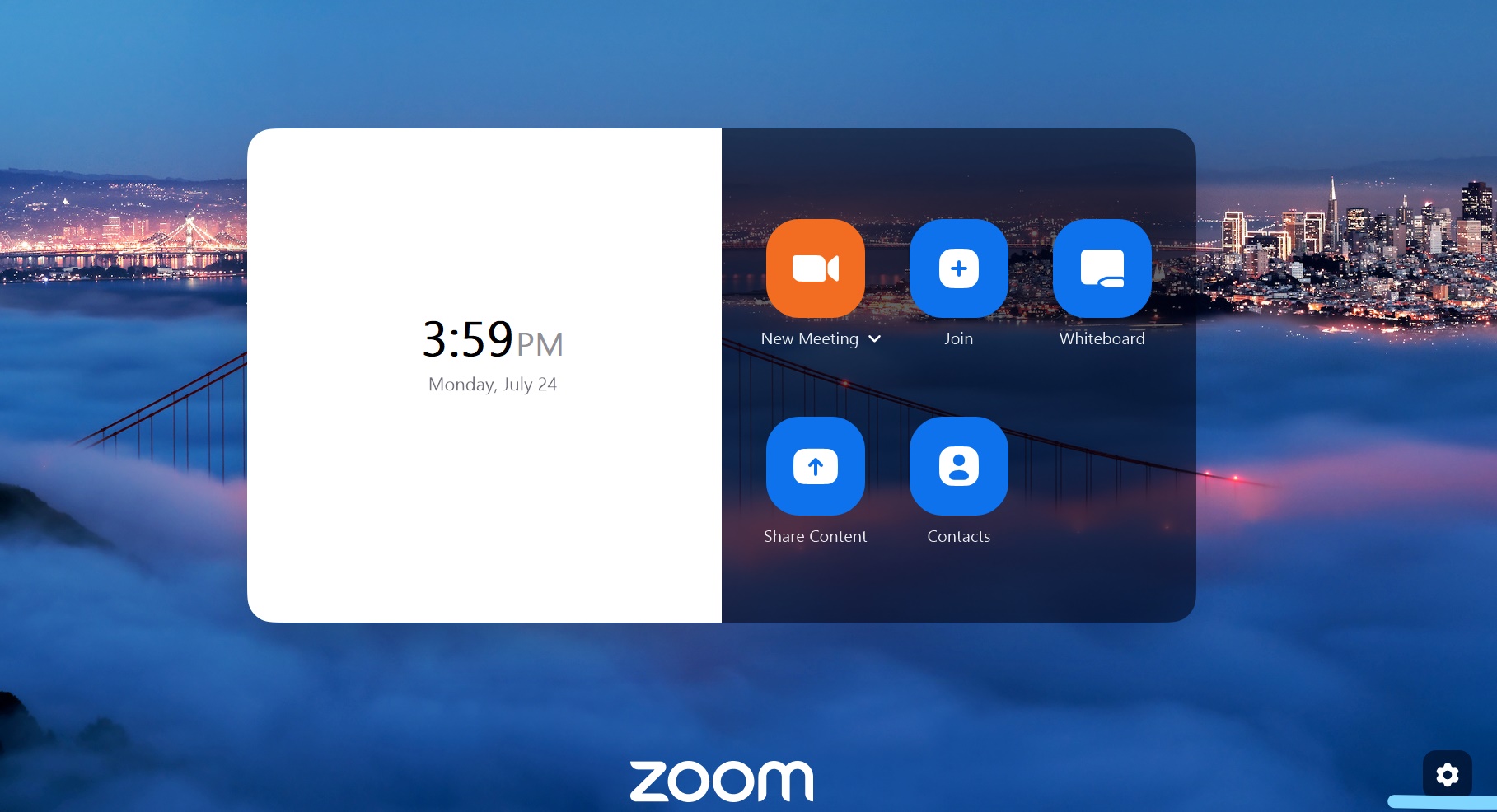
2. In the menu that appears, click on the Microphone sub menu. Under "Source", click the Rally.
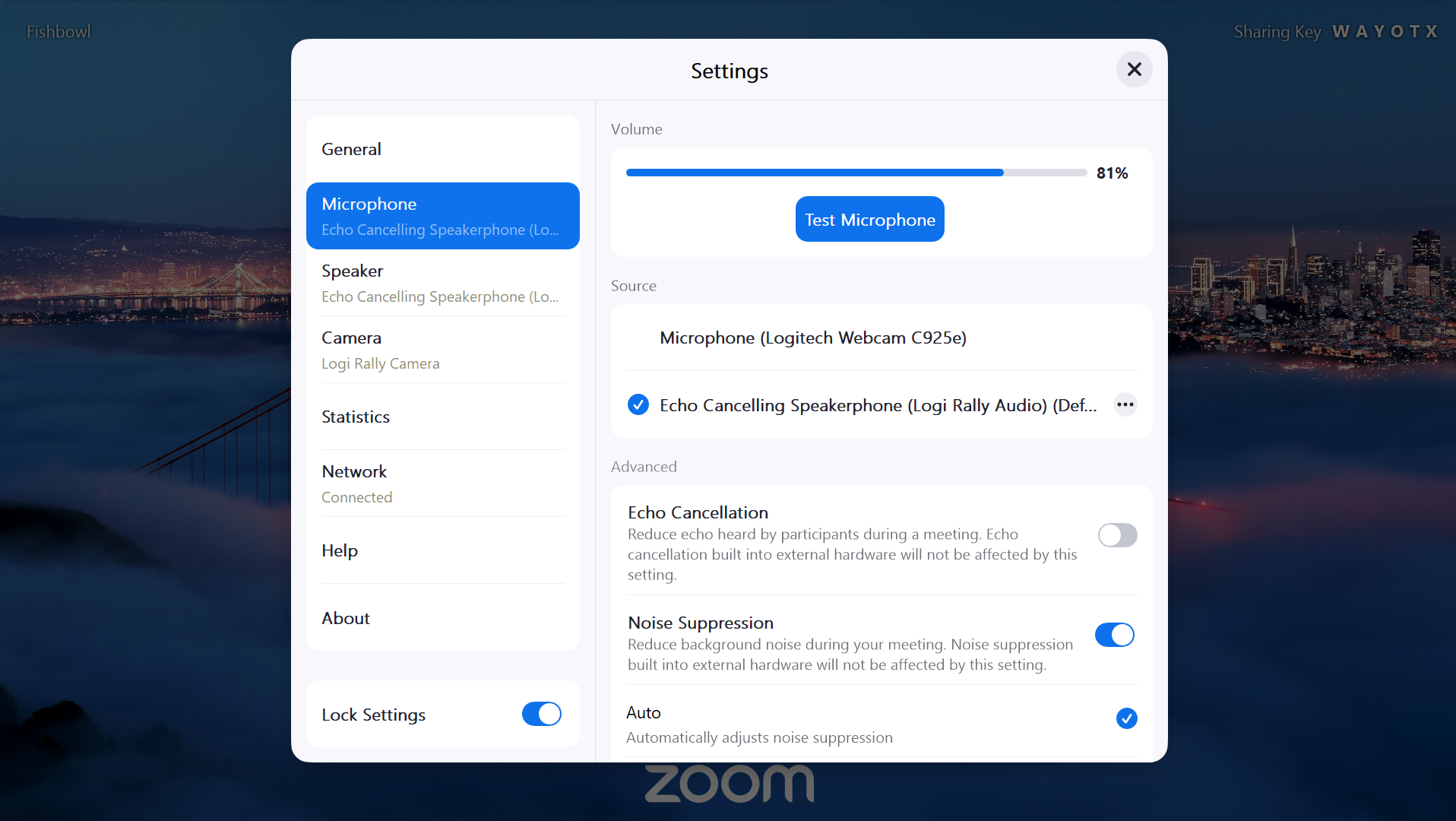
To change the camera, you can click on the Camera tab on the left, and select the preferred camera from the "Main Camera Source" section.
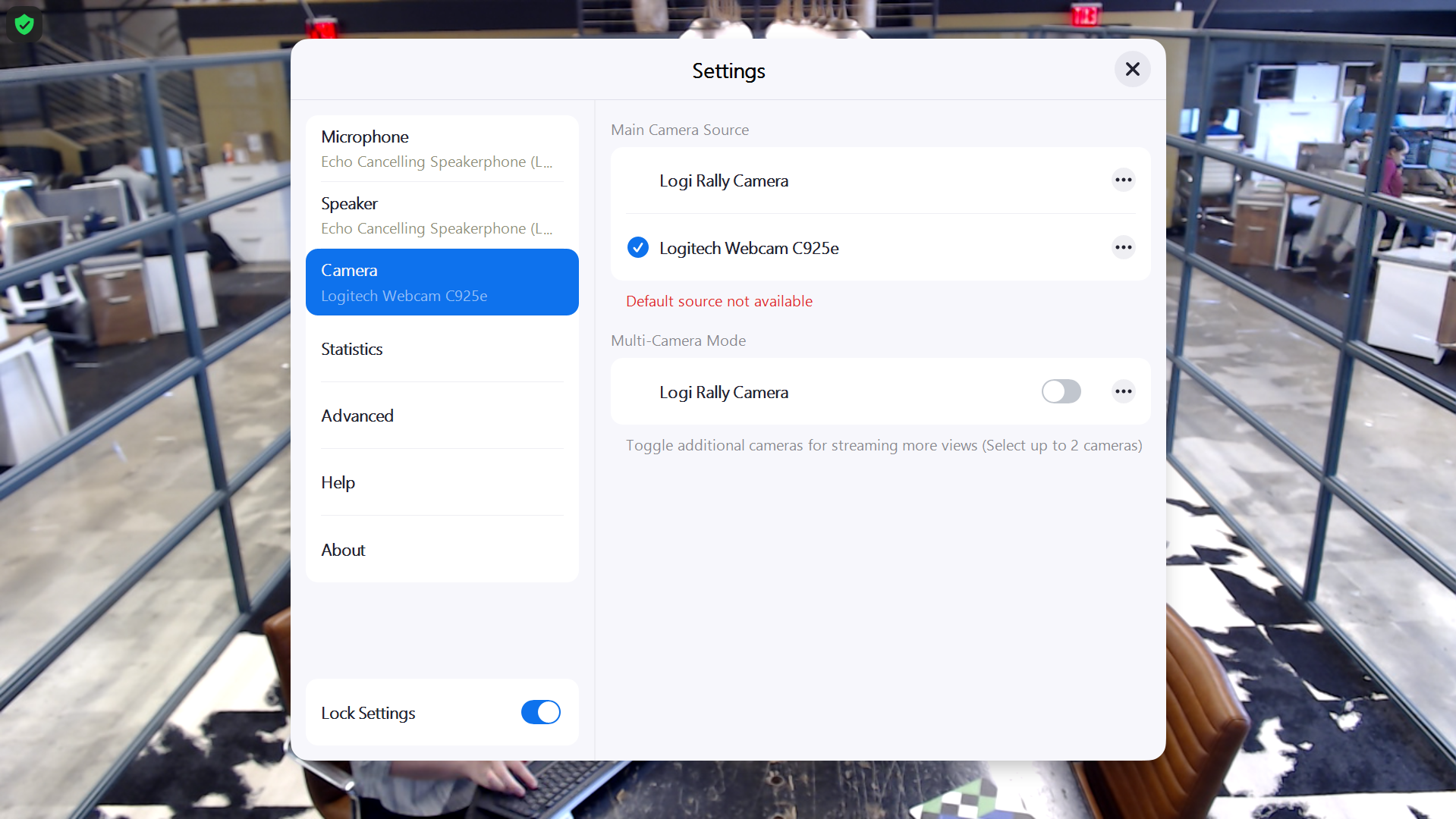
When already in a Zoom Room:
1. When already in a Zoom Room, click on the screen to make the options bar on the bottom of the screen appear.
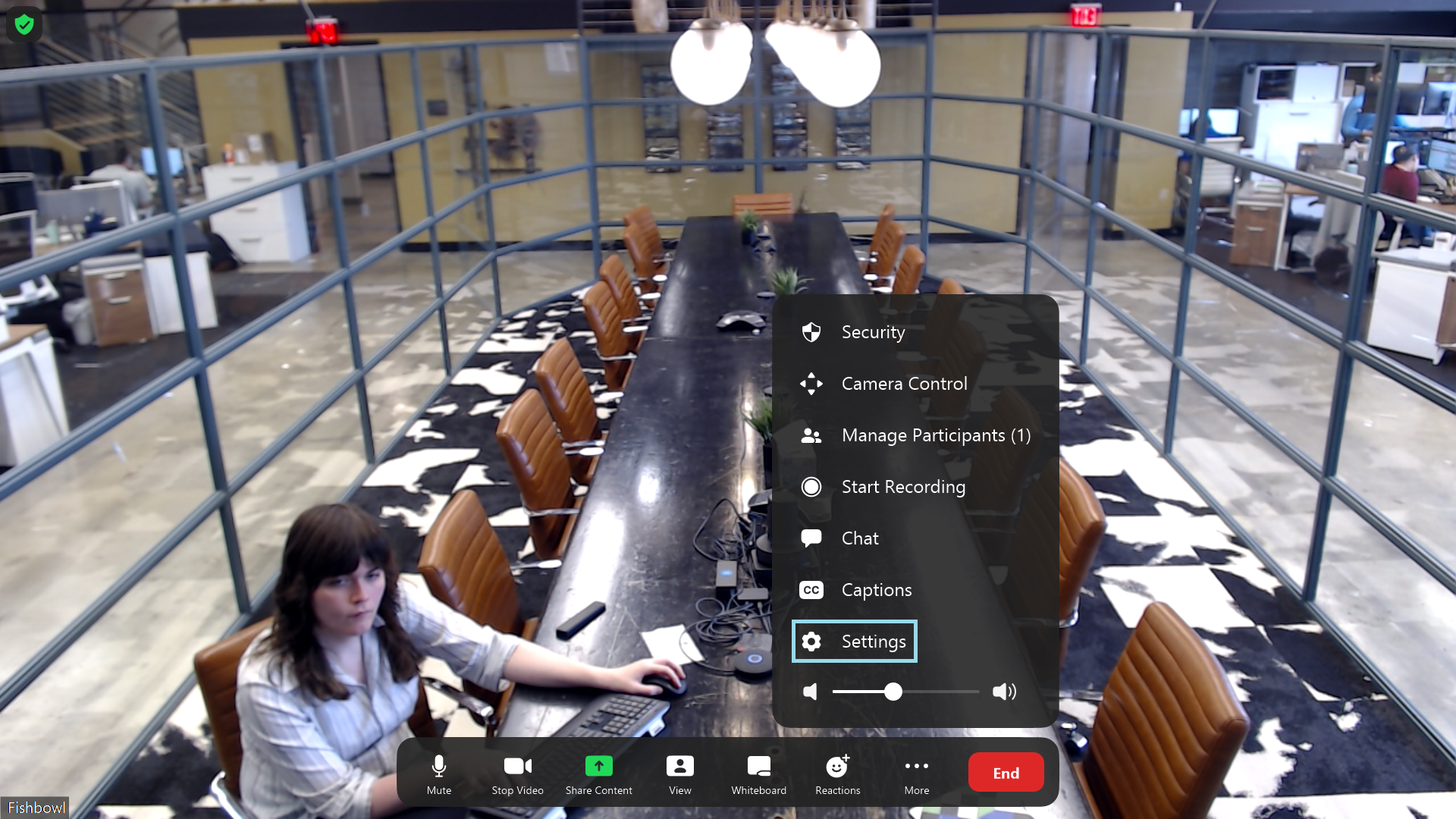
2. Click "More" under the three dots, then "Settings."
3. In the menu that appears, you can select "Microphone" on the left, then the Logi Rally under "Source."
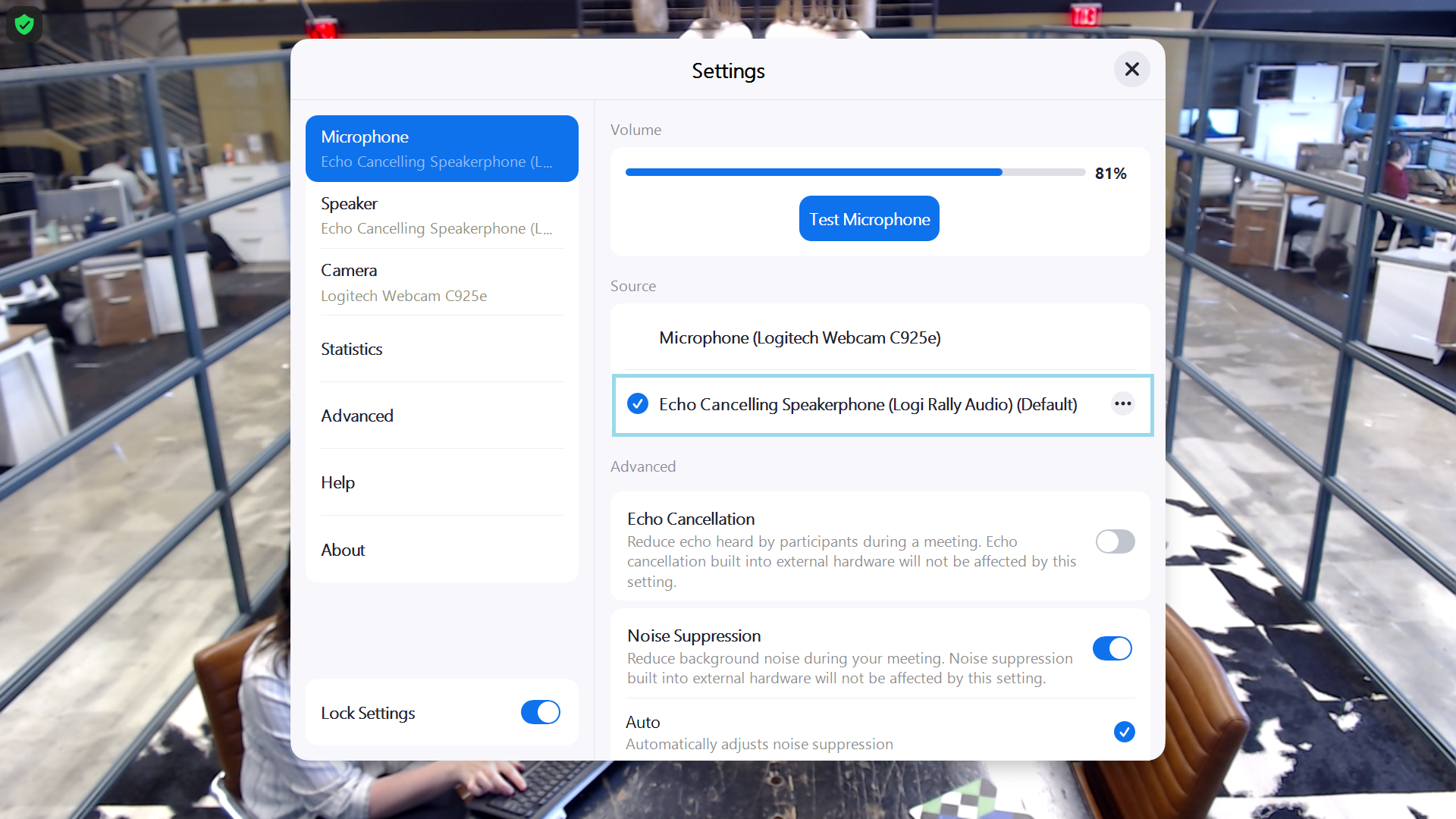
To change the camera, click on the camera tab on the left.


