Downloading Romexis Viewer and Opening Dicom Files
If you have a CBCT scan you need to view in the file format of .dcm or .dcmdir, you can use Romexis viewer to view it.
This is a free program you can download here.
Installation
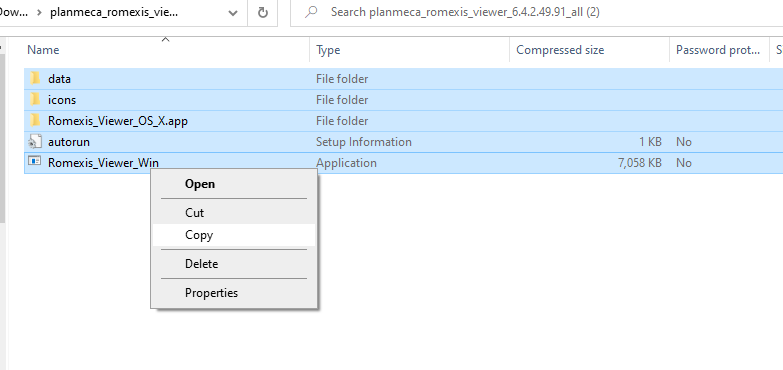
Once it's done downloading, open the folder containing it. This will open the folder which contains the files necessary to run Romexis viewer. Click and drag over these files, then right click, and click copy.
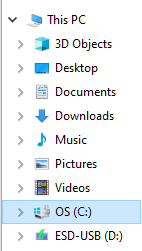
Now navigate to your main drive usually (C:) on the left bar on the Windows Explorer menu.
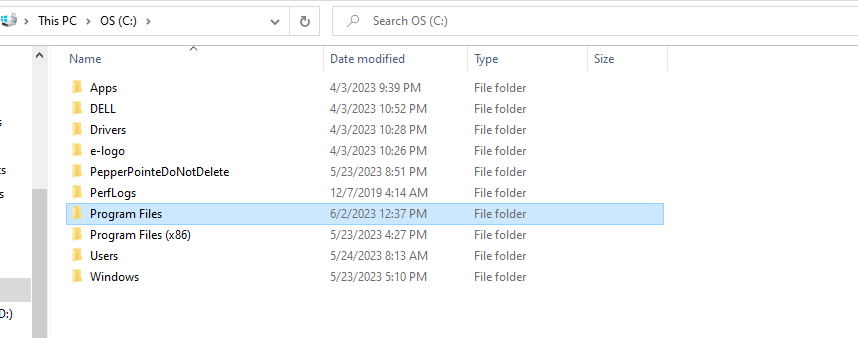
From here, click into Program Files.
In this folder, right click off to the side, mouse over New, then click Folder.
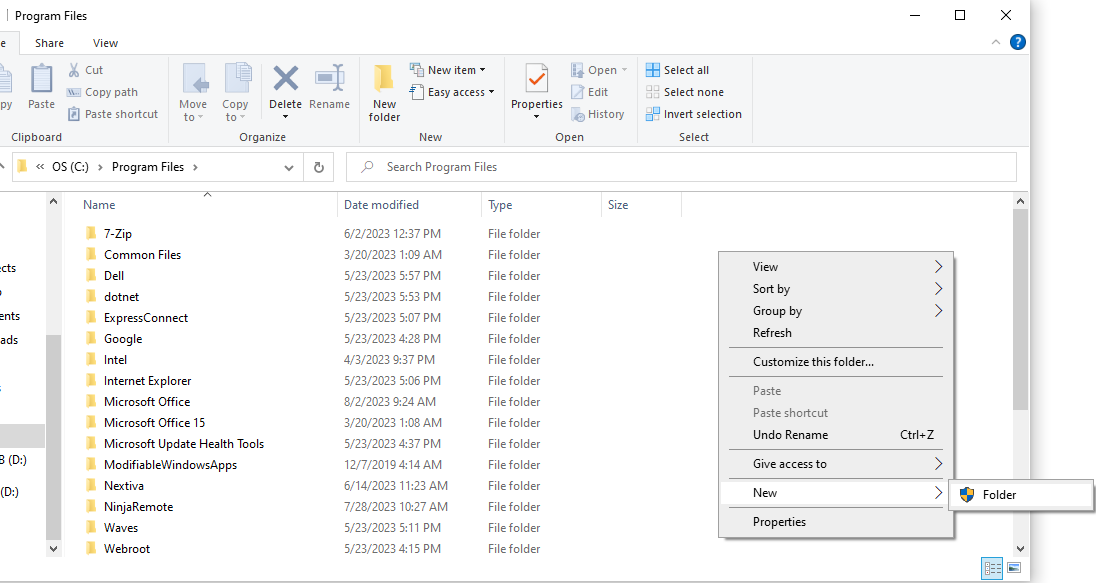
Title this created folder Romexis Viewer, then click into it. Right click, then paste.
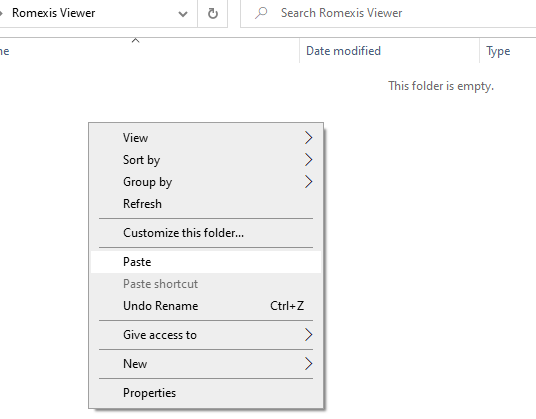
Setting Romexis as Default Viewer
Right click on your DCM file, then click on Open With. From the menu that appears, click on More Apps.
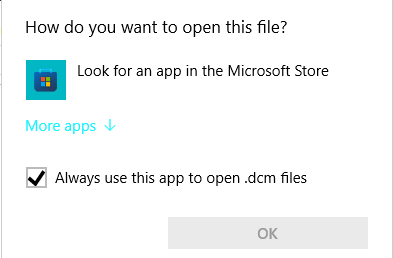
Then, at the bottom of the list, click on Look for another app on this PC.
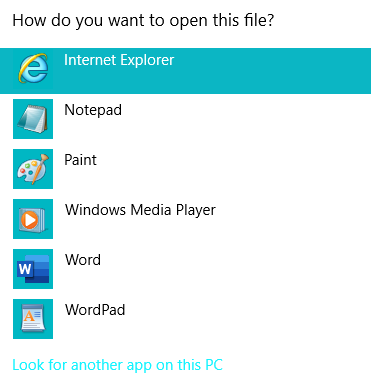
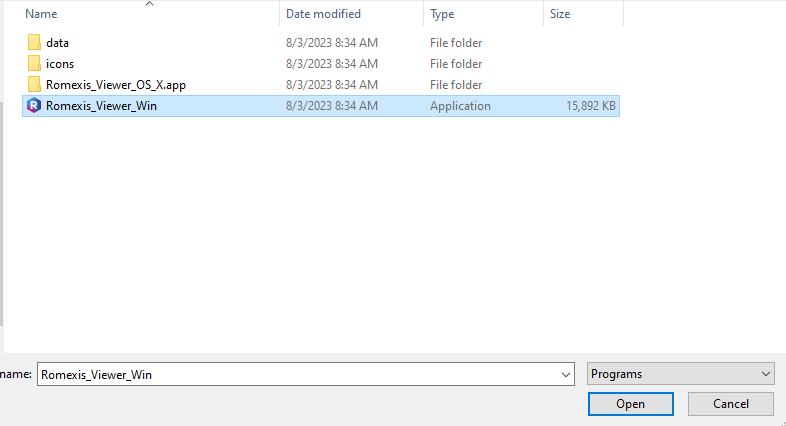
This will open your Program Files directory which we copied Romexis Viewer into earlier. Click on the Romexis Viewer app in the Romexis Viewer folder we created earlier.
Opening Files to View
This process will vary slightly depending on the type of the files. DICOM files can either be sent as raw .DCM files, or as a .DCMDIR file. Assess which type of file you're looking for.
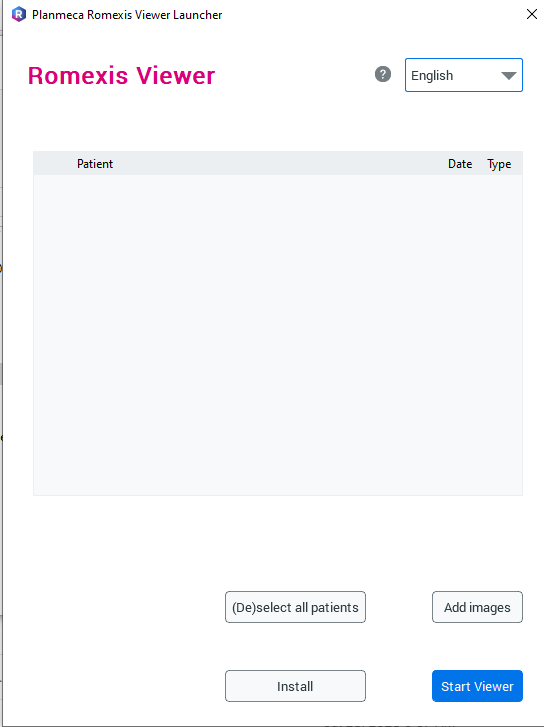
Whenever you open Romexis Viewer, it will open this launcher. Click on Start Viewer. This will take a few moments.
When it's done loading, this will pop up. If you're using a DICOMDIR filetype, you can select your files here.
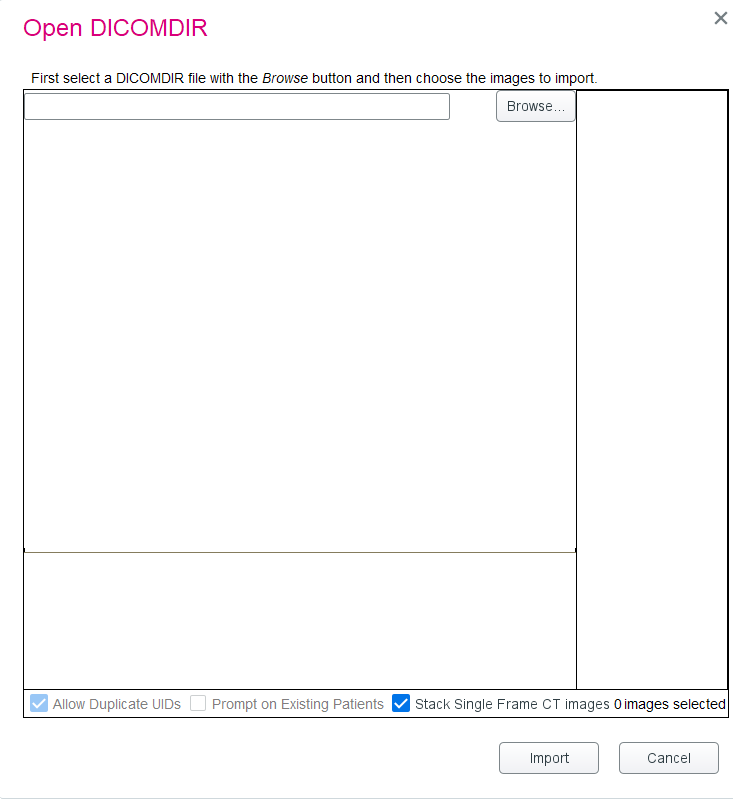
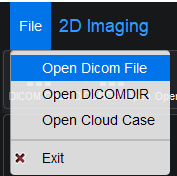
Otherwise, click the x on the top right corner of this popup. On the main Romexis Viewer window, click on File in the top left corner of the screen. Click on Dicom file and your scan will appear on the window.