Nextiva Admin Portal: Viewing Call History
For any questions regarding Nextiva, please contact PepperPointe IT
Nextiva Admin Portal Link
This guide will walk you through viewing your call history via the Nextiva Admin Portal.
For other Nextiva-related issues, please refer to the Nextiva overview guide.
*NOTE* If you do not have a Nextiva Admin account, or forgot your password, you must contact PepperPointe IT.
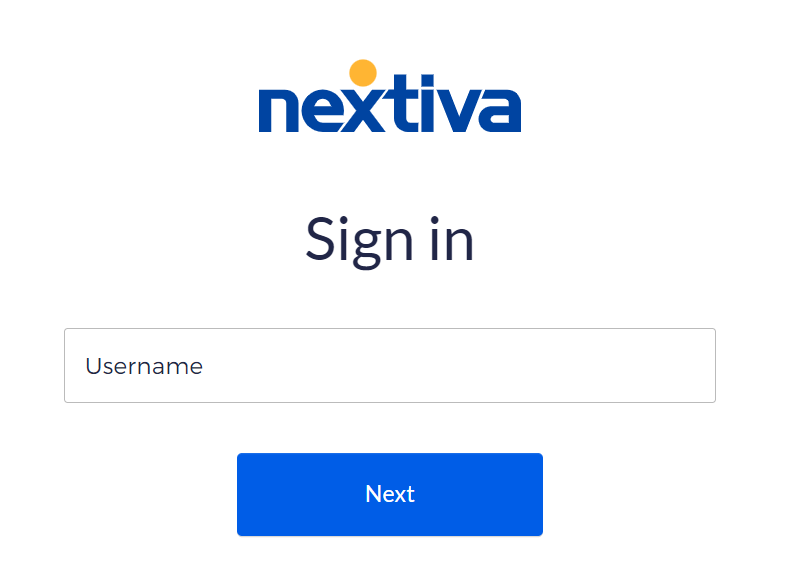
1. Navigate to the Nextiva login page and sign in using your credentials.
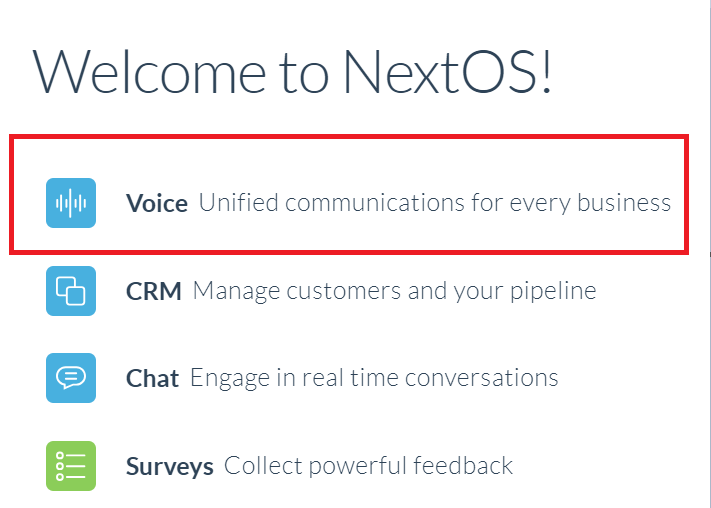
2. Select "Voice" on the welcome screen
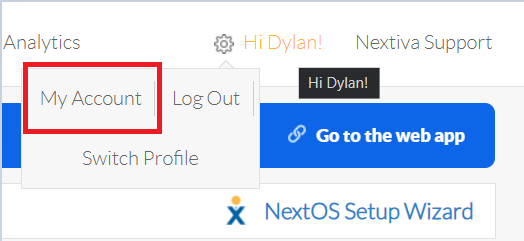
3. Hover over the "gear icon"  in the top right and select "My Account"
4. On the left sidebar, select "Call History"

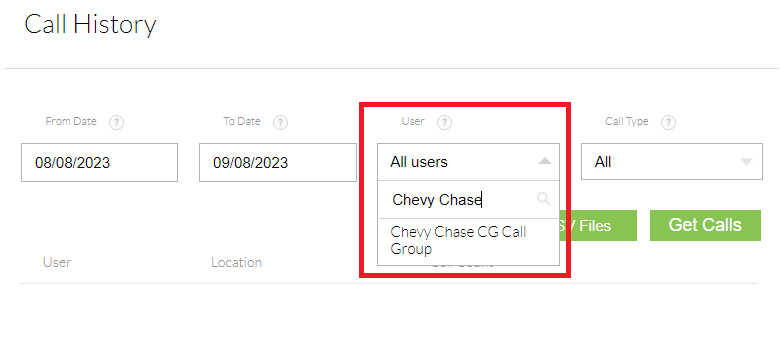
5. Under "User" enter the user you would like to pull history from.
If you would like to pull history from the entire practice, enter the practice name and select its "Call Group"
Enter the "From" and "To" dates accordingly and click "Get Calls"
6. Click "View details" once you clicked "Get Calls"

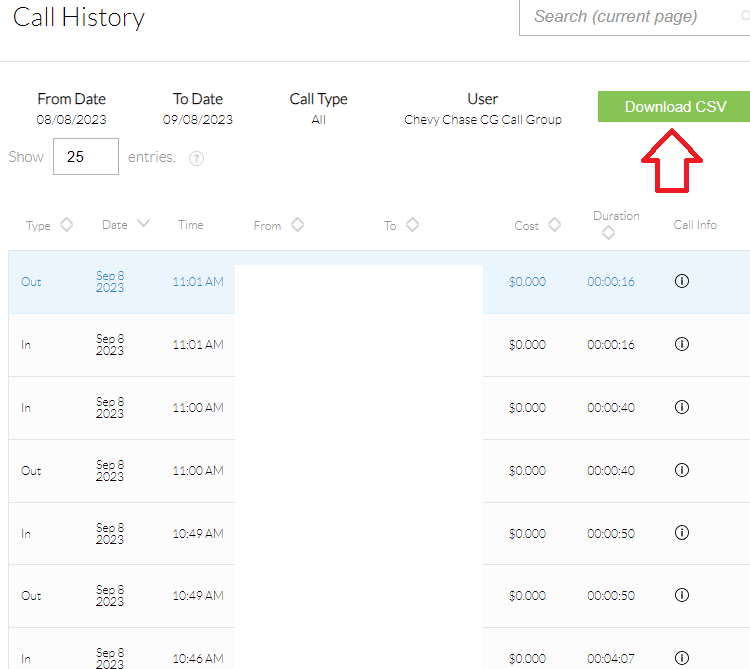
7. You can now view, and search your call logs. To export it as CSV to open in Excel or Google Sheets, click "Download CSV"