Concur MFA Setup Guide
As part of Concur's default policy, multi-factor authentication is now required.
Please follow the steps below to enable MFA on your account.
Table of Contents
Setup w/ Microsoft Authenticator
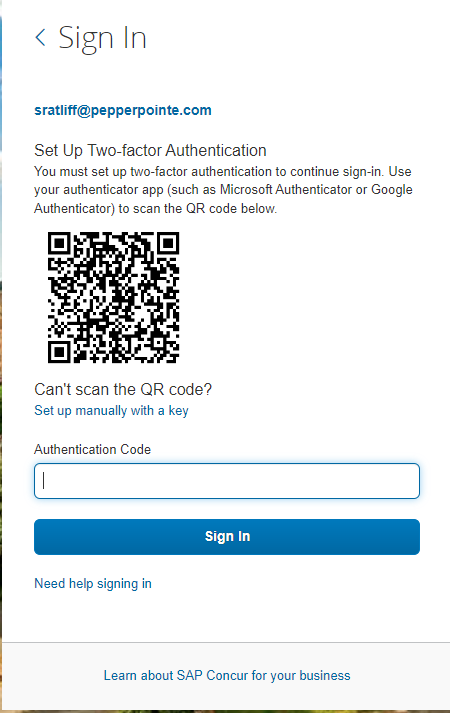
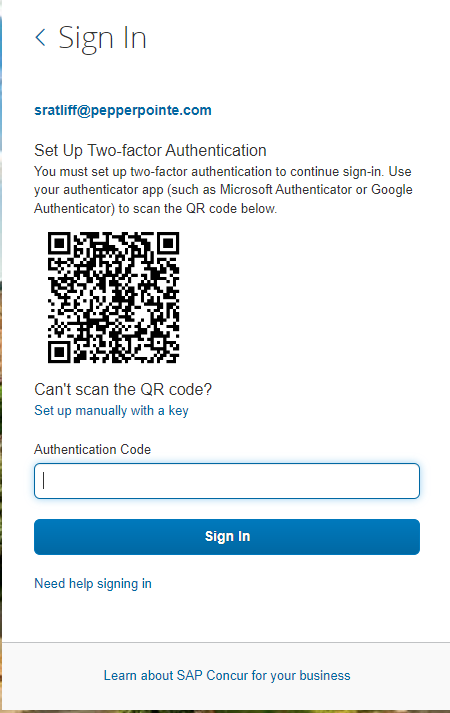
A QR Code will appear on first sign-in.
1. On your phone, navigate to the App Store or Play Store
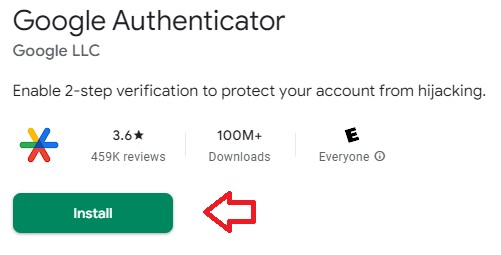
Search for "Google Authenticator"
Tap "Get" or "Install"
iOS

Android
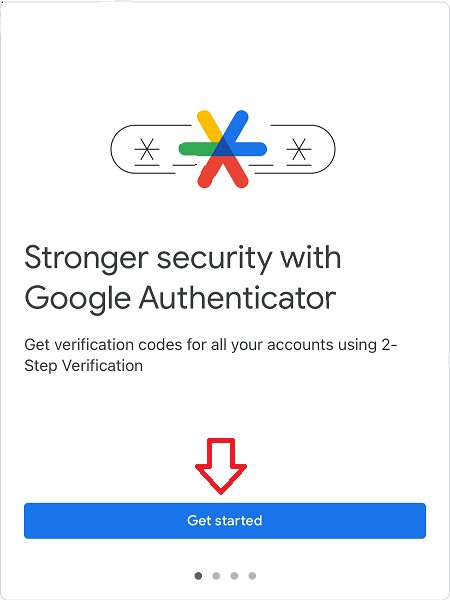
2. Once installed, open the app
Press 
3. At the bottom of the screen, click "Sign in"
*NOTE* If a Google account is signed in on this device, it may appear instead. You will need to click "Add another account"

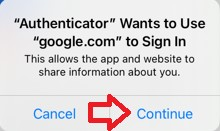
4. Press "Continue" to open the Sign In screen.
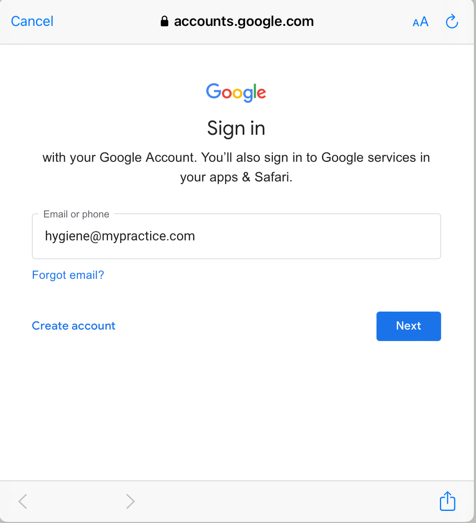
5. Sign into your Google account
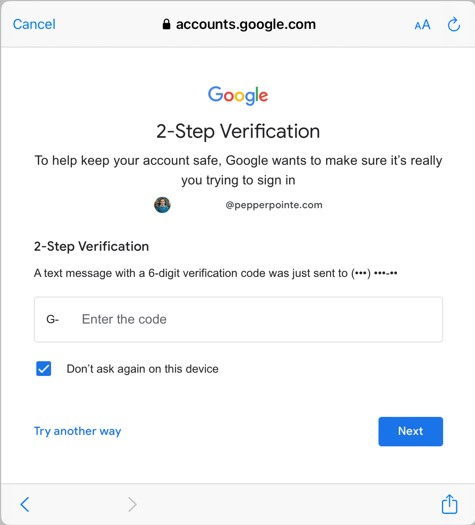
6. Enter your MFA code sent to the number
7. Press 
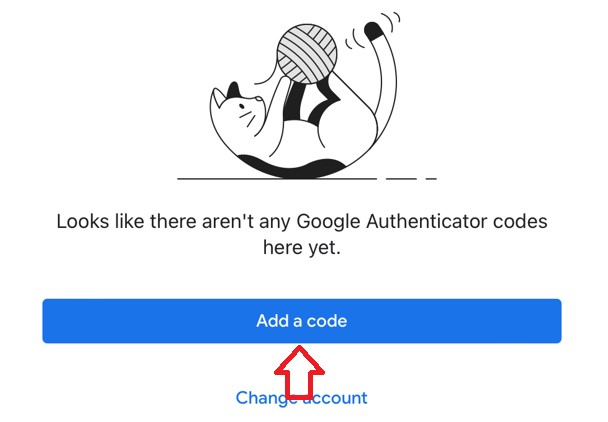
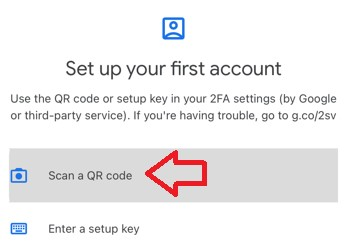
8. Press "Scan a QR code"
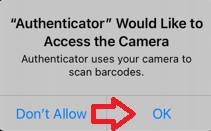
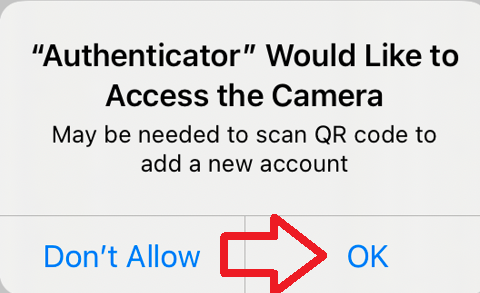
9. Press "OK" to give Google Authenticator permission to scan the QR code.
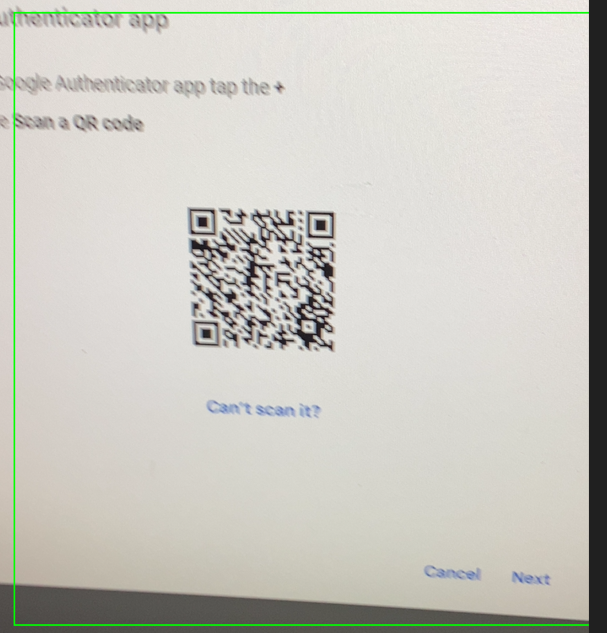
10. Scan the QR code from your desktop created on Step. 12
11. Enter your code from the app. Click "Sign In" once done
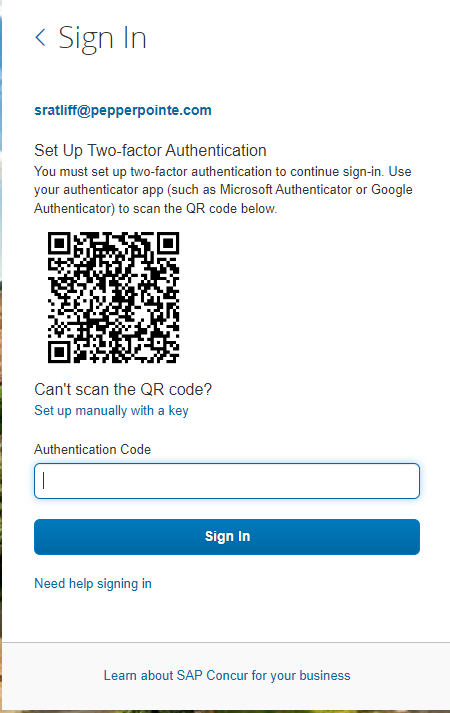
A QR Code will appear on the first sign in.
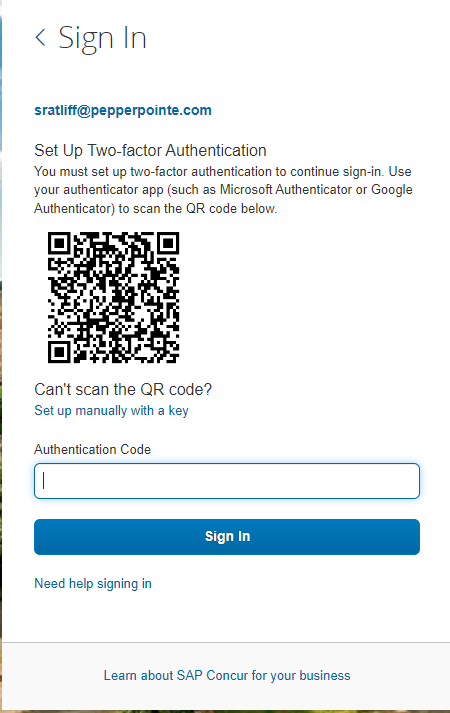
1. On your phone, navigate to the App Store or Play Store
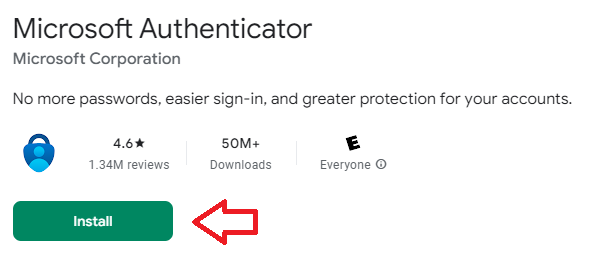
Search for "Google Authenticator"
Tap "Get" or "Install"
iOS
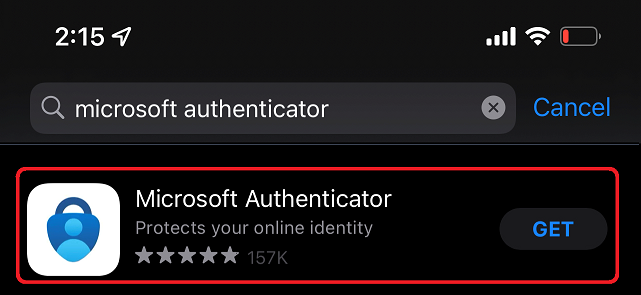
Android
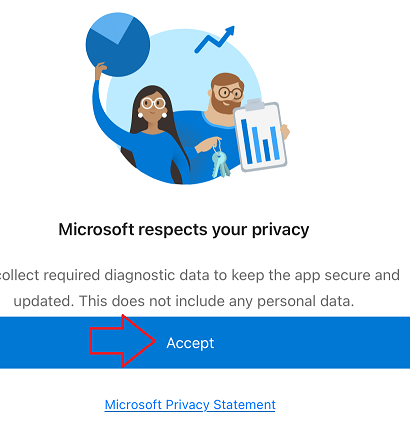
2. Once installed, open the app
Click "Accept" to accept the privacy statement.
3. Untick the "Help improve the app by sharing your app usage data"
Then press continue

4. Click "Skip" to skip logging into an account.

5. Click "Add account"

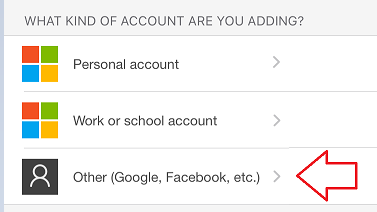
6. Press "Other (Google, Facebook, etc.)"
7. Press "OK" to give Microsoft Authenticator permission to scan the QR code.
8. Scan the QR code
9. Enter the code from the authenticator app. Click "Sign in" once done