




HELP DESK GUIDE (AREA MANAGERS)
Website: HappyFox (www.help.pepperpointe.com)
OVERVIEW:
The Pepperpointe technology team has a helpdesk in place to support our area managers with a wide range of issues.
Our helpdesk is powered by HappyFox.
The details and steps for submitting tickets, providing updates as needed, and monitoring tickets for agent replies.
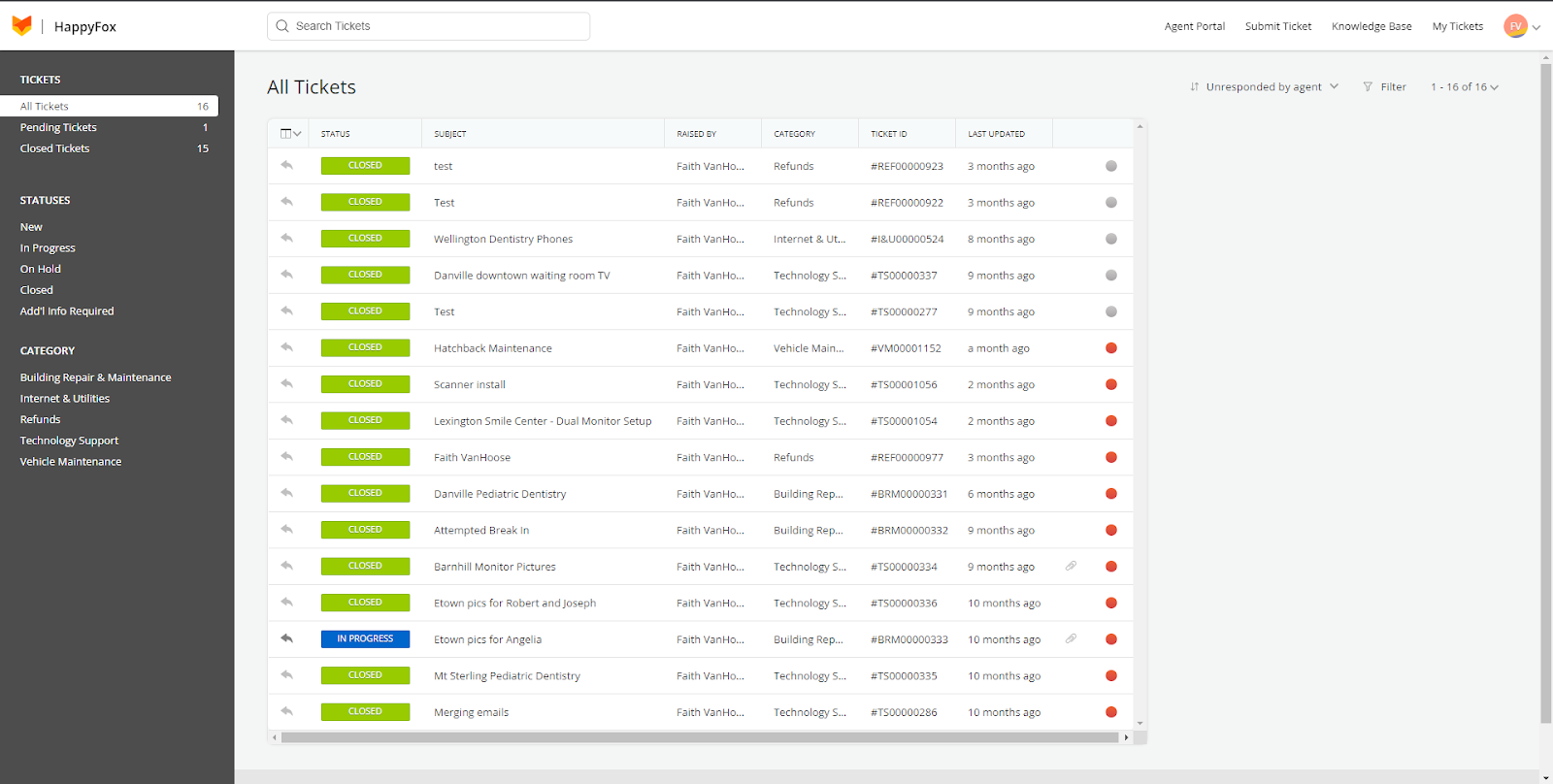
Website: HappyFox
CREATING A TICKET

-
Click Submit Ticket button in the top right hand corner of the webpage.
-
Enter a subject for the ticket.
-
It’s helpful to include the name of the practice that the ticket is in regard to.
-
-
Enter your message.
-
Be as detailed as possible. The more information we have the easier it is to help!
-
-
Pictures are always helpful!
-
They can be added from the attachment box under the message field.
-
-
Choose your category (mandatory).
-
If unsure of which category to choose, select Help@Pepperpointe.
-
-
Choose the location of the practice having the issue.
-
These are sorted by accounting location numbers.
-
-
Make sure you check the “I’m not a robot” box.
-
Then click on Create Ticket to submit your ticket.
PROVIDING RESPONSES TO TICKETS
-
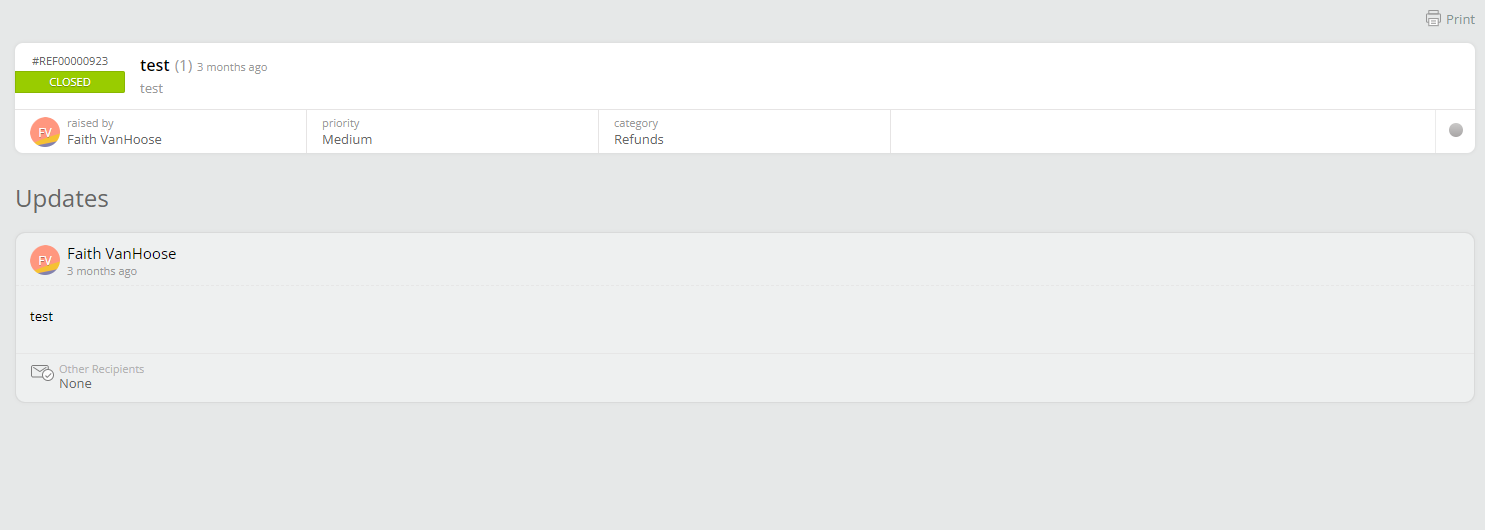
To open a ticket from your dashboard, click on it.
-
Here you will be able to see all updates that have been submitted for your ticket.
-
This includes your initial ticket and agent responses.
-
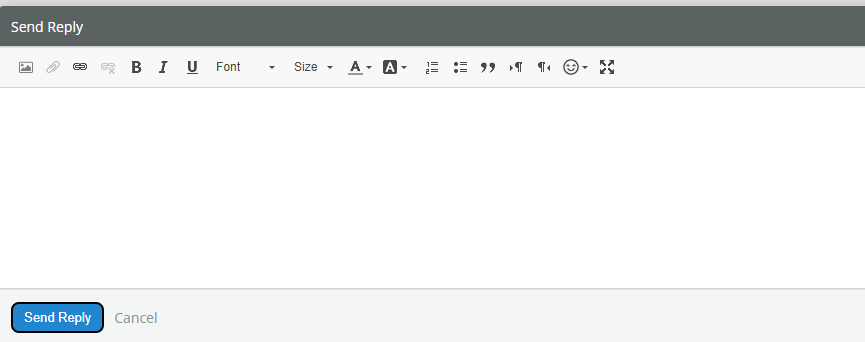
To add a reply to a ticket, click the button in the lower left corner.

-
This will open up a message box where you can type a reply to the agent.
-
After typing your reply, click send reply.
-
You will also receive email notifications when a response is added to your ticket.
-
It’s helpful to monitor these tickets regularly.
-
If an agent asks a question, regular monitoring will allow for quick responses to help with a quick resolution to the issues.
-
HELP DESK DASHBOARD
Your dashboard is customizable to fit whatever layout works for you.
-
You can sort between (Left side of screen):
-
Queues
-
All Tickets
-
Pending Tickets
-
Closed Tickets
-
-
Statues
-
Categories
-
-
You can also sort your tickets by:
-
Un-responded by agent
-
Last Updated - Oldest to Recent
-
Last Updated - Recent to Oldest
-
Ticket ID - Ascending
-
Ticket ID - Descending
-
Priority - Lowest to Highest
-
Priority - Highest to Lowest
-

