



Downloadable copy available at the bottom of this screen.
First Time Login:
- Go to https://portal.office.com.
- Enter your email address.
- Enter your first time login password - provided by manager or an IT staff member.
- If you no longer have access to this password or encounter and error, please notify the IT helpdesk by emailing [email protected].
- Setup Multifactor Authentication.
- Setup Microsoft Authenticator.
- Scan the appropriate QR codes to download the application.
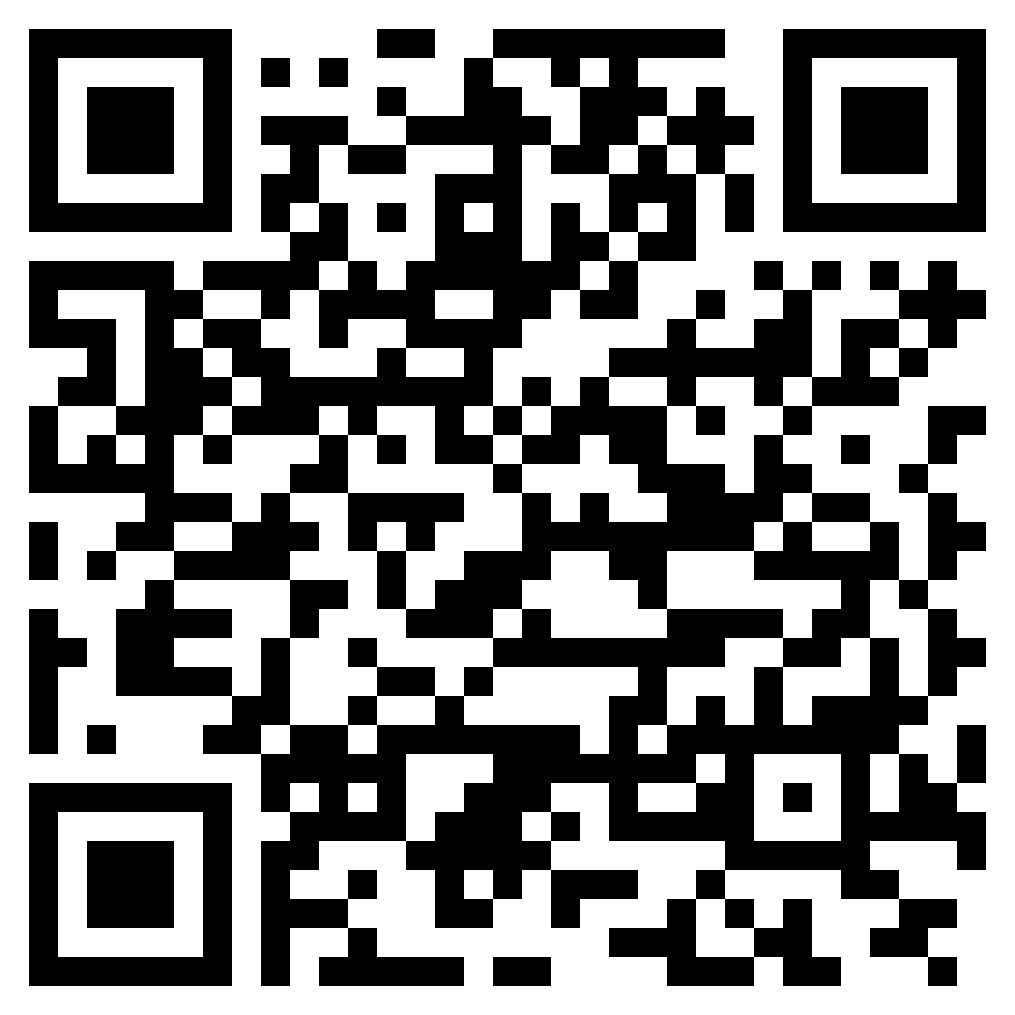
- To install the Authenticator app on an Android device, scan the QR code below or open the download page from your mobile device.
- Scan the appropriate QR codes to download the application.
-
-
- To install the Authenticator app on For iOS, scan the QR code below or open the download page from your mobile device.
-

- Follow the on screen prompts to finish setting up the app and complete the sign in process.
Adding an account to Microsoft Authenticator:
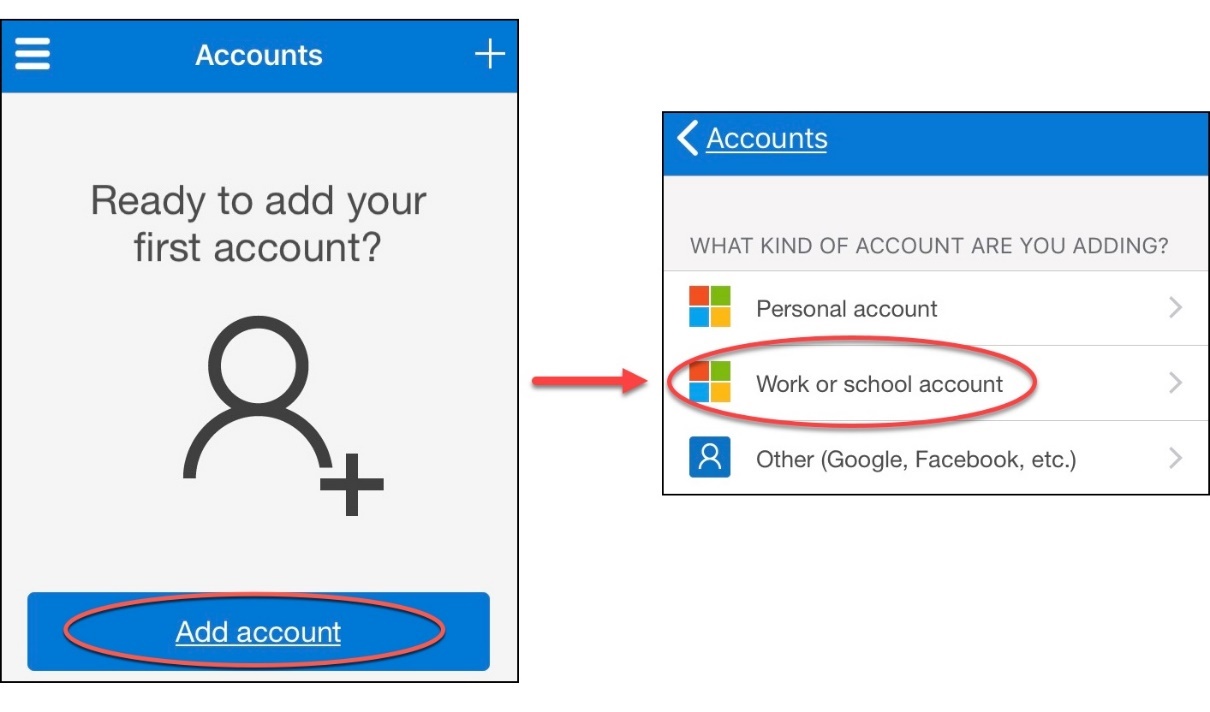
- Click on the Plus + in the upper right-hand corner.
- Select Add Work or School Account.
- Select Scan QR Code to finish adding your account.
- When prompted enter verification number to approve initial sign in.
- Enter temp password.
- Enter new password.
- Enter new password again to verify and click continue.
First Login:
Enter https://portal.office.com into your computer’s browser’s search bar or search for Microsoft Office Login.
Typically, the next steps will take you through the multifactor authentication process.
If you find that it doesn’t and you’ve been directed to reset/update your password
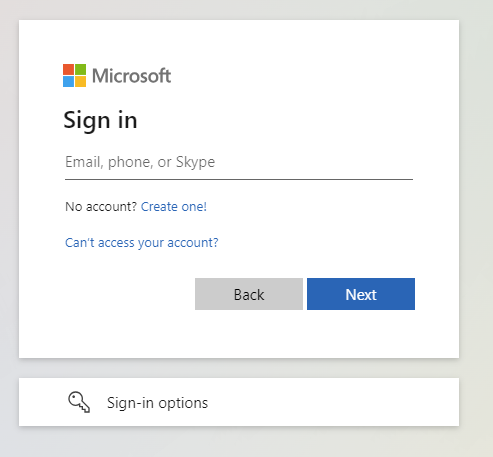
Once you’ve navigated to the site you’ll be asked to enter your email address.
This will be the email address previously used with your google account.
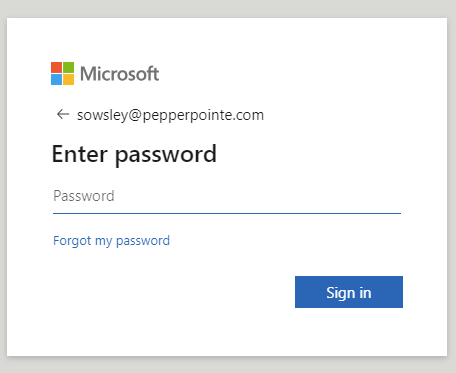
The first-time password will be provided by PepperPointe IT and was shared during the first transition training.
Multifactor Authentication:
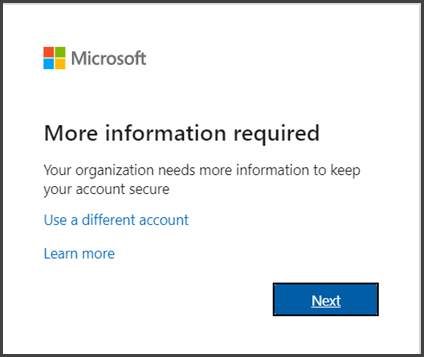
Once you’ve successfully entered your pass word, you’ll be asked to setup your multi-factor authentication. This step cannot be skipped and you cannot access your email or applications until it is complete.
Most practices have shared accounts as opposed to individual accounts or may use/monitor two+ accounts. It is absolutely crucial that when setting up MFA for a shared account, the method used is also shared.
For example, I may use "[email protected]" and it is shared between both front desk personnel.
The best solution to this problem would be to use a shared device that is left on-site only, such as an iPad/Tablet, iPod touch, or similar devices using an Authenticator application such as Microsoft Authenticator, or using your practice's phone to receive codes/phone calls.
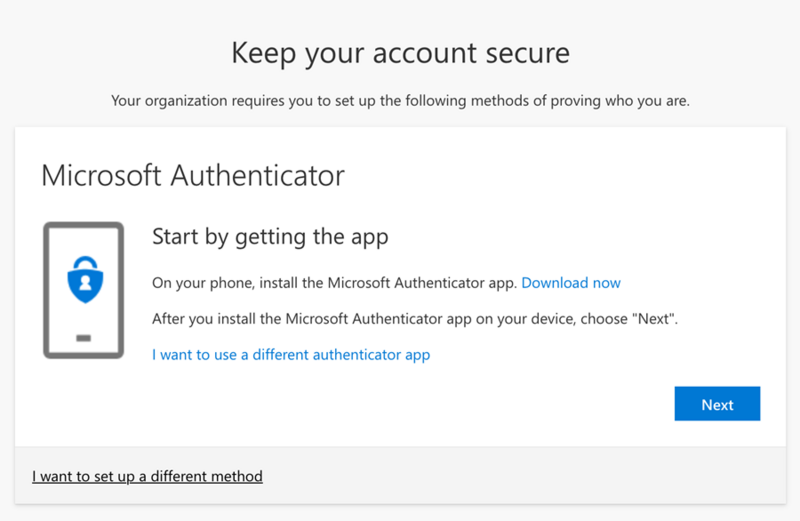
The default authentication method is to use the free Microsoft Authenticator app  . If you have it installed on your mobile device, select Next and follow the prompts to add your account. If you don't have it installed below are the QR codes and links to download them for your device.
To install the Authenticator app on an Android device, scan the QR code below or open the download page from your mobile device.
To install the Authenticator app on For iOS, scan the QR code below or open the download page from your mobile device.

Adding an account to Microsoft Authenticator:
In the Authenticator App, Add your work account by either tapping on the + button and tap Add work or school account. Select Scan QR Code.
|
After you install the Authenticator app, follow the steps below to add your account: Point your camera at the QR code (sample pictured below) or follow the instructions provided in your account settings. If you encounter an error, refresh the page and try again. You can also enter the code by selecting enter code manually on your phone and by clicking can’t scan image on your computer. |
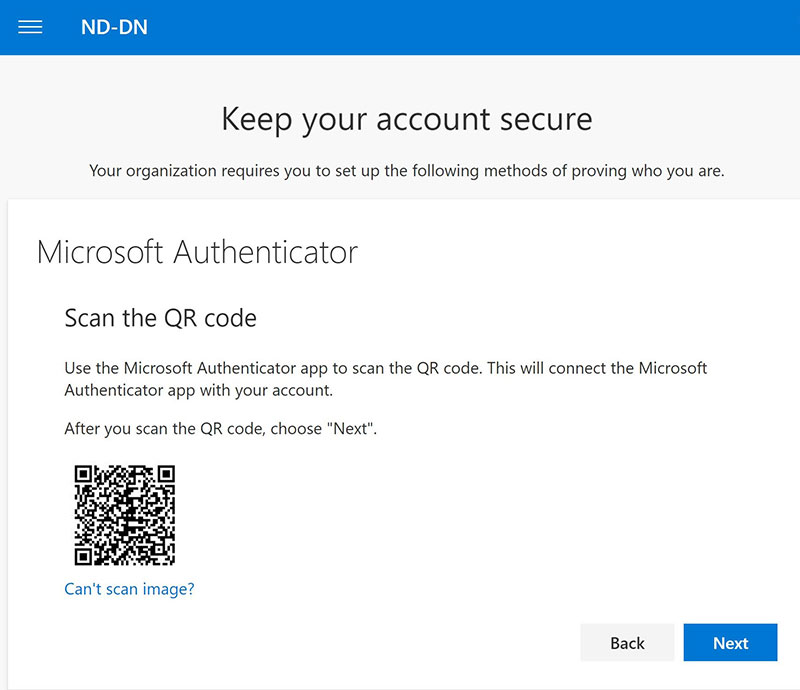
After your account appears in your Authenticator app, you can use the one-time codes to sign in. For more information and support on the Authenticator App, open the Download Microsoft Authenticator page.
|
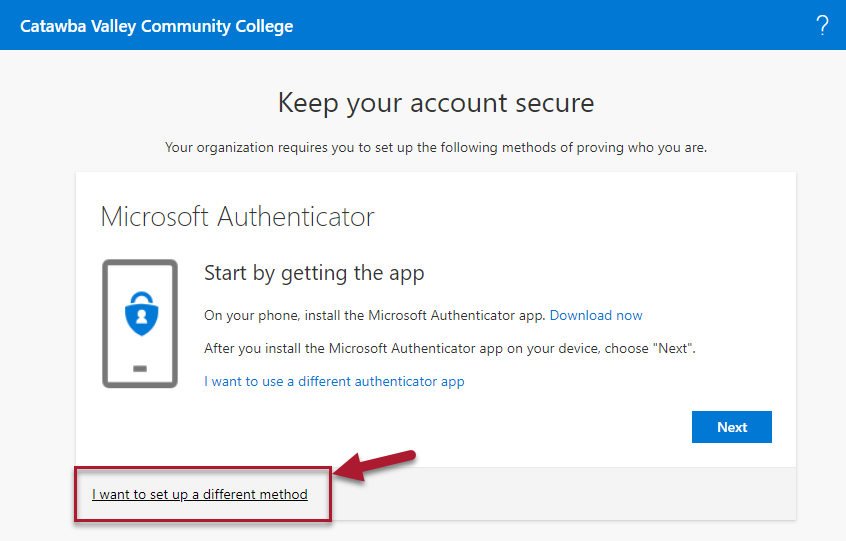
If you would rather have a text/SMS message or a call sent to your phone instead, select I want to set up a different method. |
|
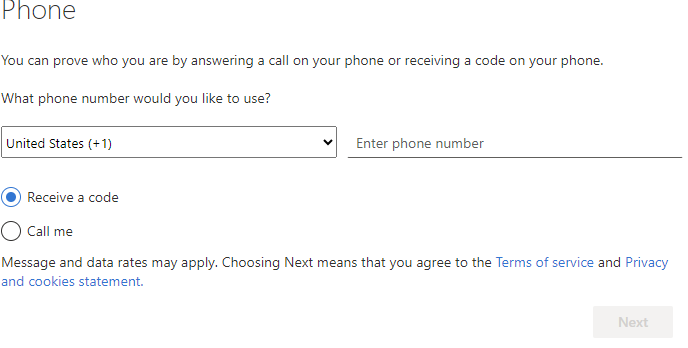
Microsoft 365 will ask for your mobile number. If you select receive a code then a text/SMS message containing a 6-digit code will be sent to your phone to verify your device.
If you select call me, then you will receive a phone call and will have to follow the directions given to complete the sign in process.
|
|
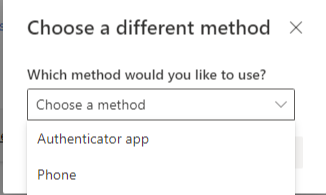
A drop-down menu will appear and you’ll select Phone.
|
Updating your Password:
|
Once you’ve verified your preferred authentication method and changed your password, you’ll be completely signed into to Microsoft 365 and can start using your Outlook email and other applications. Please see the Navigation Microsoft Guide for additional information.
|
|
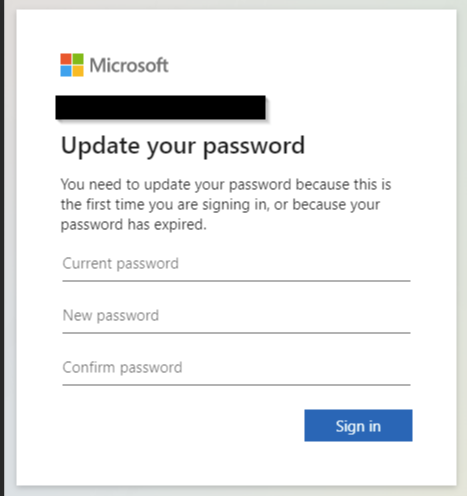
After entering your temporary first time use password and completing the MFA process, you’ll be prompted to enter your temporary password again and make a new password. We recommend that you use an easy to remember password phrase, it must be comprised of lower case letters, and it must contain the following:
· At least one capital letter. · At least one number.
|
Click on PDF attachment below to download a copy of this guide.


