



Downloadable copy available at the bottom of this screen.
After completing the login in process from https://portal.office.com you’ll be directed to the Welcome to Microsoft 365 screen like the one pictured below.
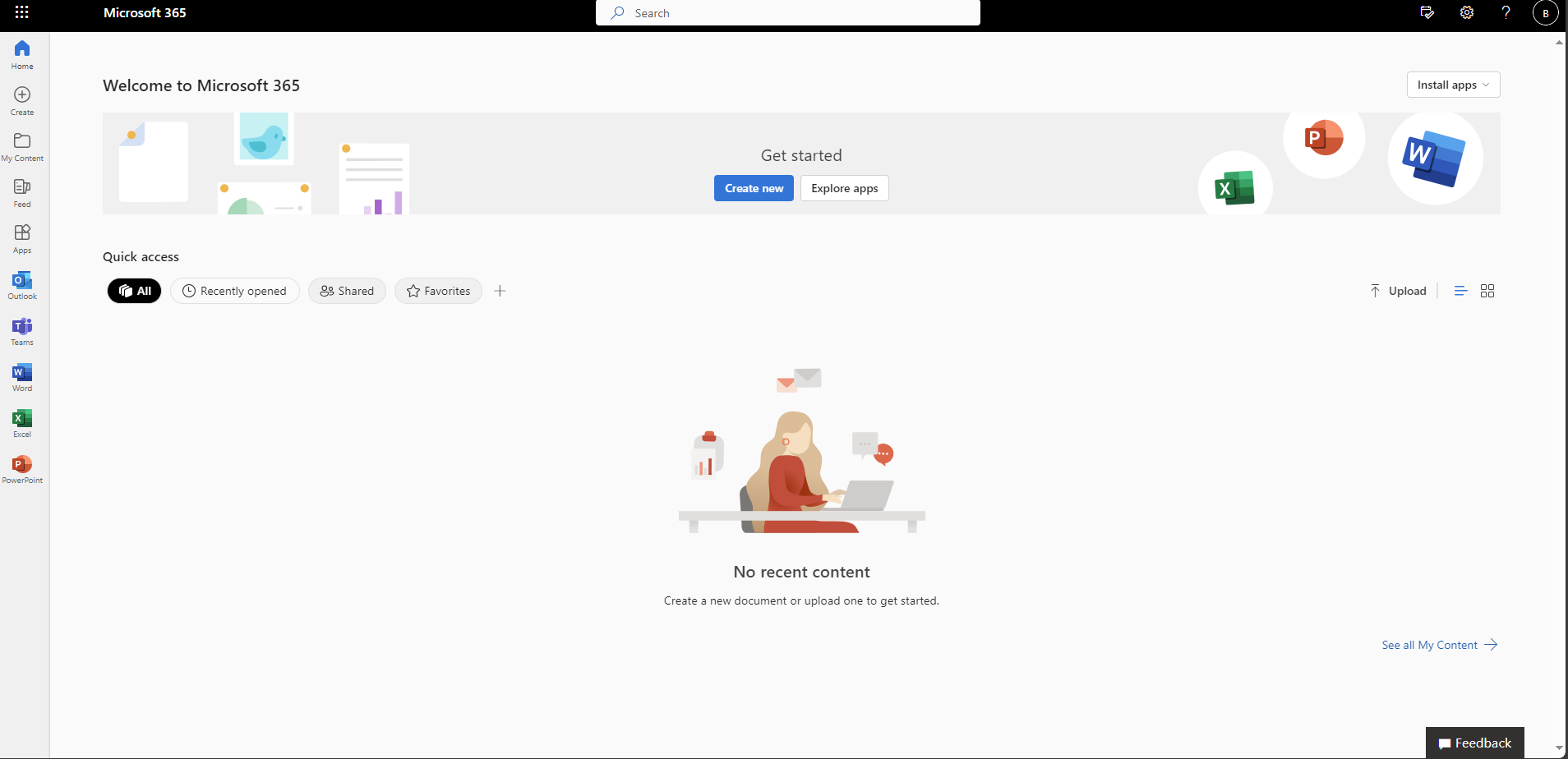

From this page there are a couple different ways to get to your files and Applications.
The easiest ways to get started is by referencing the side bar found on the left side of the screen. From here you can do one of the following options:
- Create a new file.
- Access your document library.
- See all of your applications.
- Quickly go to an application by clicking on it’s icon.
Additionally, if one clicks on the collection of squares  in the top left-hand corner. It’ll open a menu that quickly shows you all of your applications and recent documents.
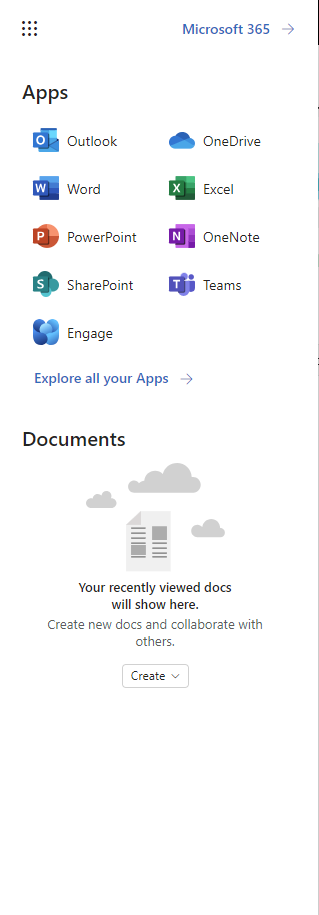
Additional applications not listed in this menu can be found by clicking on Explore all your Apps.
Clicking on any of the applications will give you the option to start new document or select a previous document of the same type.
If you need additional assistance, please contact the help desk at 859-810-8050 or via email at [email protected].
Click on PDF attachment below to download a copy of this guide.


