Multiple Profiles in Edge and Importing from Chrome

Dec 22, 2023
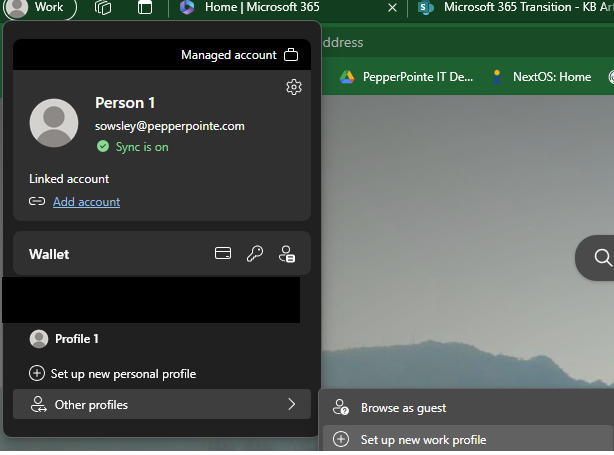
When First Adding a new profile to Edge, click on work or your name, select Other Profile, and Set up new work profile.
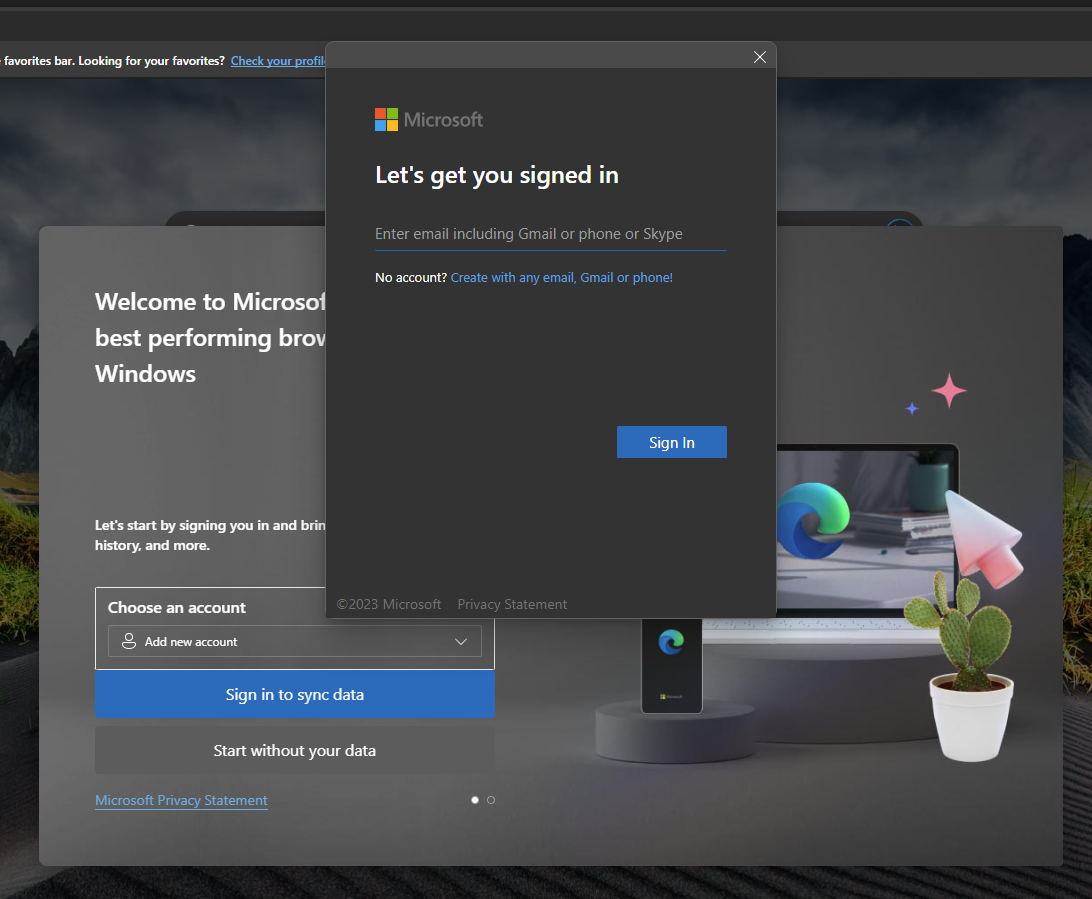
Sign in with the desired account
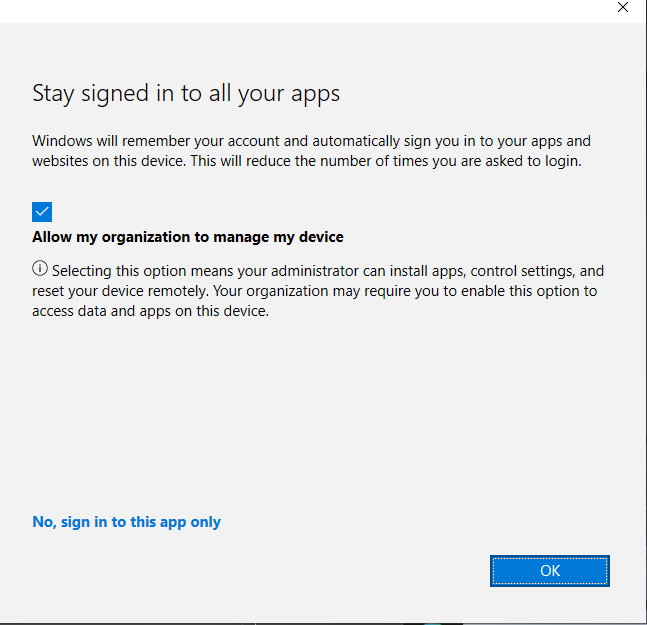
Be sure to not click OK on the following page. Simply uncheck the box and select "No, sign in to this app only"
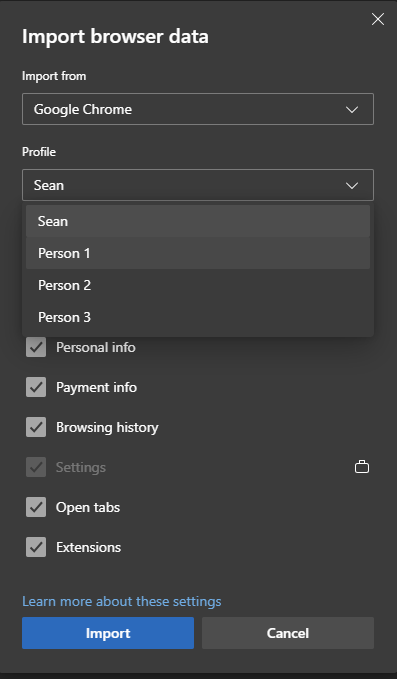
Then when importing from the settings menu select the drop down beside the profile and select the appropriate account from Chrome.