



If you previously used Outlook with your Gmail, this guide will provide guidance for creating a new Outlook profile that will replace your existing account.
- Type Control Panel in the start menu and hit enter.
- When the window opens click on Mail.
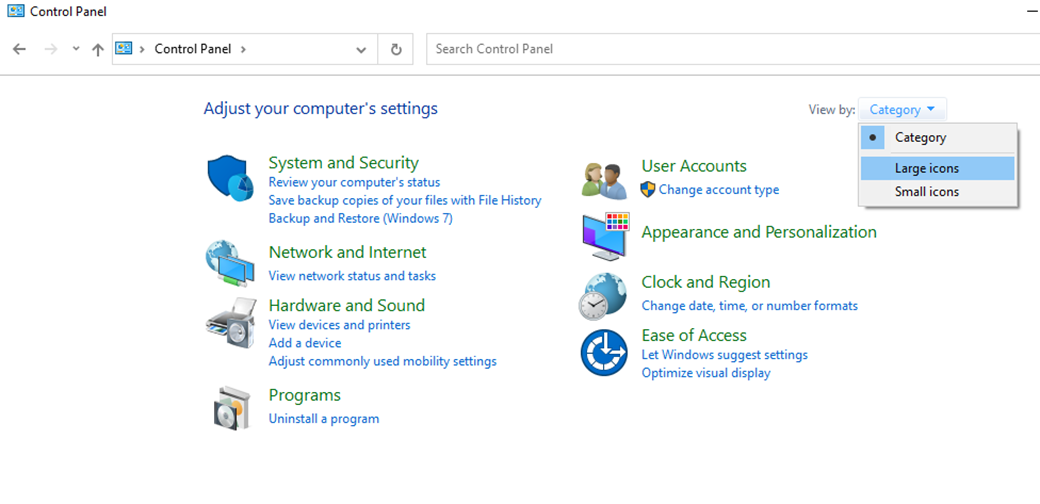
- Change your View By from Category to Large Icons if you do not see Mail.
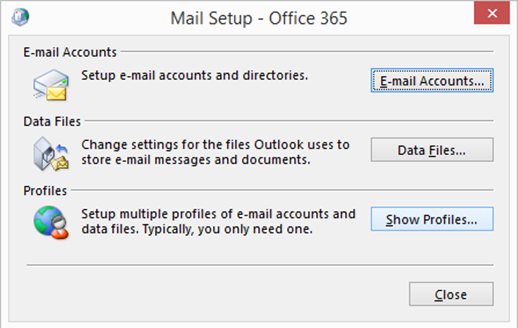
- Click Show Profiles.
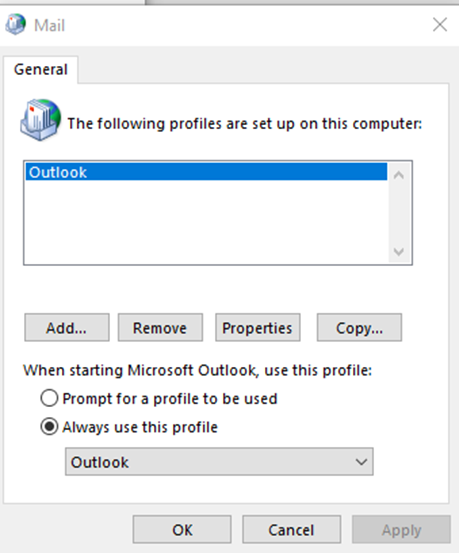
- Click Add and enter a profile name such as Office 365 then click OK.
- Enter the Microsoft 365 account username and password. Click Next and Finish.
- If prompted, uncheck the "Allow my organization..." checkbox and click "This App Only".
- Once entered, select the Microsoft 365 profile under the Always Use this Profile dropdown box.
- Select the account labeled Outlook and click Remove.
- Click OK to close the window. The Microsoft account will now be linked to Outlook and is ready for use!
Please see detail instructions with photos below

Type Control Panel in the start menu and hit enter.


When the window opens click on Mail.
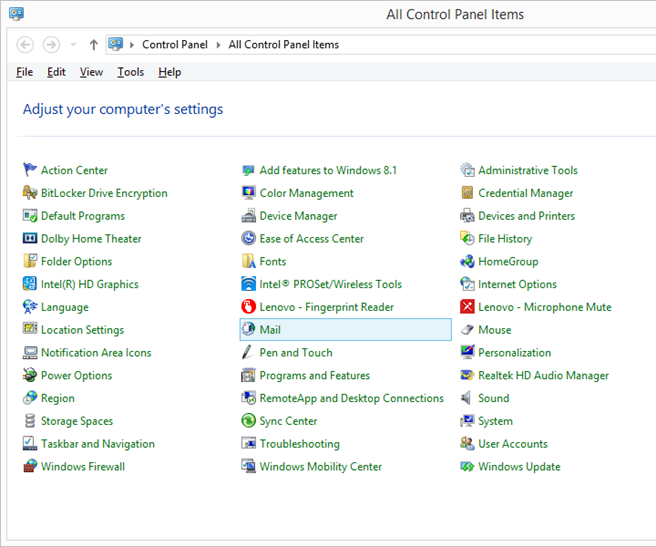
Side note: If your window does not look like the one above, can your View By from Category to Large Icons.
Once you’ve clicked on Mail, click Show Profiles.
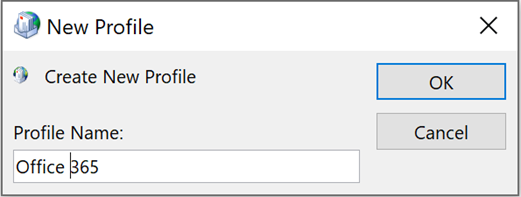
Click Add and enter a profile name such as Office 365 then click OK.
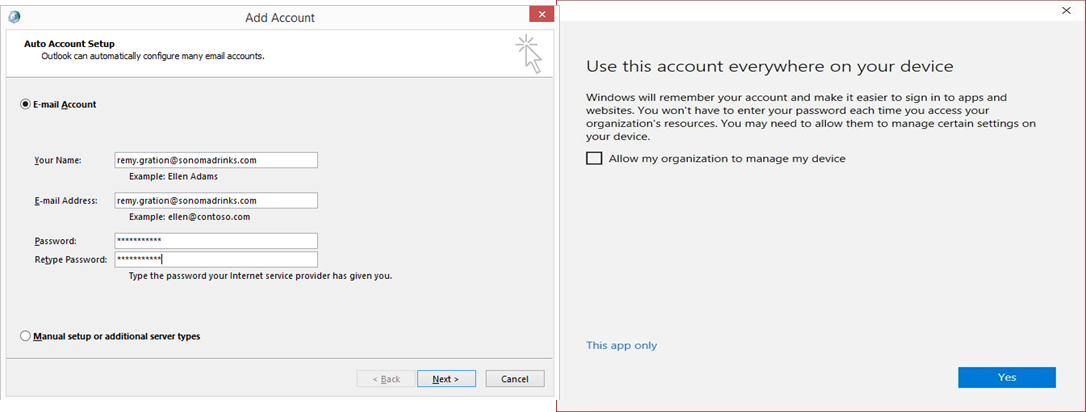
Enter the Microsoft 365 account username and password. Click "Next" and "Finish".

 Note: If prompted, uncheck the "Allow my organization..." checkbox and click "This App Only".
Once entered, select the Microsoft 365 profile under the Always Use this Profile dropdown box and click OK.
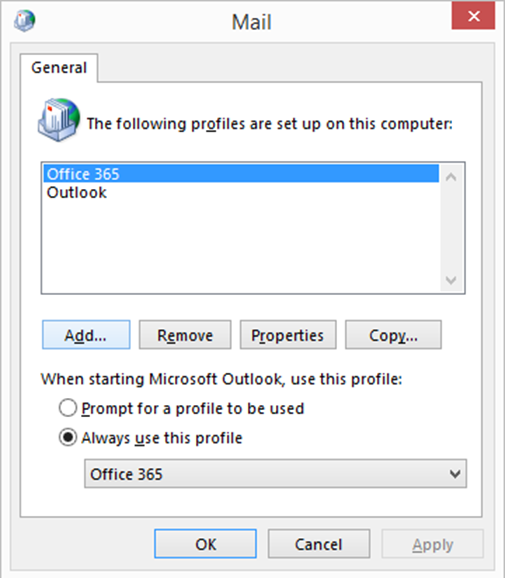
Selethe account labeled Outlook and click Remove.
Click OK to close the window. Close Outlook and reopen it in order to make the settings take effect. The Microsoft account will now be linked to Outlook and is ready for use!
As a note, if you were using the "NEW" Outlook, you'll need to go to Settings  and under Accounts if it says Gmail or Google, you'll need to click on Manage and then remove the account. After that, add your account back by entering the email address and provide your password if prompted. This will log you back in correctly on the "NEW" Outlook.


