



Sending Secure Email Messages
This guide describes how you can send secure emails using Outlook Mimecast and manage your incoming emails. Emails containing PHI (Protected Health Information), banking information, or otherwise sensitive information should be sent using one of the methods outlined below.
There are 3 different ways you can send a secure email:
-
Including any of the following words within the subject line of your email: Confidential, Secure, or secureportal in Outlook for the web or desktop
-
Using the Mimecast for Outlook app add-on (desktop version only)
-
Using the Mimecast Personal Portal
Sending Secure Messages in Outlook
Option 1: Include Specific Words in the Email Subject Line (any version of Outlook)
-
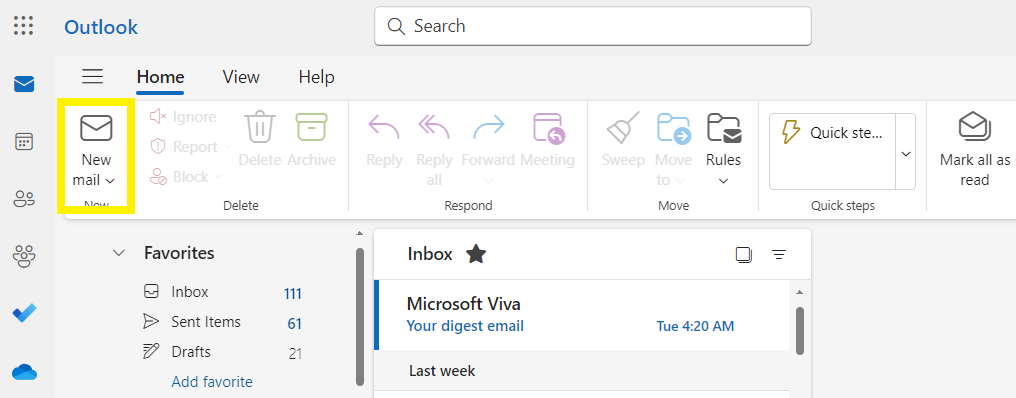
From your Outlook inbox, click New mail
-
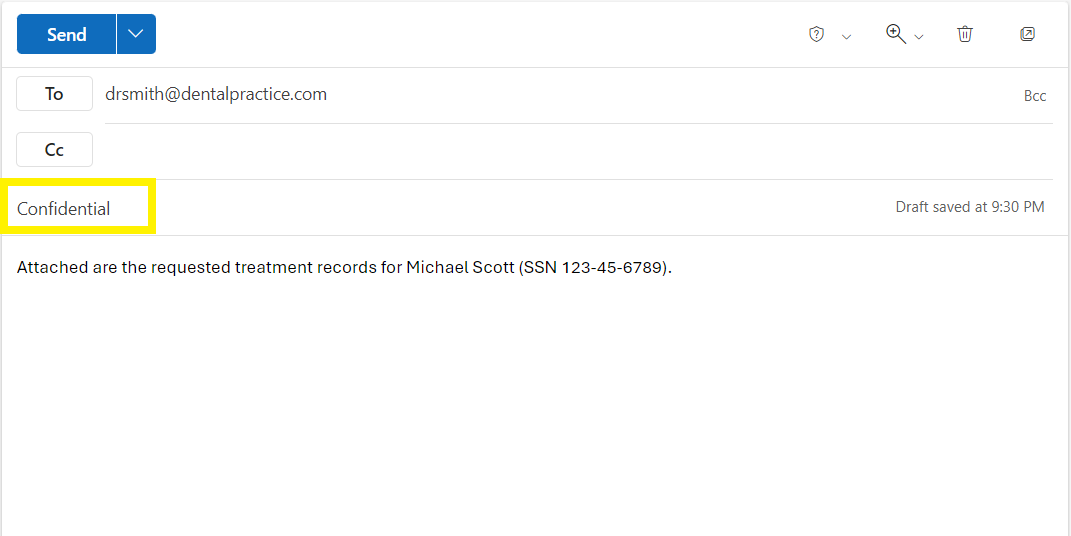
Use any of the following words within the email subject field (not case sensitive):
-
Confidential
-
Secure
-
Secureportal
-
Compose your email message and include any attachments if necessary
-
Select Send
Option 2: Using Mimecast for Outlook app add-on (Outlook for Desktop only)
-
Open Outlook Compose an email message as normal
-
Click on the Mimecast tab
-
Click on the Send Securely icon
-
Select the Secure Messaging Definition you want applied to the message. A notification is displayed below the ribbon that the message will be sent via Mimecast Secure Messaging.
-
Click the Send button. The message is sent to the recipient via the Secure Messaging Portal
Sending Secure Emails in Mimecast Portal
You have access to a Mimecast Personal Portal where you can send and manage your secure emails.
-
Login to the Mimecast Personal Portal using any web browser
-
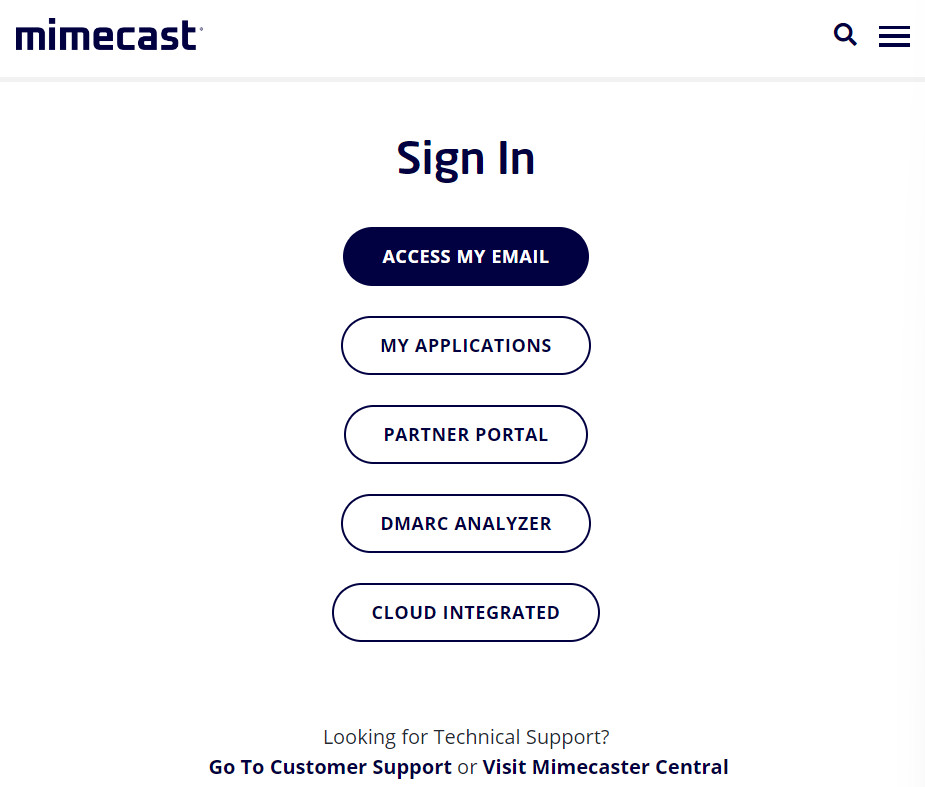
Select Access My Email
-
Enter your Email and click Next. Mimecast uses Single Sign-On using your Microsoft 365 email and password.

-
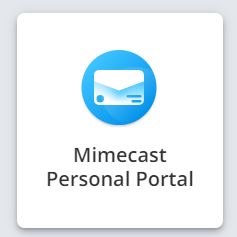
Click Mimecast Personal Portal
-
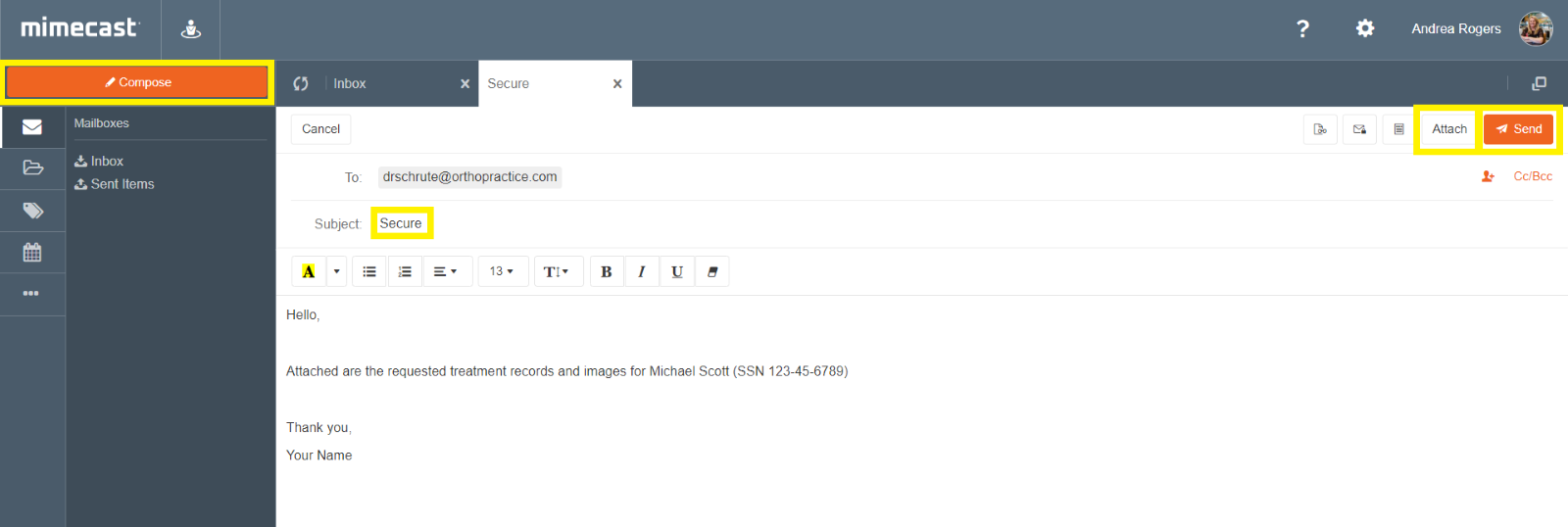
Click Compose to create a new email.
-
Type Confidential, Secure, or Secureportal in the email subject line.
-
Compose your email and click the Attach button to include any files in your email
-
Click Send
Additional Resources
Mimecast Personal Portal User Guides


