



Creating an App Password
Open your browser and go to https://portal.office.com or https://office365.com and login to your Microsoft account.
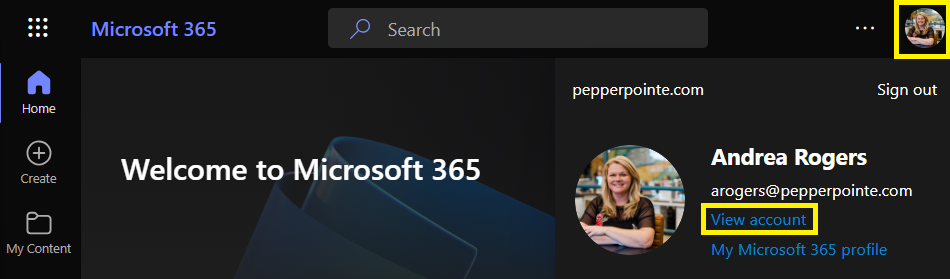
Click on your profile in the upper right corner and select View account
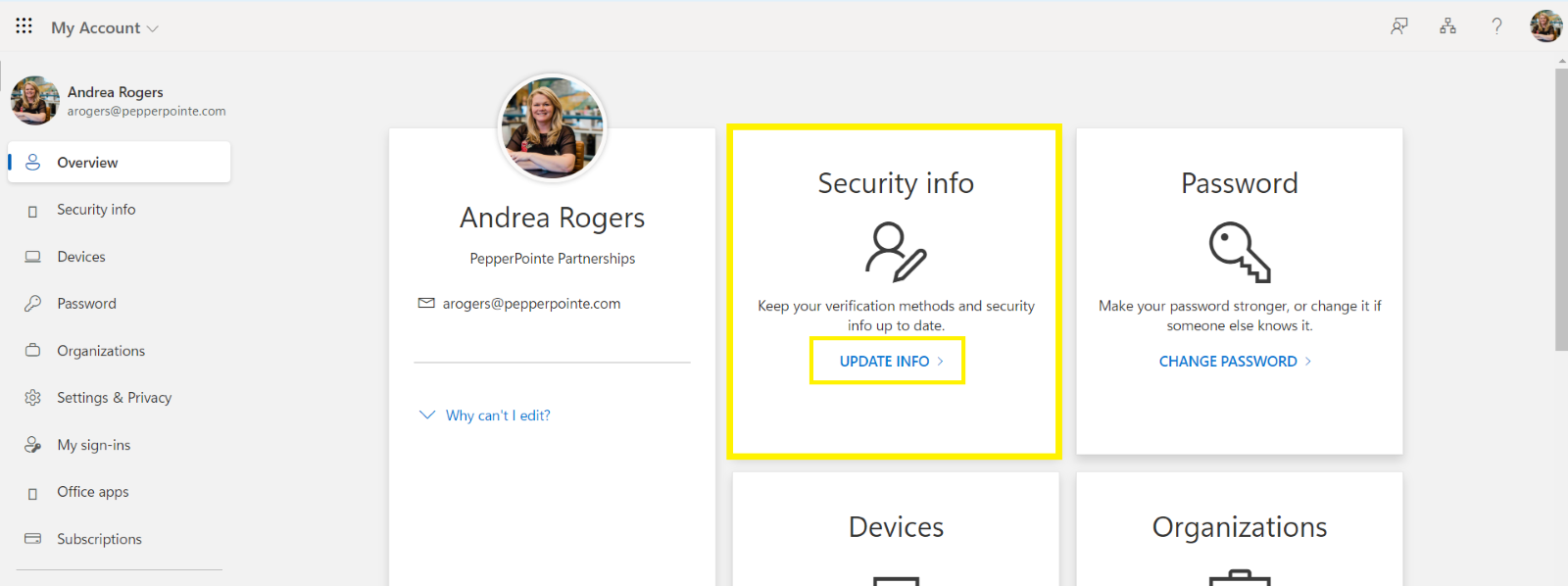
Click UPDATE INFO under Security info
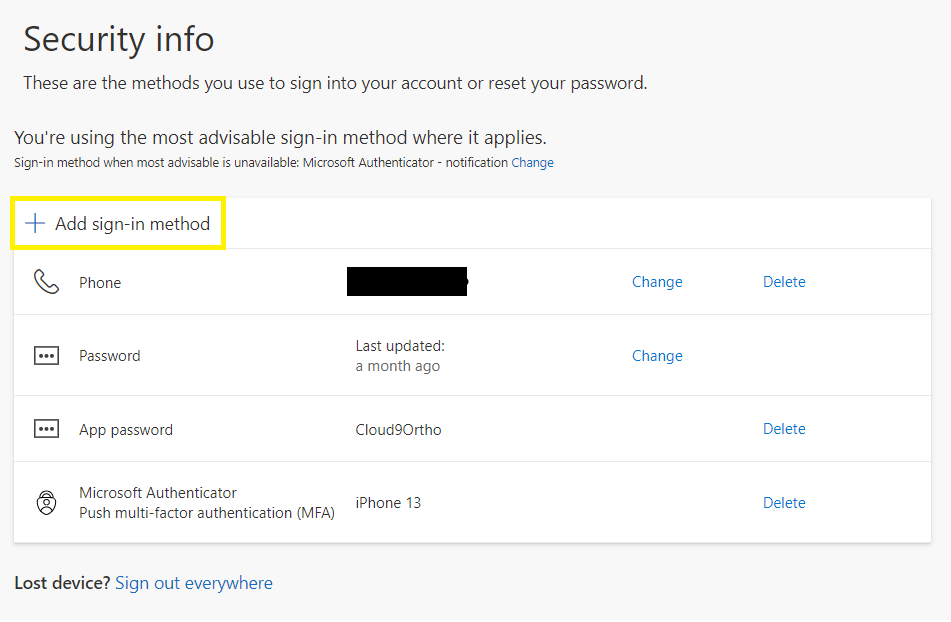
Click + Add sign-in method
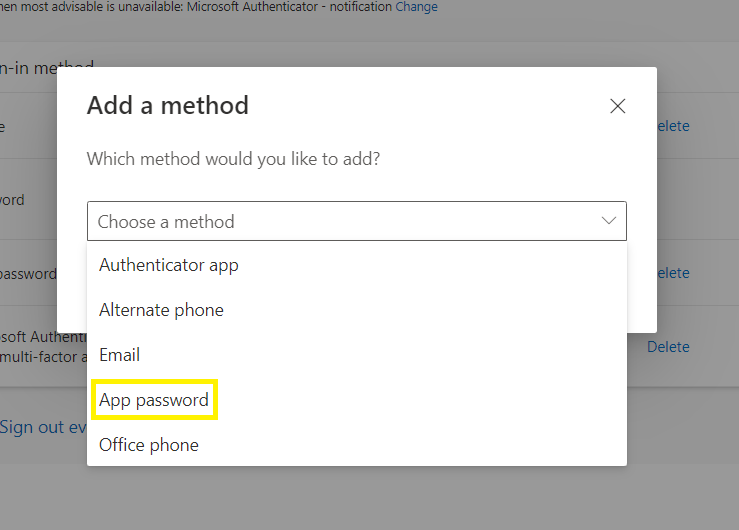
Choose App Password from the options in the drop down and click Add
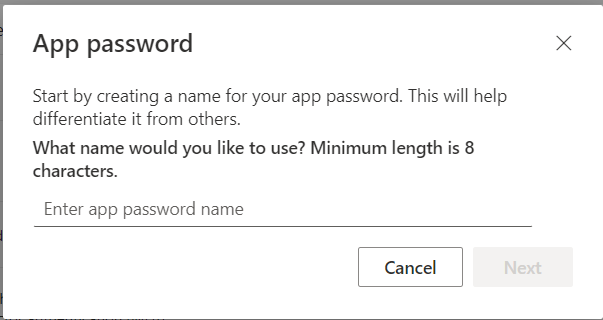
Name your app password and click Next. (Cloud 9 requires an app password for accounts that are used to send emails from Cloud 9. In this example, an appropriate name would be Cloud9Ortho)
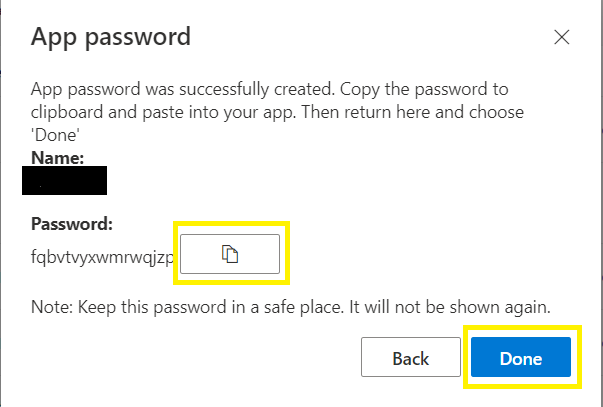
The app password will automatically be generated. WHEN THE APP PASSWORD DISLPAYS, MAKE SURE YOU CLICK THE PAPER ICON TO COPY THE PASSWORD. This is the only time the password will be displayed. Click Done.
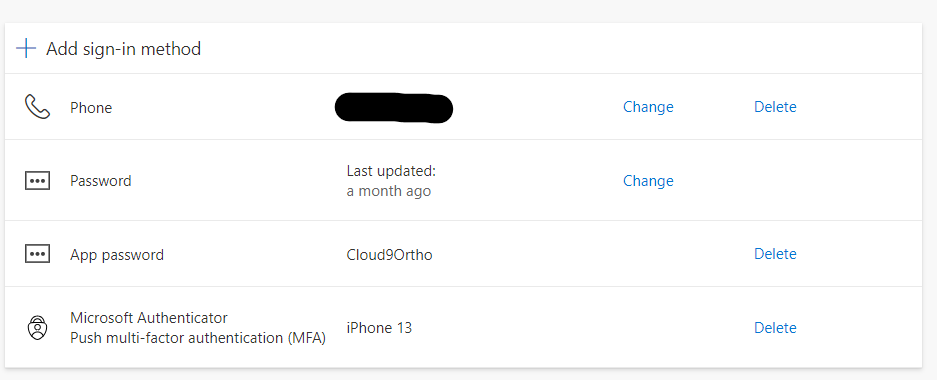
You will see your app password listed as a sign-in method on your security info. You will only be able to delete the app password. A new app password must be created if you lose the password generated in the previous step.
Enter the app password into the appropriate browser app. If you are creating an app password for sending emails from your practice management software, please email the app password to [email protected] or call (859) 810-8050 for assistance.


