Mimecast Personal Portal: Personal On Hold Messages
This guide shows you how to manage on hold queues in the Mimecast Personal Portal. Messages/Emails can be released or rejected either individually or in bulk.
Mimecast applies policies to place email messages “on hold” due to spam, attachment, or content policies, designed to prevent unwanted emails from reaching your inbox. You can view your held emails and decide whether to release or reject them.
Email messages are automatically removed from your inbox and archived within 14 days. It is best to release and reject messages rather than letting them expire.
Note that images are not automatically displayed for held messages. Once you determine whether an email is safe, you can download the image for each message.
Login to your Mimecast Personal Portal
- Open your browser and go to https://login-us.mimecast.com
- Log in with your email
Rejecting an Email Message
To reject a message:
- Click on the Advanced (3 dots) icon on the bottom left of the screen
- Select Personal On Hold from the meny
- Filter the list of messages by Subject, To, From, or Reason if desired
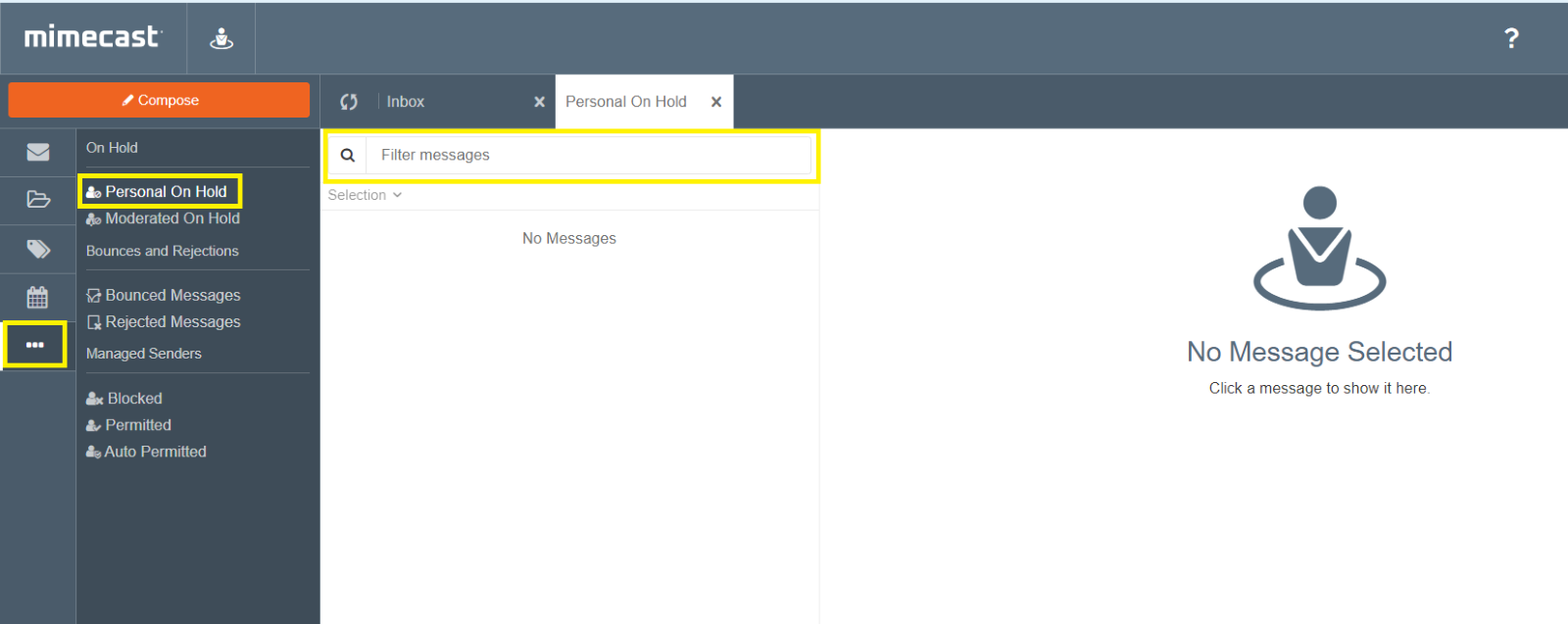
- Select one or more messages
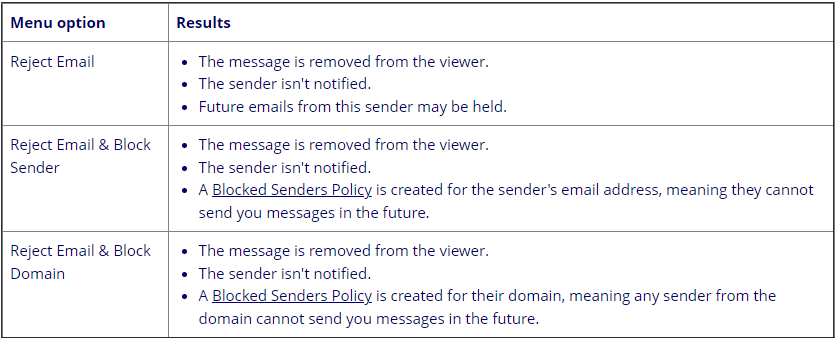
- Select the Reject (thumbs down) icon and select one of the following actions:
Releasing an Email Message
To release an email:
- Click on the Advanced (3 dots) icon on the bottom left of the screen
- Select Personal On Hold from the menu
- Filter the list of messages by Subject, To, From, or Reason if desired

- Select one or more emails
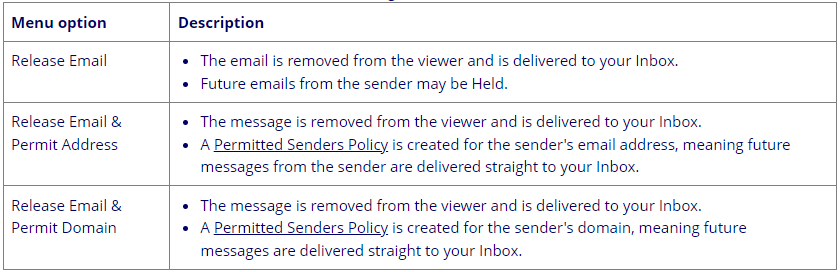
- Click on the Release (thumbs up icon) icon and select one of the following actions: