Time Zone Change

Jan 11, 2024
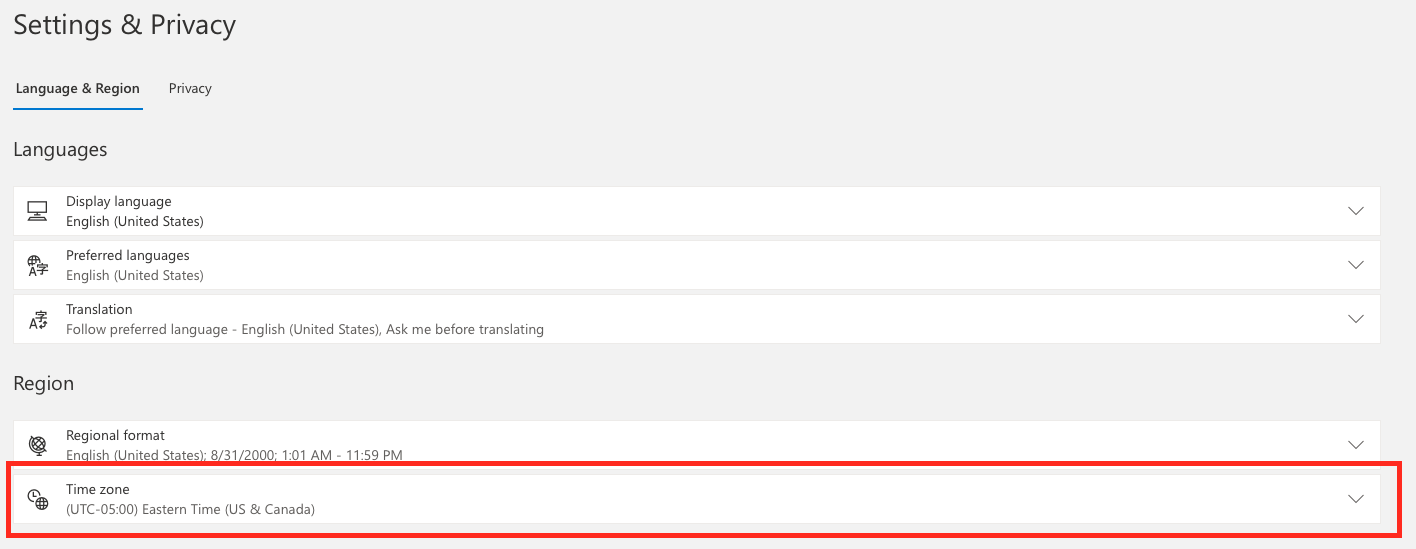
You can change the display language and time zone for all your Microsoft 365 apps and services at the same time.
- Sign in to Microsoft 365 with your work or school account.
- At the top corner of your screen, select Settings
 to open the Settings pane, then select Change your language.

3. Under Language & Region, select the pencil icon, then select your language from the list. If you want, make changes to the time zone and time displays as well.