MOVEit Desktop Client User Guide
Logging In to the Desktop Client
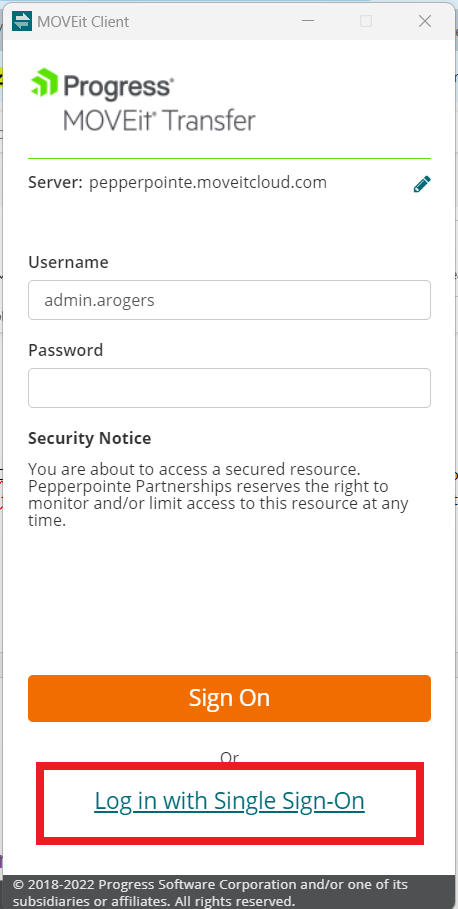
Click on the MOVEit Client from your taskbar or desktop shortcut.

Enter your username and password. Once Single Sign-On is configured, you will only need to click Log in with Single Sign-On at the bottom of the client sign-in screen. This is not currently enabled.
Desktop Client Overview
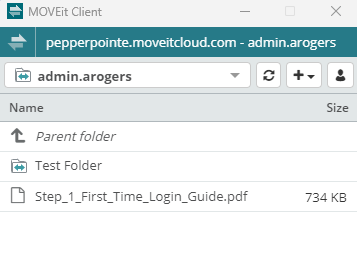
When you login to the desktop client, you should see your Home folder and contents by default
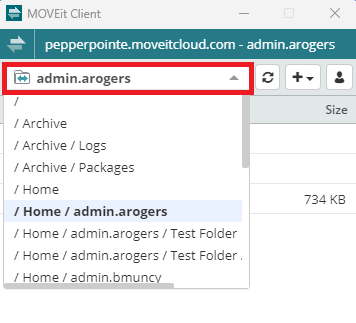
Click on the drop down next to the name of your current folder to view all folders you have access to. Click the folder to navigate to its destination.
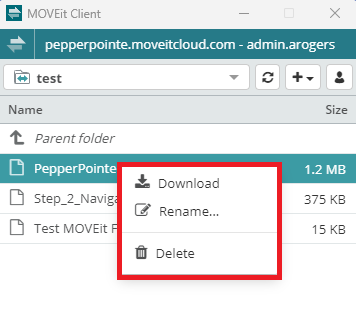
Once in the appropriate folder, you can right click on the file name to download, rename, or delete the file
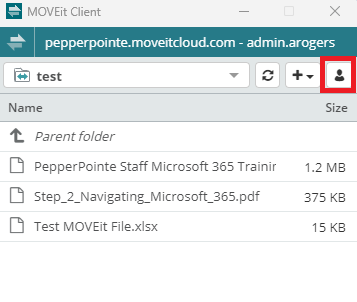
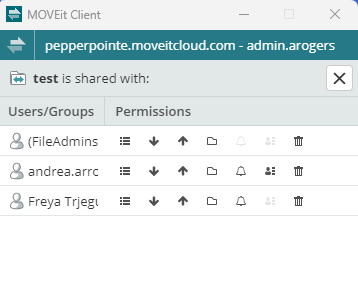
You can also click on the person icon in the upper right to view who has access to the folder
Upload Files
You can upload files to the MOVEit Client in two ways
- Navigate to the appropriate folder you want to upload a file to and click the +
- Drag and drop files from your computer, OneDrive, or SharePoint into the folder
Click on the + icon to upload files, add folders, or open the current folder in MOVEit Transfer in your browser. To make any changes to folder permissions, you will need to open the folder in MOVEit Transfer on the web and adjust permissions as needed.

Logging Out of the MOVEit Desktop Client
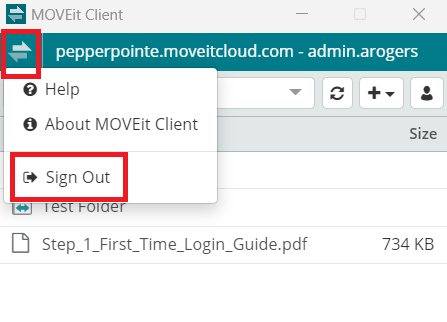
Click on the MOVEit icon in the upper left corner of the client and choose Sign Out