



MOVEit Cloud Managed File Transfer
Purpose
To allow for secure file sharing and transferring with individuals outside of our Microsoft 365 tenant. MOVEit is not required when sharing files with outside parties and can be sent via email using Mimecast (see Mimecast Knowledge Base Article for more information).
For technical support, please email [email protected] or call (859) 810-8050.
Logging In to the Web Portal
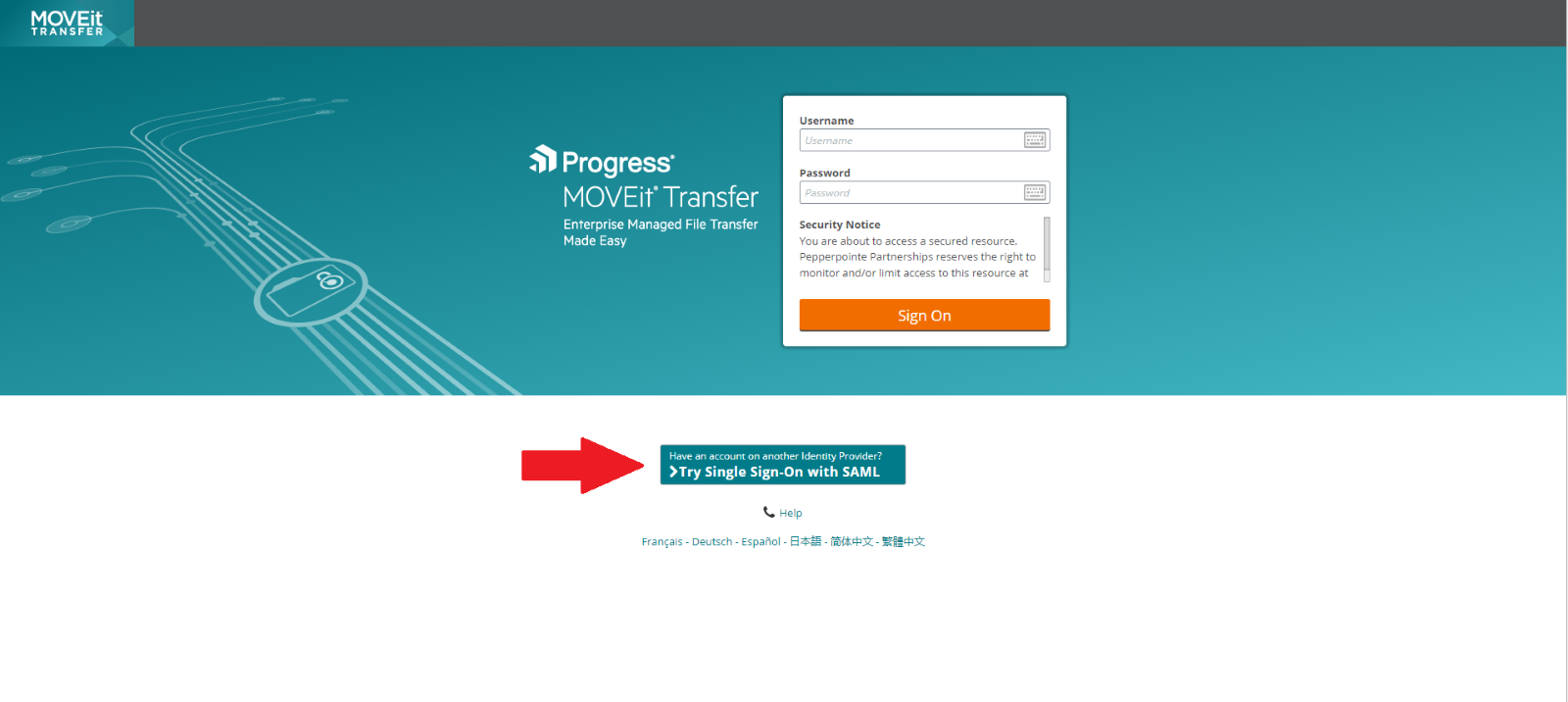
- Open your internet browser and go to https://pepperpointe.moveitcloud.com/
- COMING SOON: An alternate option is to click on Apps from your Microsoft 365 dashboard and search for MOVEit Transfer – Microsoft Entra Integration
- Enter your username and password. Eventually, you will be able to click Try Single Sign On with SAML below the username and password field. Single Sign On uses your Microsoft credentials to authenticate your identity.
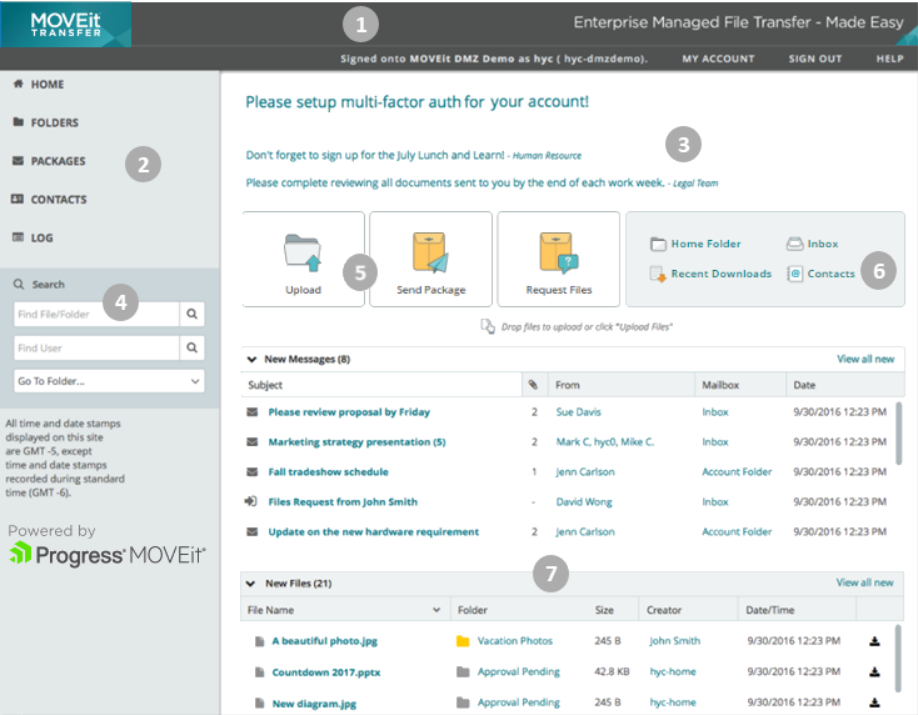
Web Portal Overview
|
Number |
Description |
|
1 |
Top Banner
|
|
2 |
Navigation Pane Areas to which you have access are listed. Click an item to go to the page.
|
|
3 |
Welcome message. Appears when a new user signs on for the first time. Announcement. PepperPointe may post an announcement for all users. Any group announcements also appear here. The time and the name of the sender or group appear below the announcement content. |
|
4 |
|
|
5 |
Upload Files. Launches the default uploader. Send Files. Opens the New Package page. Request Files. Send a secure message to enable users to upload/transfer files to MOVEit Transfer. |
|
6 |
Contacts. A list of users you can share packages with. For more information, see Work with Packages. |
|
7 |
New Messages/New Files. Lists secure messages or files you have received but not viewed. (You can Mark All Packages Not New to prevent them from appearing in the New Packages list.) |
Upload Files
To upload a file:
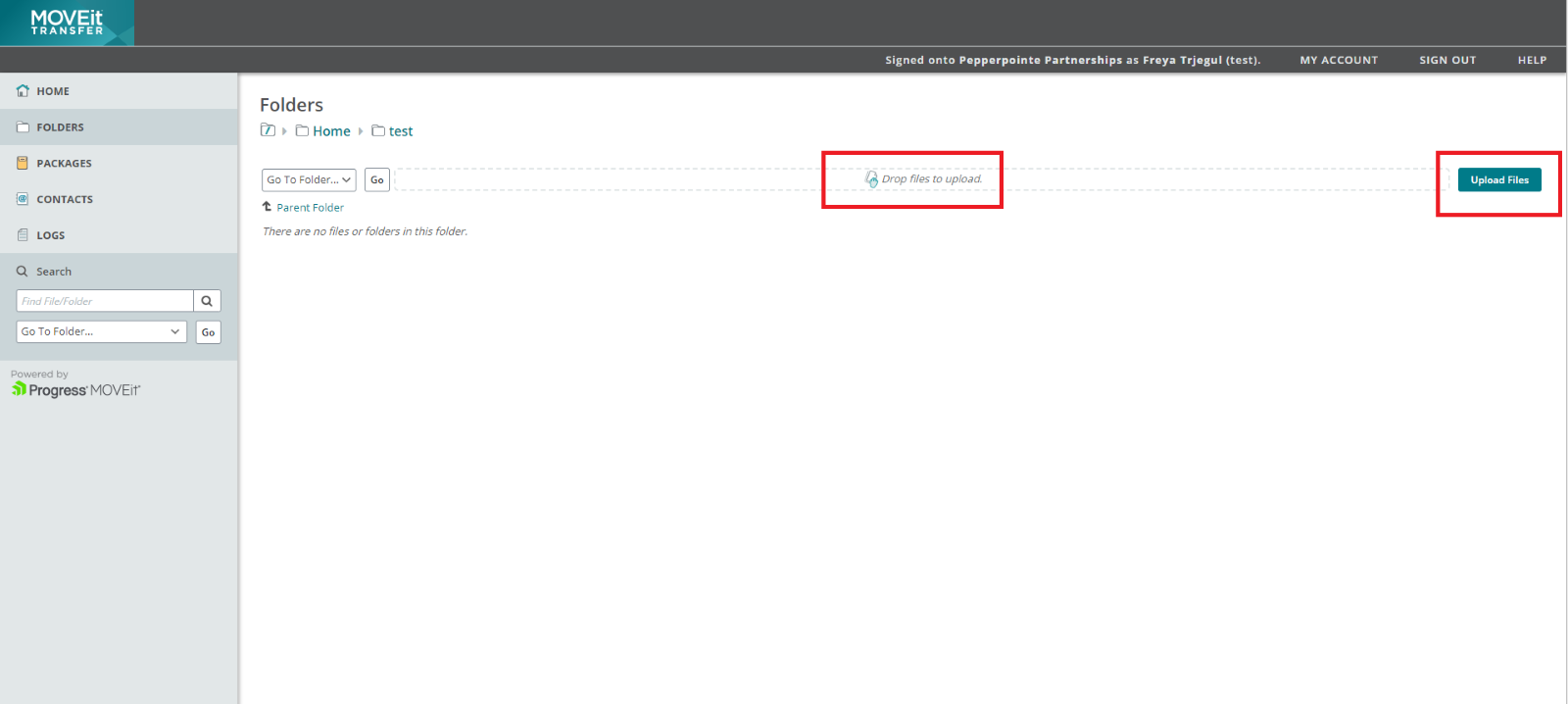
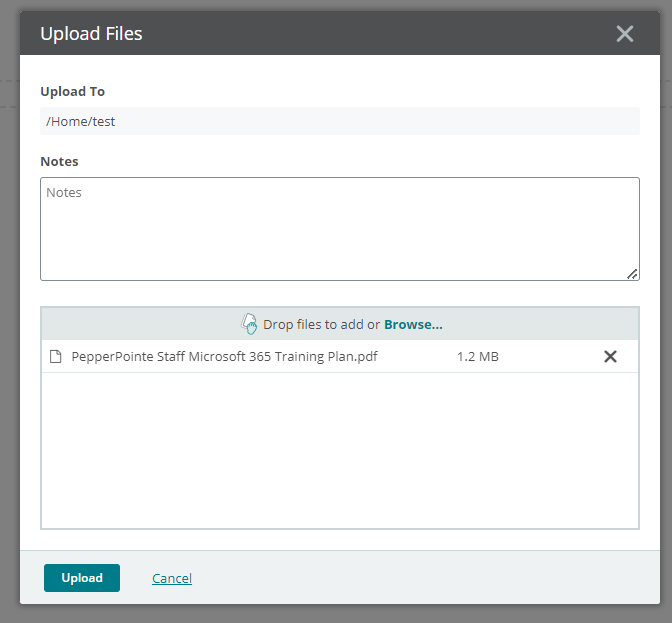
Go to either the Home page or the Folders page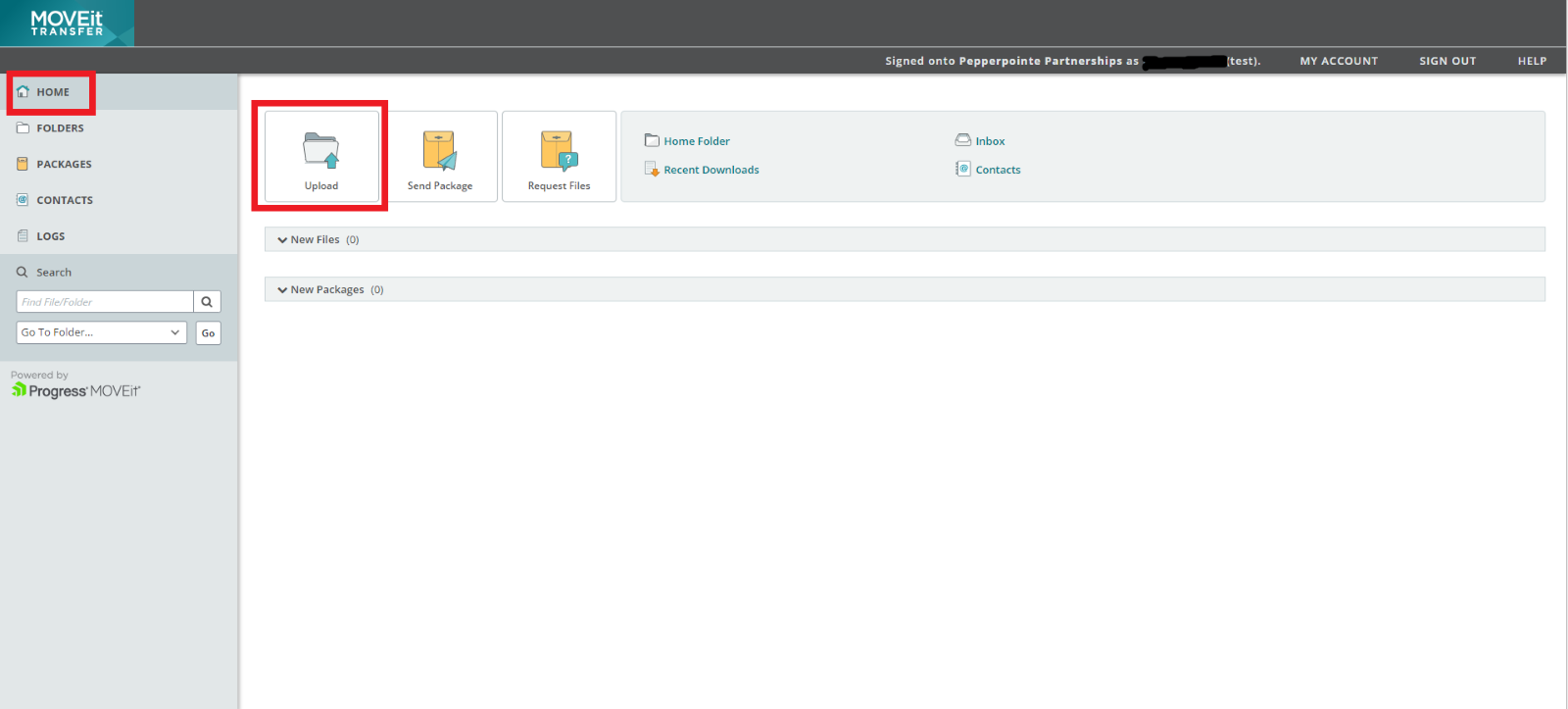
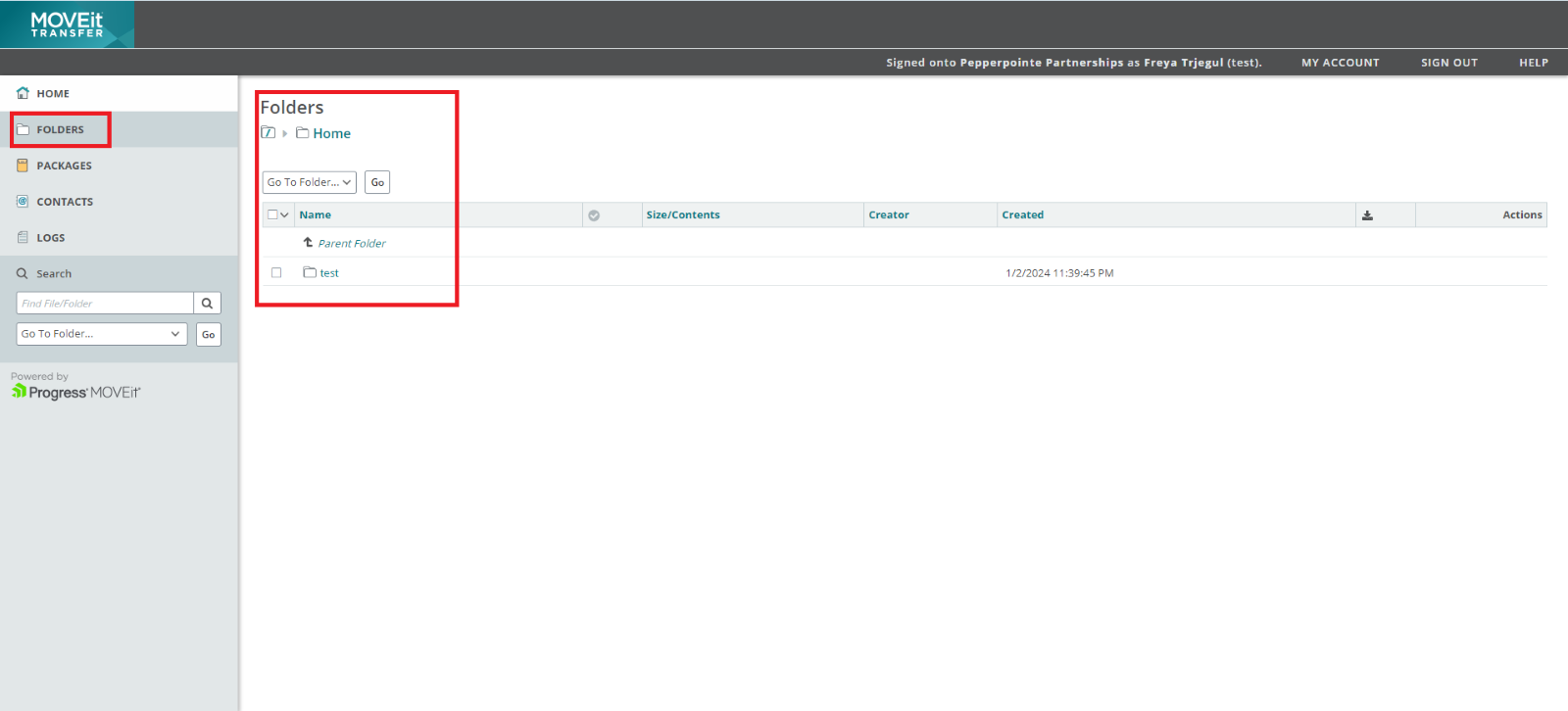
Select a folder. Choose the folders into which to upload the file.
Locate the Upload Files area and either drag and drop folders or files or click Browse to find the folders or files in your OneDrive, SharePoint, or computer.
Sharing a Folder or File
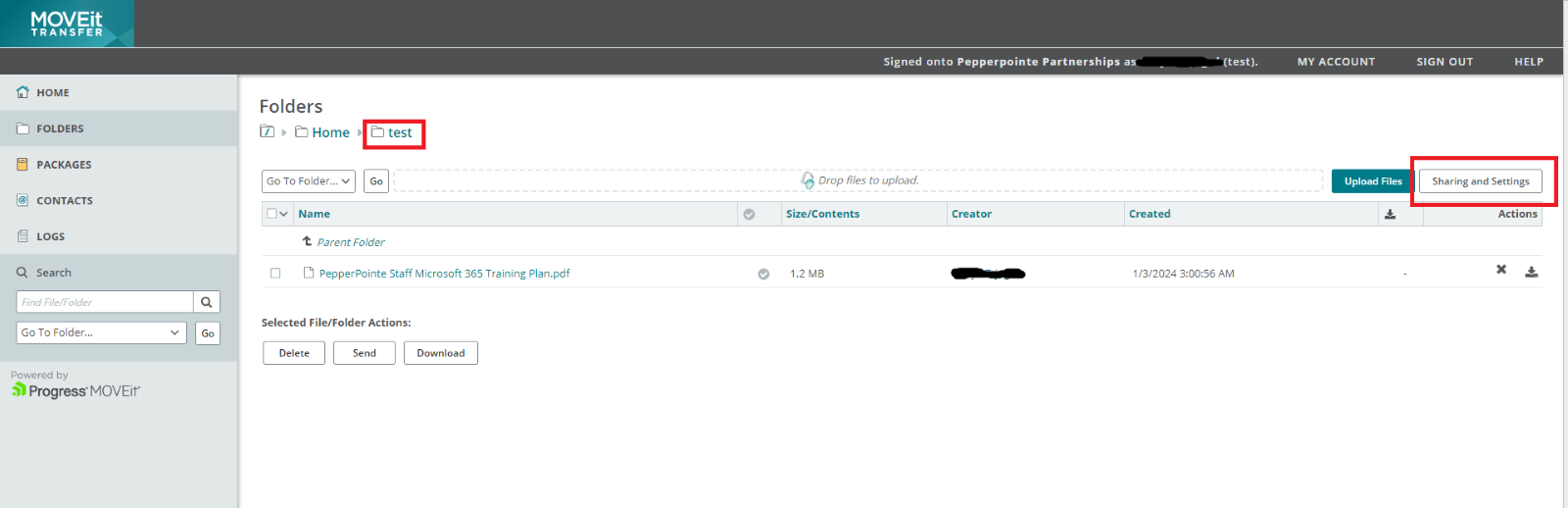
From the specific folder or file you want to share, select Sharing and Settings. Make sure to note the folder you are currently in (in the Test folder in the example below) or that you have selected the appropriate file(s) to share.
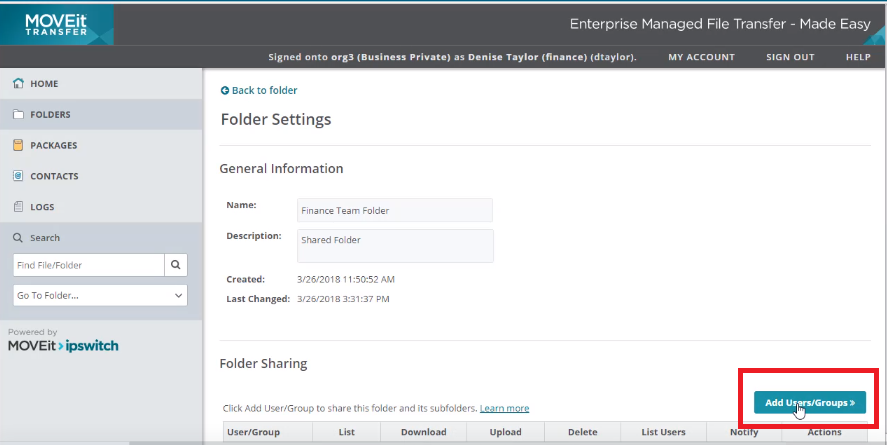
Towards the bottom, click Add Users or Groups
Enter the recipient email or choose from your contacts. Select the appropriate permissions you wish to assign the person.
- List- List all files added to this folder
- Download- Download files to their computer
- Upload- Upload files into folder
- Delete- Delete files added to the folder
- List Users- View other users with access
- Notify- Allow notifications of changes made in folder (uploads, downloads, deletion)
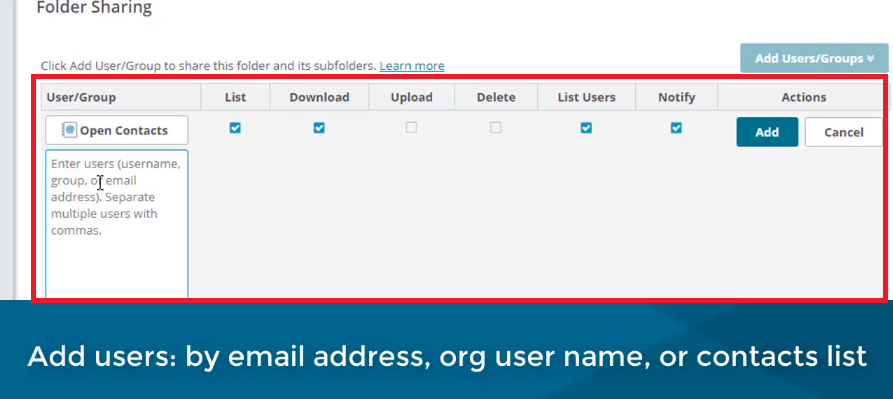
Click the Check Recipients button to verify contacts are valid and click Add

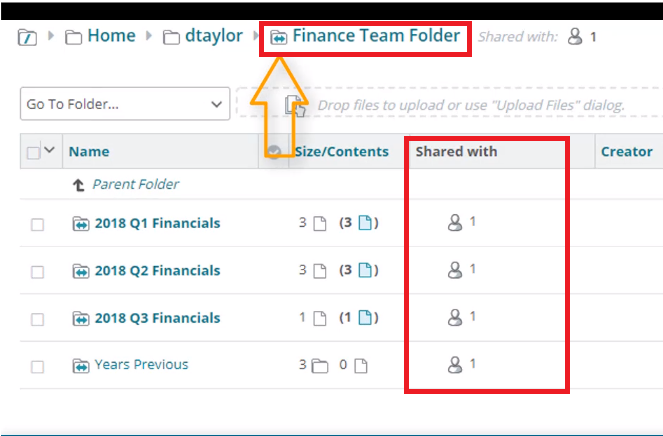
You can tell a folder is shared by viewing the folder icon and noting the bidirectional arrow indicating it is a shared folder. You can also see how many people the folder is shared with

Working with Files and Folders
Download a File
When downloading a file, you are downloading it to your computer. Any edits made will not reflect back in the original document. Edited files must be uploaded back into the folder within MOVEit.
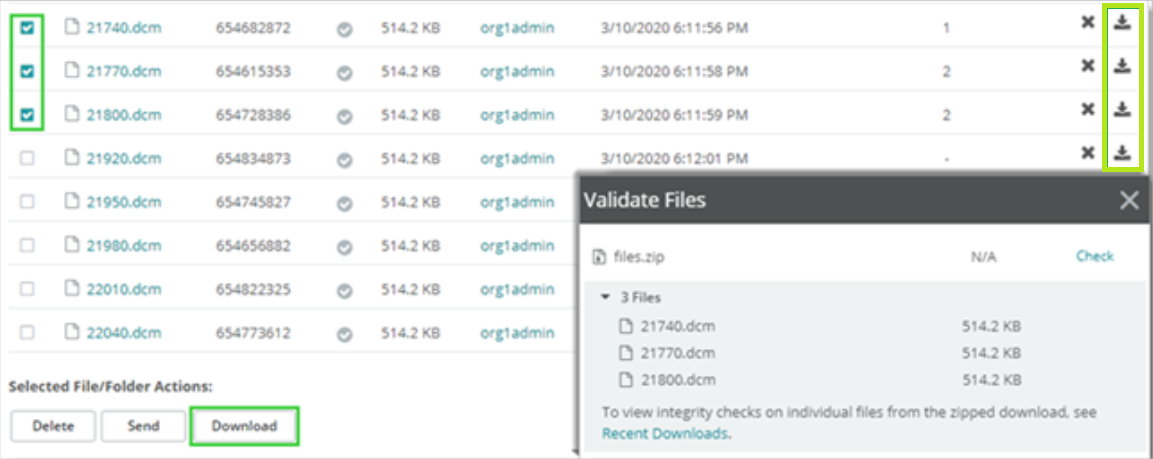
Select the file(s) you wish to download and click Download or the Download Icon 
Delete a File
In the left pane, click Folders.
Navigate to the location of the folders or files you want to delete.
Either click Delete  next to the folder or file or select the checkboxes next to the folder or file(s) and click the Delete button at the bottom of the screen.
Logging Out of the MOVEit Web Portal
Click on Sign Out at the top banner of your dashboard


