Mimecast- External Recipient Guide
This guide walks external recipients through how to access secure messages sent from Mimecast. When you receive a secure message, all message content must be viewed and managed within the Mimecast Secure Portal. You will receive an email notification in your regular email inbox any time you have a new secure message waiting to be viewed.
You will receive an email from your expected sender with the subject: You’ve been sent a secure message
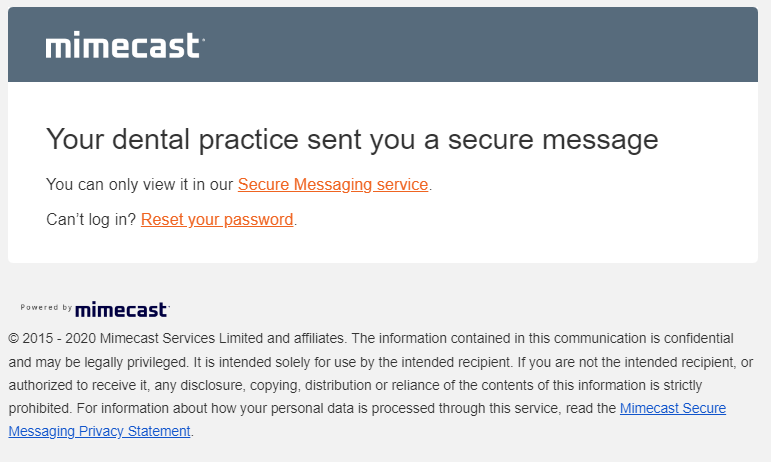
**If you do not receive the email in their inbox, it is best practice to check your Spam or Junk folders.
When you receive your first secure message, the message will look similar to the one below:
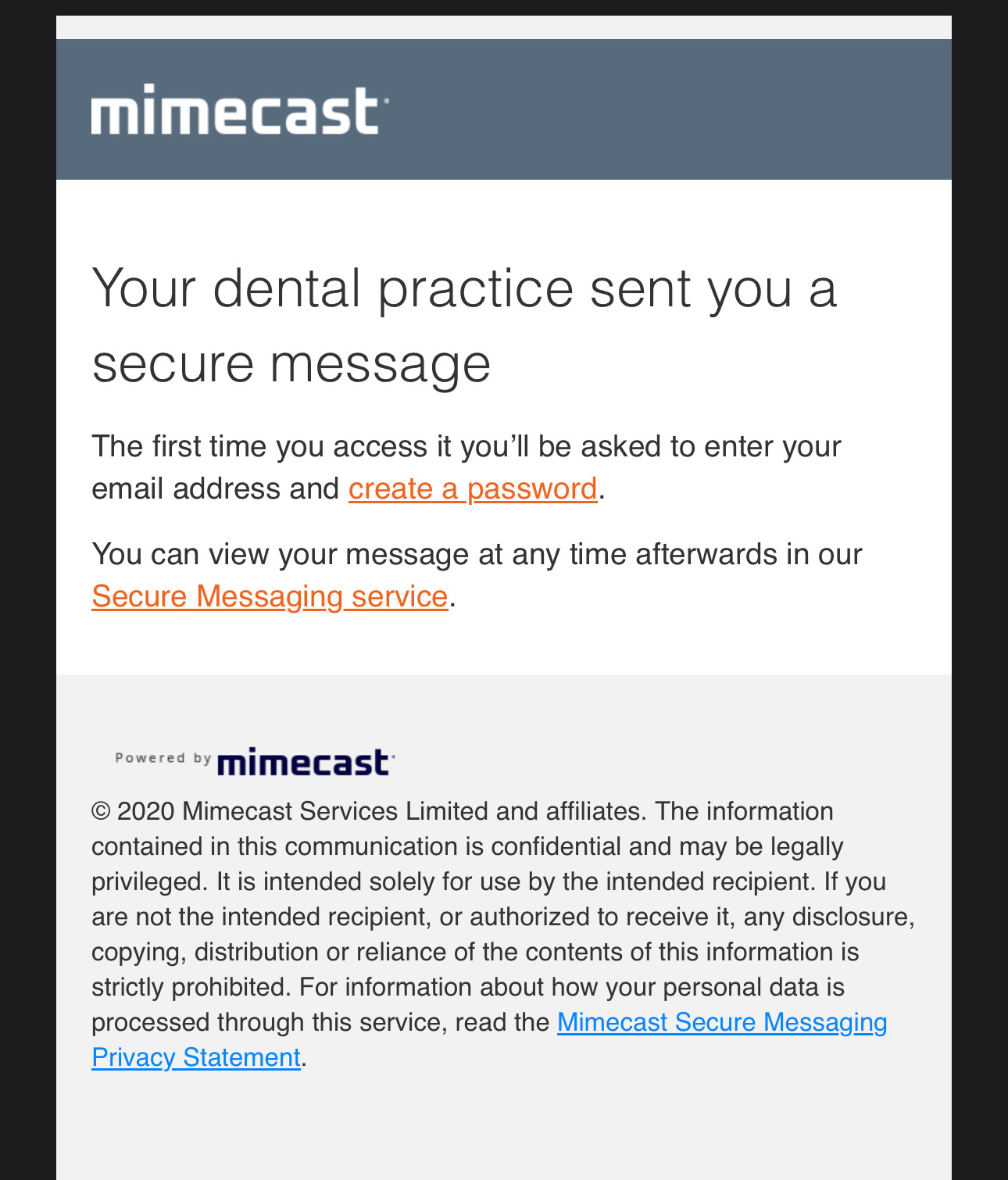
The recipients will need to create a password of their choice at this time to be able to access the secure email.
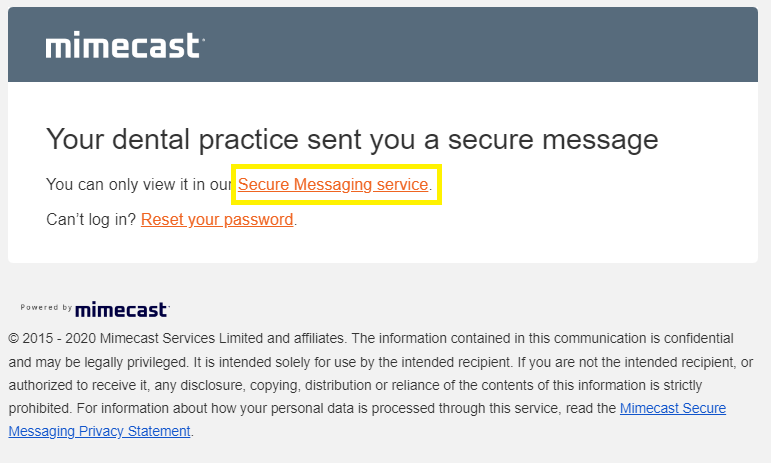
After creating an account, messages will be received like the one below and you will need to click on Secure Messaging Service from the email received and will be redirected to login to Mimecast to view the secure email. Use your email and a password of your choice. If the password is forgotten, you can reset your passwords at any time.
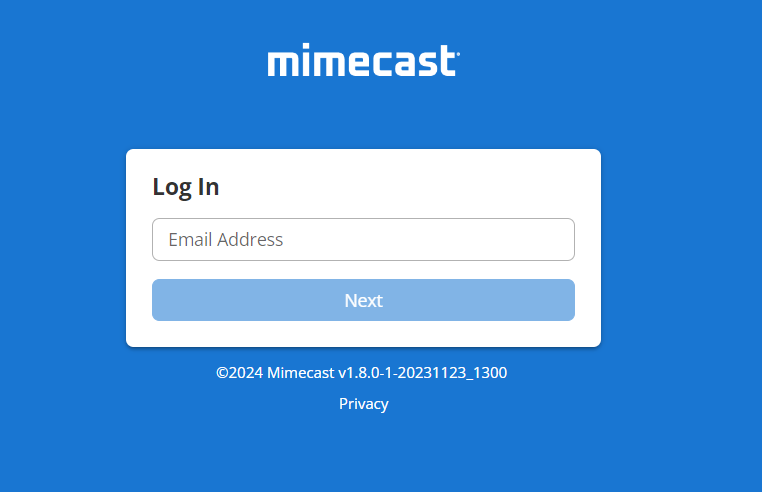
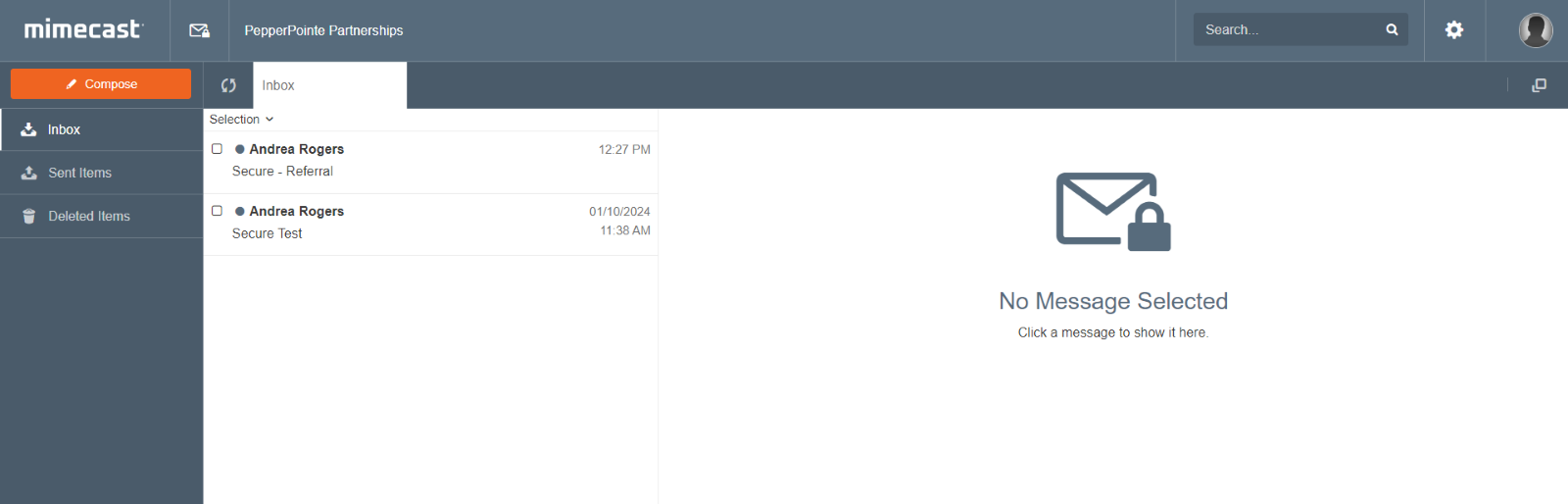
Once logged in, you will see your Mimecast Inbox, Sent Items, and Deleted Items folders
Select the message from the inbox to view the contents
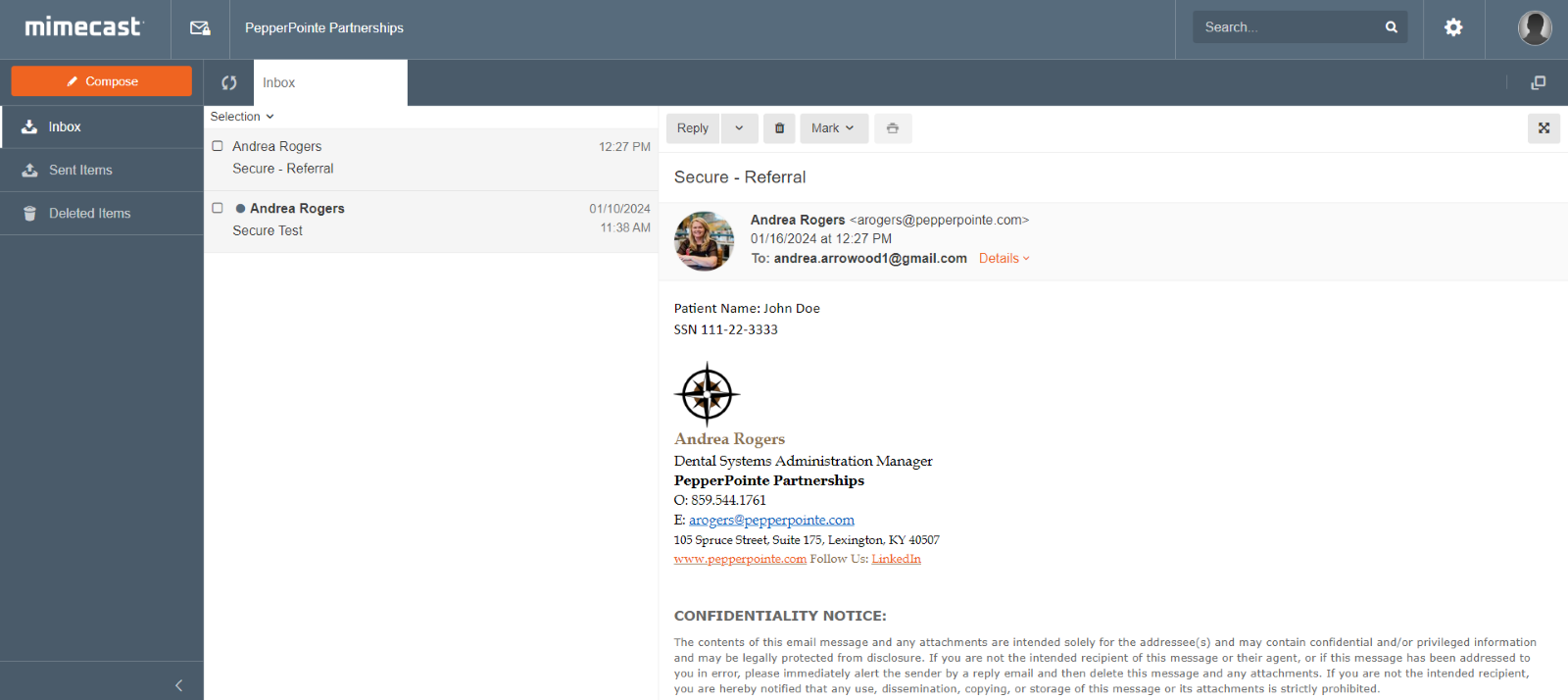
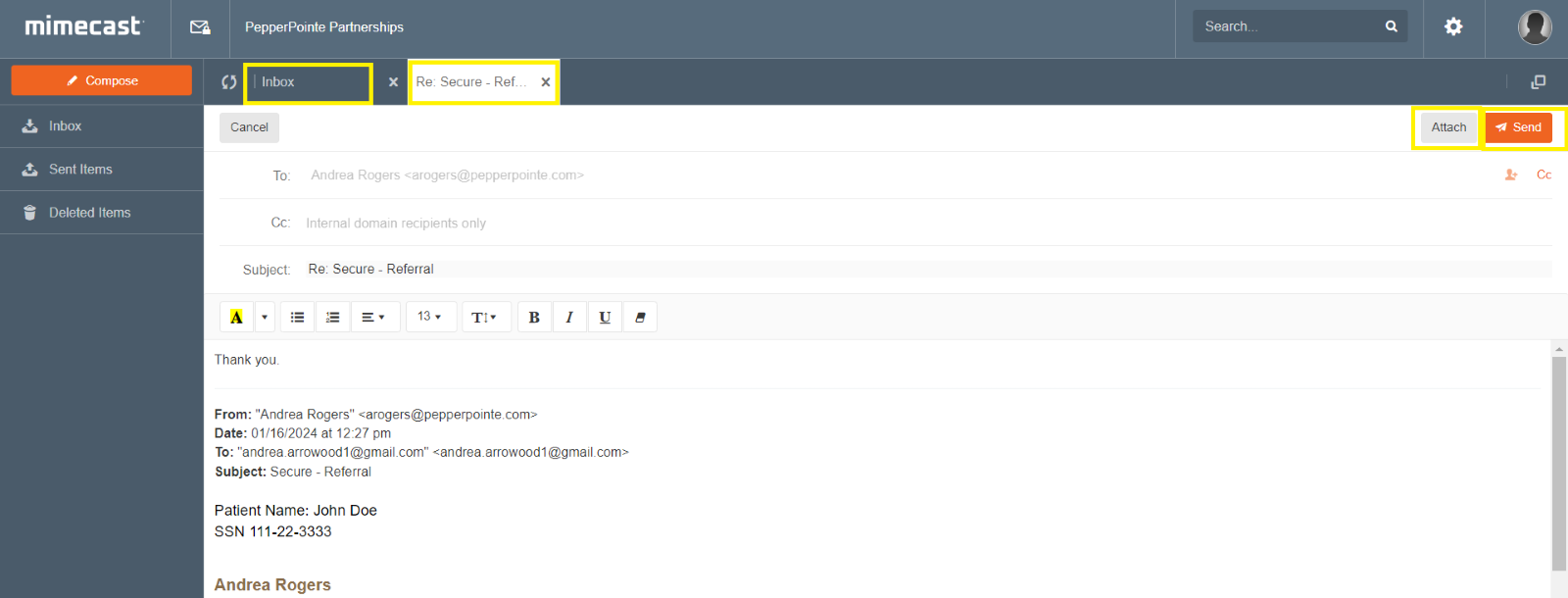
Select Reply to reply to the email. This will open your draft in a new tab. You can select Inbox to go back to your inbox view while retaining the draft of the email response you started.
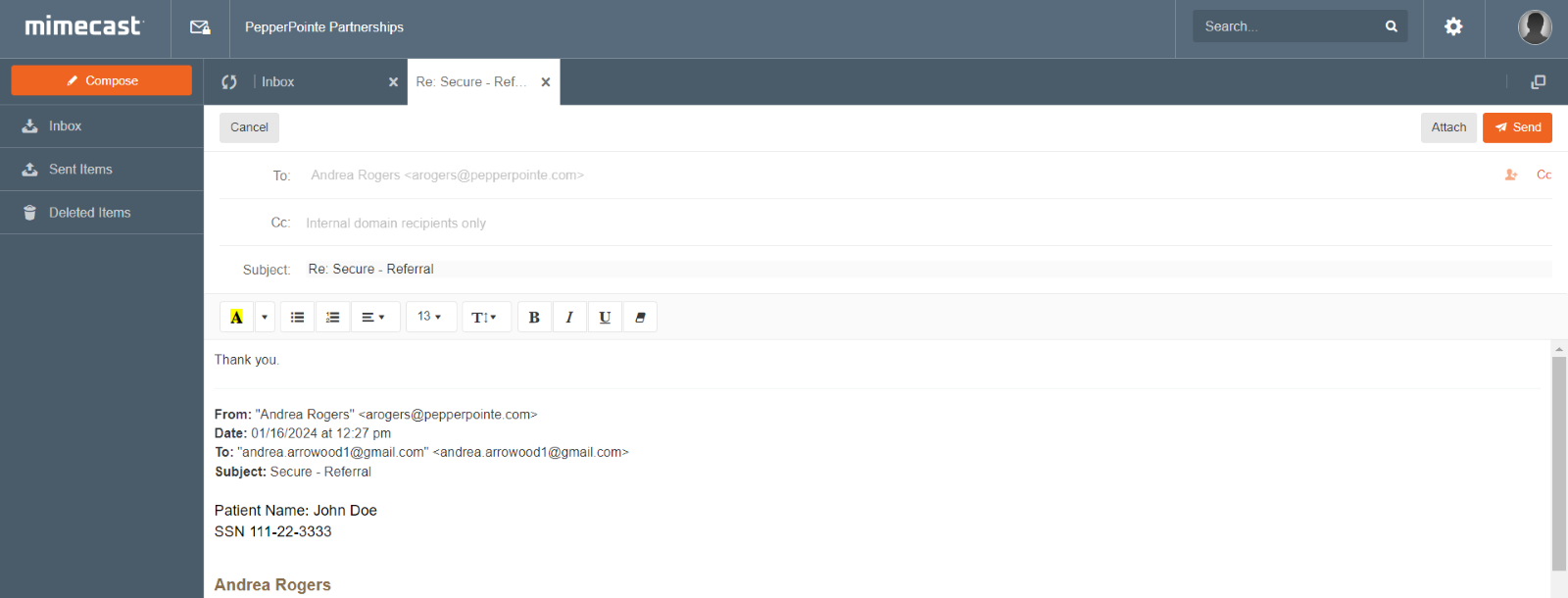
Select Attach to attach a file. Select Send when you are ready to send the email.
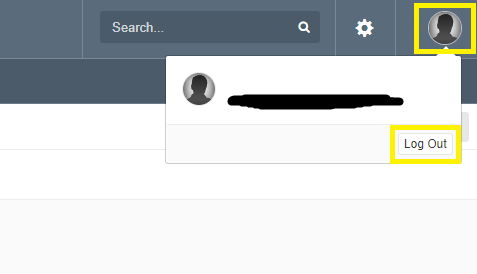
To log out, click the Person Icon in the upper right corner and click Log Out