Mimecast – Reporting Spam and Phishing Emails
While Mimecast works to block unwanted or suspicious emails, there may be situations where the message does not trigger content warnings and therefore finds itself in your Outlook inbox.
If you receive an unwanted or suspicious email, you must take the following actions to mark the message using Mimecast to prevent future occurrences.
- Mark the email as spam or phishing from Outlook using Mimecast plug-in
- Mark the email as spam or phishing from Mimecast Personal Portal
Report Spam and Phishing Using Mimecast for Outlook
With the email open in Outlook, select the Apps icon in the upper right corner of the email (if using Outlook for web) or clicking Mimecast from your Outlook ribbon (if using Outlook desktop)
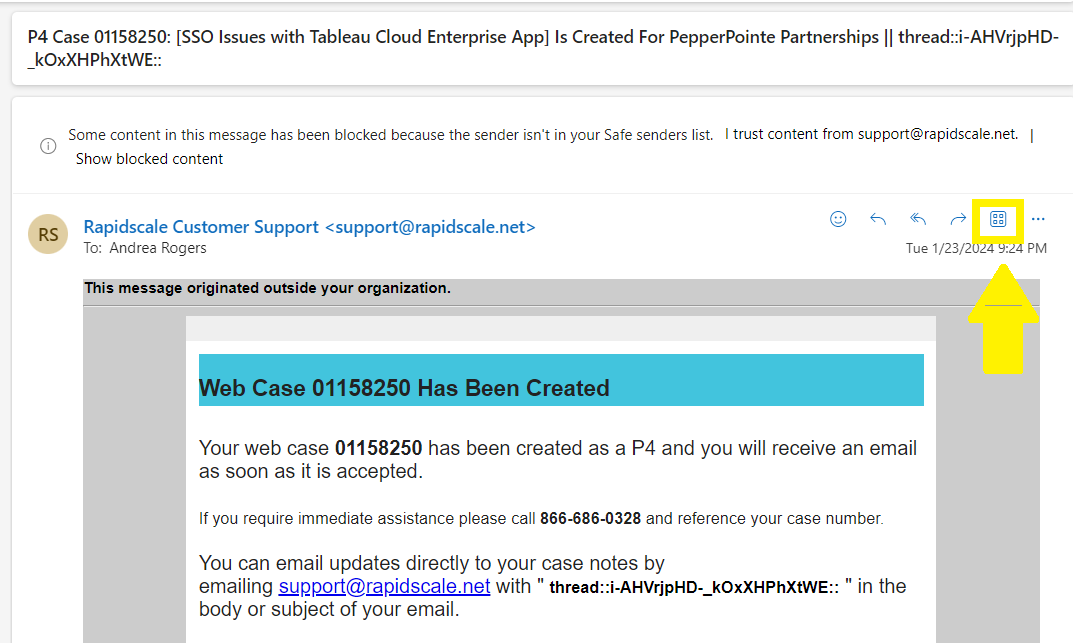
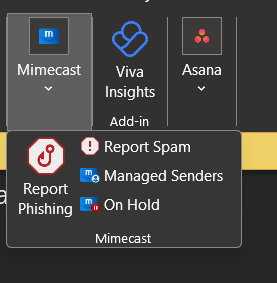
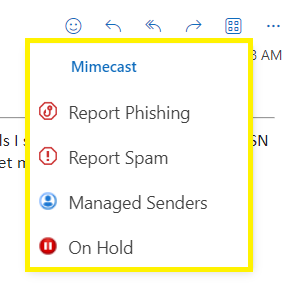
Click Mimecast Essentials for Outlook

Select the appropriate action
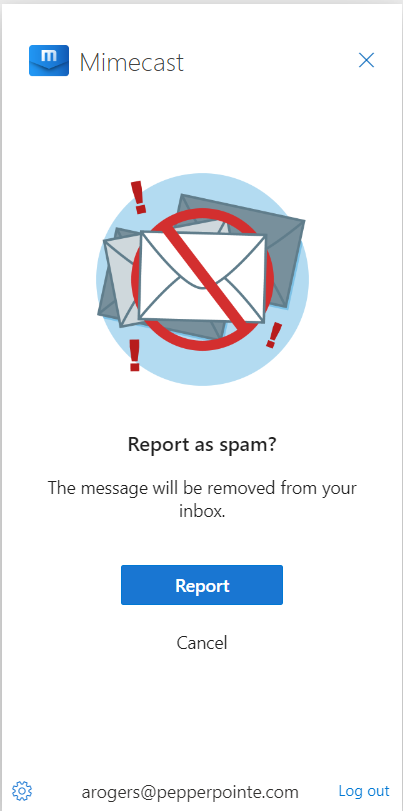
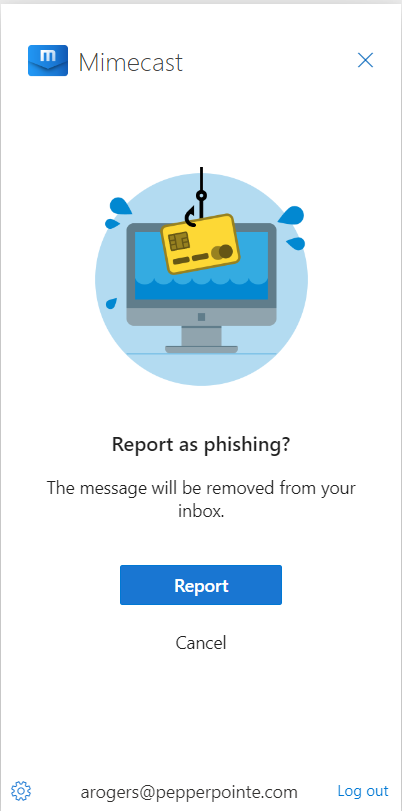
If you select Report Phishing or Report Spam you will see the following screen. Click Report:
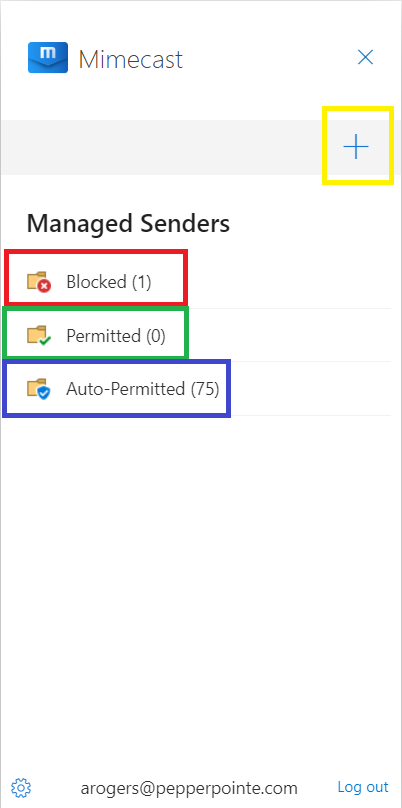
You can use the Managed Senders option to block or permit senders. With the email open in your inbox, click your Mimecast app add-in from Outlook and choose Managed Senders. Click the + to add the sender of the email currently open in Outlook to your permitted or blocked senders.
Report Spam and Phishing Using Mimecast Personal Portal
Login to your Mimecast Personal Portal at https://login.mimecast.com.
From your inbox, select the message and click the Report icon then select Report Phishing or Report Spam.
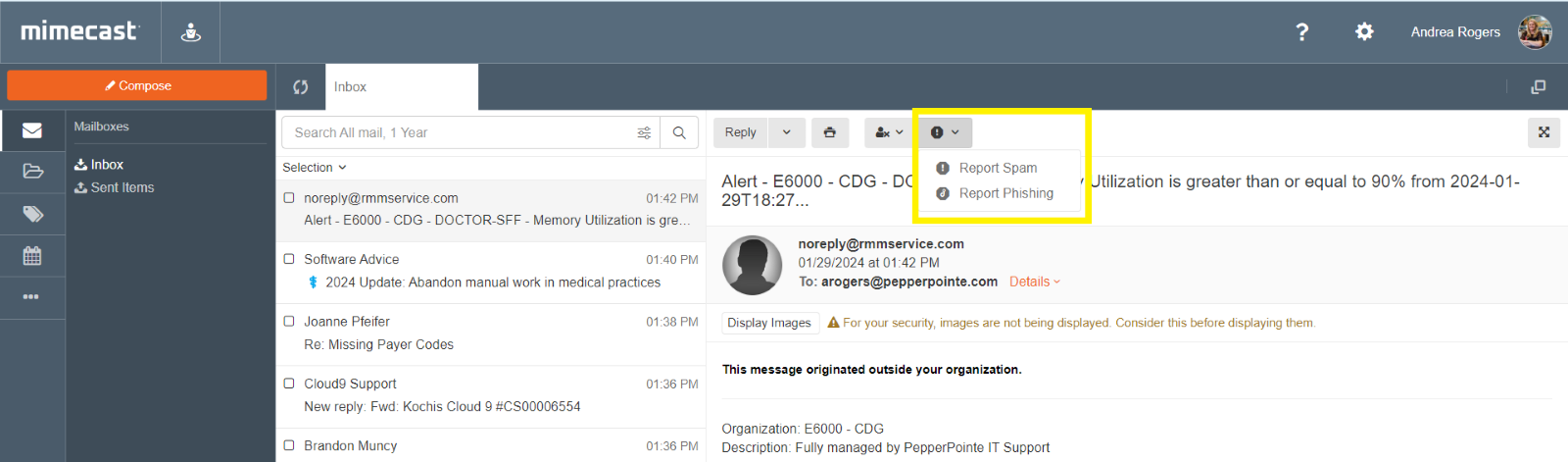
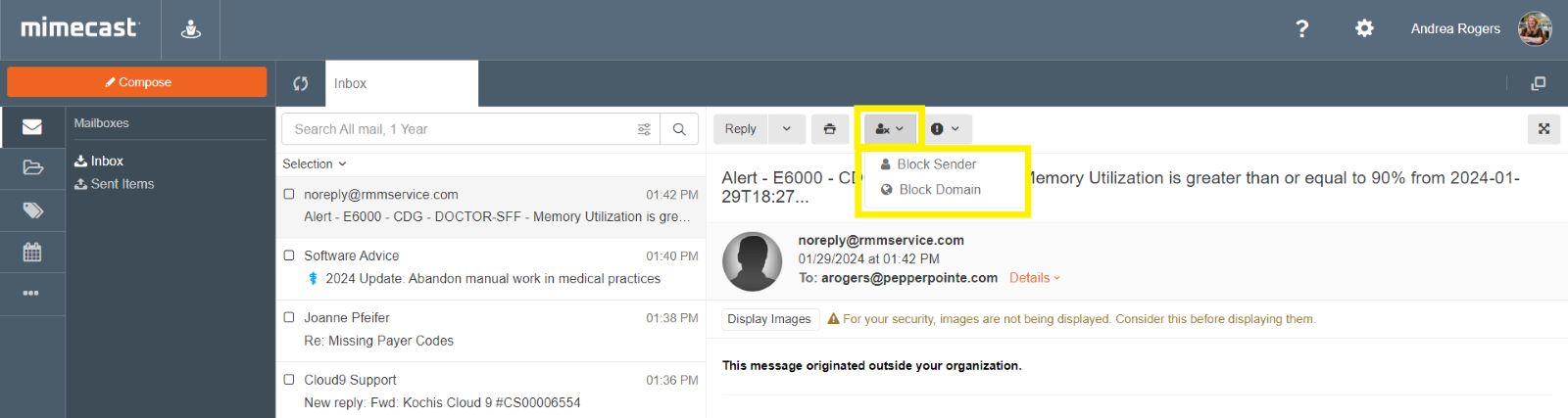
You can also choose to block the sender or domain. Click the Person icon from with the email open and select Block Sender or Block Domain to block anyone with an email ending with that email domain.