


Microsoft - Adding Calendars in Outlook

Feb 28, 2024
Add Calendars
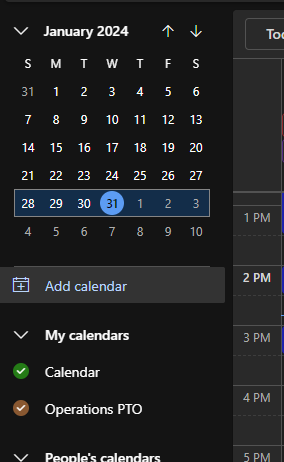
In Outlook on the web, go to Calendar  and select Add calendar.
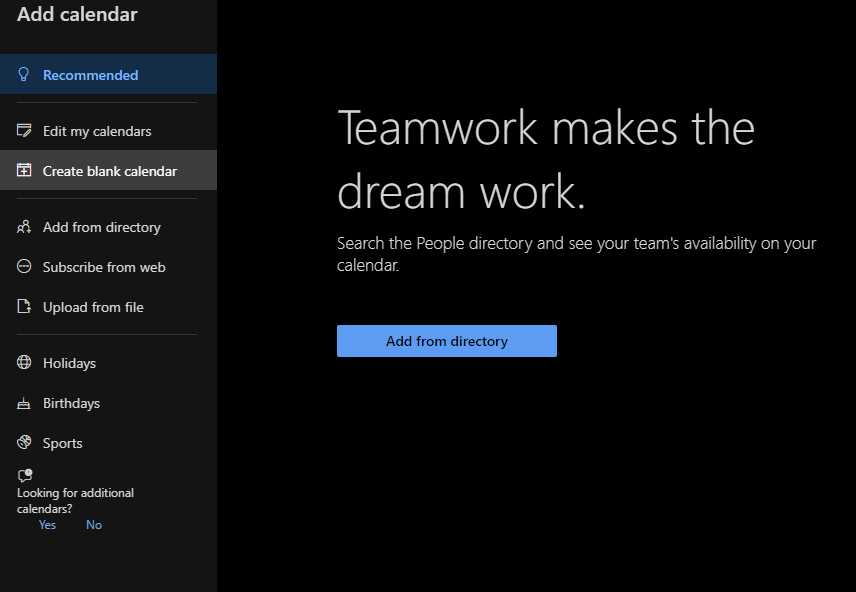
Select Add from directory on the left-hand side of the menu,
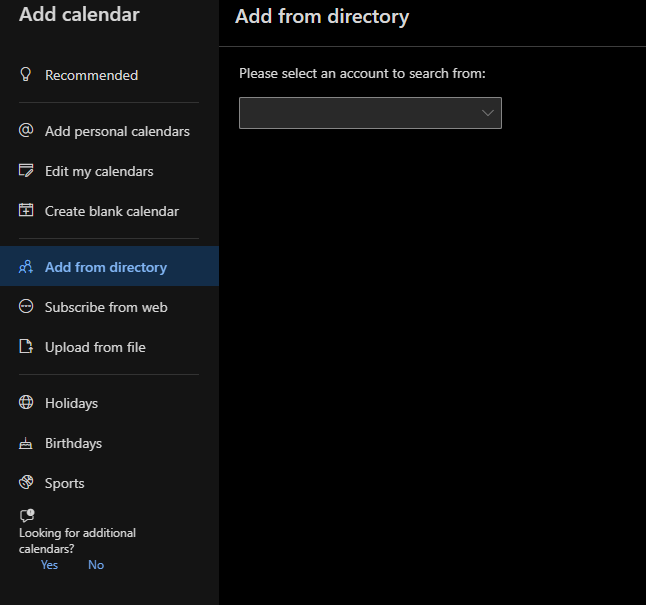
This will appear in the center of your screen if you use the desktop application.
Then from the drop-down menu, select your email address
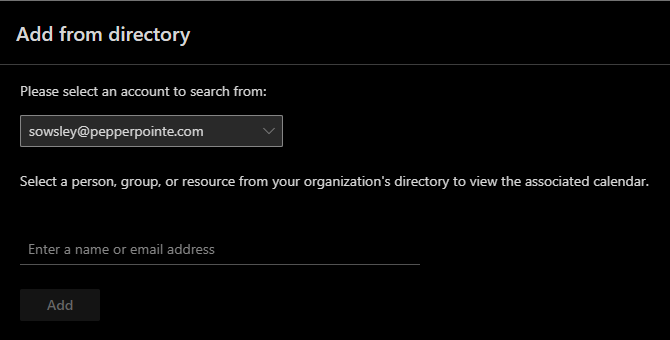
Then search for the calendar you want to add.
Select the section you want to add the calendar to.
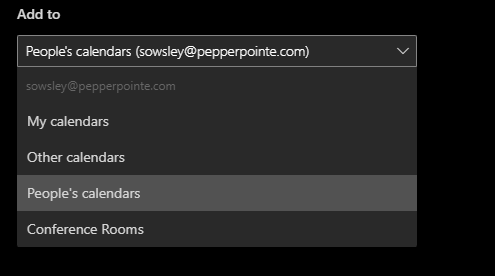
You'll see a message that tells you your account is being imported and connected. After the import is complete, you'll see that calendar in the list that you assigned it to.
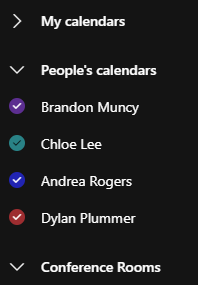
After you've added a calendar, you can go to your calendar list and change the color or add a charm by using the More  menu next to the calendar.

