



When Sharing a file, be sure you're setting the permissions correctly. The following steps detail how to send a link with Edit rights.
By Default, all files are set to be shared with people who already have access. If you go to share are file and someone does not have access, your screen will look something like this:
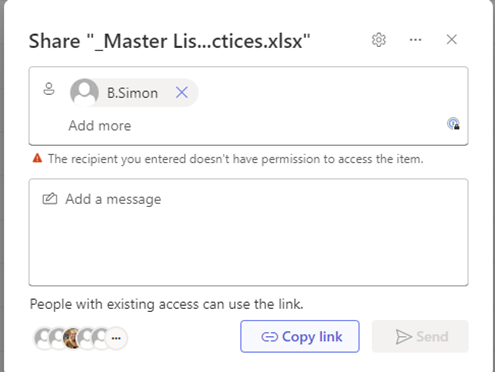
To fix this, one needs to click on the Sharing Settings/Gear at the top of the screen.
From this menu, one will a see all of the various options when it comes to sharing a file.
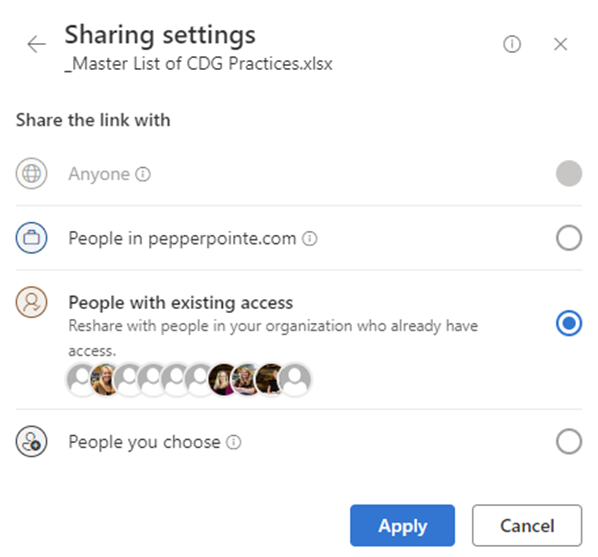
For security and HIPAA compliance reasons, the option to share with Anyone is turned off.
If one selects to share to People in pepperpointe.com this will share a file with everyone from not only PepperPointe but all practices and partners within the organization. Be very cautious when selecting this option.
By default, People with existing access is selected and results in the error message pictured above.
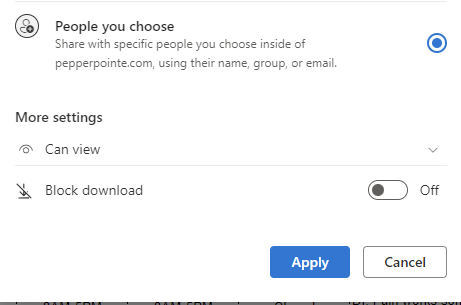
To share a file out to users not on the previous option and to clear the error message, select People you choose.
By selecting People you choose one can see a More settings section. From this section one can change the file share permissions from Can View to Can Edit or visa versa.

For Word Documents, a third option of Can Review is available.
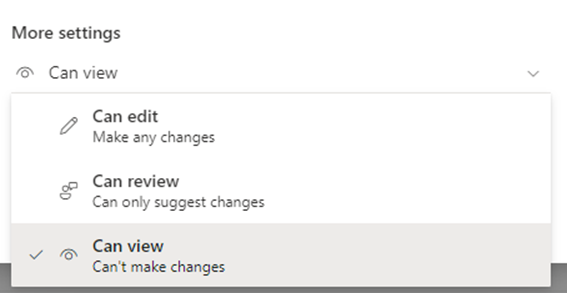
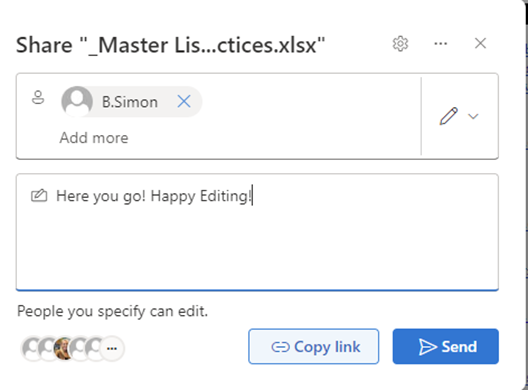
Select the permission that best fits your scenario, click apply, enter your people and notice that the error message is gone, type out a message if necessary, and click send.
But, what happens if you realize you need to revoke access to a file?
Revoking or changing permissions to a file that you are a owner of can be done through the Manage Access settings. This also applies if you are an owner of a SharePoint site as well.
To access the Manage Access settings of a file, one can click on the ellipses  found to the right of a file’s name. Clicking this will display a whole host of options. Find Manage Access and review the access that has been given to a file.
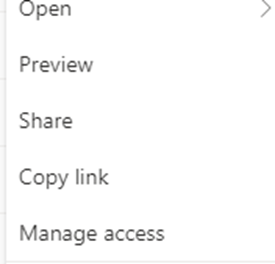
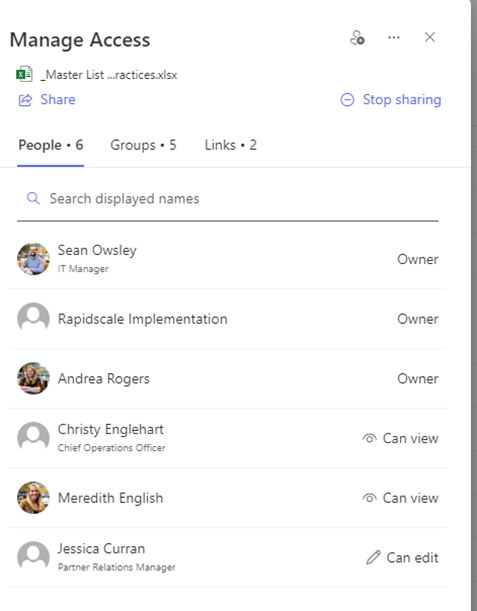
From the Manage Access settings, one will find the People, Groups, and Links that have been given access for a particular file.
Under People, if one is the owner of the file or the SharePoint where the file resides, one can click on a person’s name to change the particular permissions given.
From within the access settings for a particular person, one is able to see how a person has access to a file.
Again, only Owners can change these settings. They alone have the ability to change how a person can access a file with a link or Direct Access can be given to a file so that a person can view or edit.
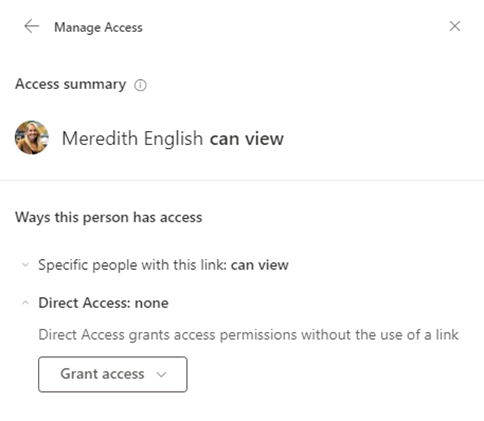
From within the access settings for a particular person, one is able to see how a person has access to a file.
Again, only Owners can change these settings. They alone have the ability to change how a person can access a file with a link or Direct Access can be given to a file so that a person can view or edit.
From the Groups section, one can see how the permissions for a file are granted based off group membership. Outside of the default SharePoint groups, additional groups can be granted access and those permissions can be edited here by document or SharePoint site owners.
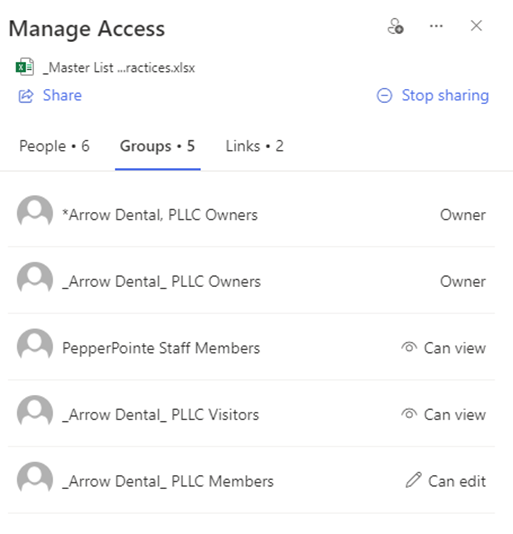 .
.
Finally, from the Links section, one can see what links for specific files have been shared out and what permission was given with the share. From this section, the permissions for a link can be modified by clicking on the area that says People you specify can _____.
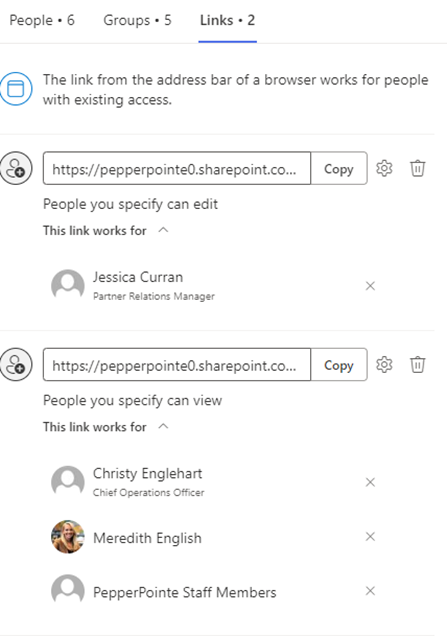
In this section, more people can be added to a share link and the permissions can be changed from Can Edit to Can View or visa versa.
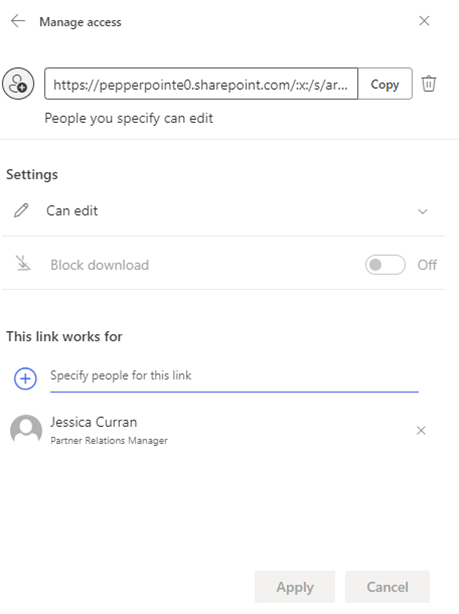
As a note, Manage Access can also be accessed from within a document as well by clicking on the share button.
The Manage Access settings also allows for you to Grant Access to a file, which works in the same way as sharing, but gives the Direct Access permission to a file.
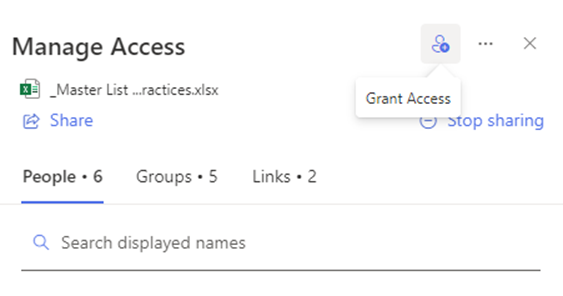
To Grant Access, click on the person icon with the plus symbol beside it found towards the top of the settings window.
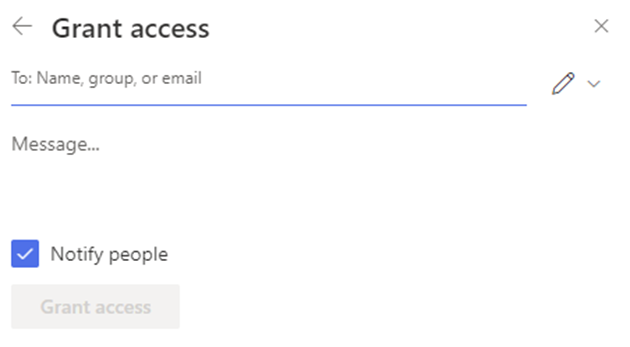
Once selected, the Grant Access window will open and one will be then be able to grant access to an individual or an entire group simply by searching for the name.
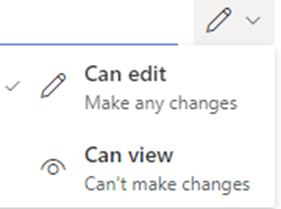
As with the share window, from within the grant access window one can specify if the access being granted is edit or view. This is determined by the icon found to the right of the To: field.
As always, if you have any questions, please reach out to [email protected] or call 859-810-8050.


